DHV Series - How-To Guide
The unit remembers the last thing it was told to open, and the factory value points at navigation.
If the screen jumps into Navi every time you turn the key, one switch in Settings, General is doing it. Tap it once and the unit goes back to sitting quietly on the home page.
0:29 - Auto-start Navigation switched off on one unit, then the app-level list in System on a second unit. Open the clip on YouTube if the embed is blocked.
Note: As our products are continuously upgraded, the interface on your unit may look slightly different. Please select the corresponding function according to your own model.
Quick answer
Open Settings, tap General in the left column, and tap Auto-start Navigation once. The value goes from ON to OFF and the next start-up leaves the unit on the home page. For individual apps, open System, then Self starting upon startup, and switch off the ones you never use.
Nothing is broken. The firmware on a DHV unit reads a stored value at every boot, and if that value says the driver wants navigation, the unit launches the navigation app as soon as Android finishes loading. The value lives in the user settings, not in the factory menu, which is why owners look for it in the wrong place and give up.
On the units in this guide that value ships at ON. Turn the key, wait for the splash to clear, and the map is already on screen with a route request waiting for a destination. For a driver who always wants the map that is convenient. For everyone else it is the one thing they want to switch off, and it is the first complaint that lands in a support inbox after a unit is fitted.
Here is the part worth understanding before you start tapping. The switch is a preference, not a fault flag. It does not lock the navigation app, it does not stop you opening it from the dock, and it does not change anything about the map data, the GPS antenna or the route history. Turning it off only removes the automatic launch at boot.
It is also separate from the ignition behaviour. A unit that stays awake after the key is removed is a different setting, and a unit that opens the camera when reverse is engaged is a third. Both are covered elsewhere; neither is touched by the row below.
Tap the gear icon on the home screen. The settings window opens on the Wlan page with six items in the left column: Wlan, Device, General, Factory, User and System. Tap General, the third one. The right side fills with the boot and display options, and the second row down is the one you want.
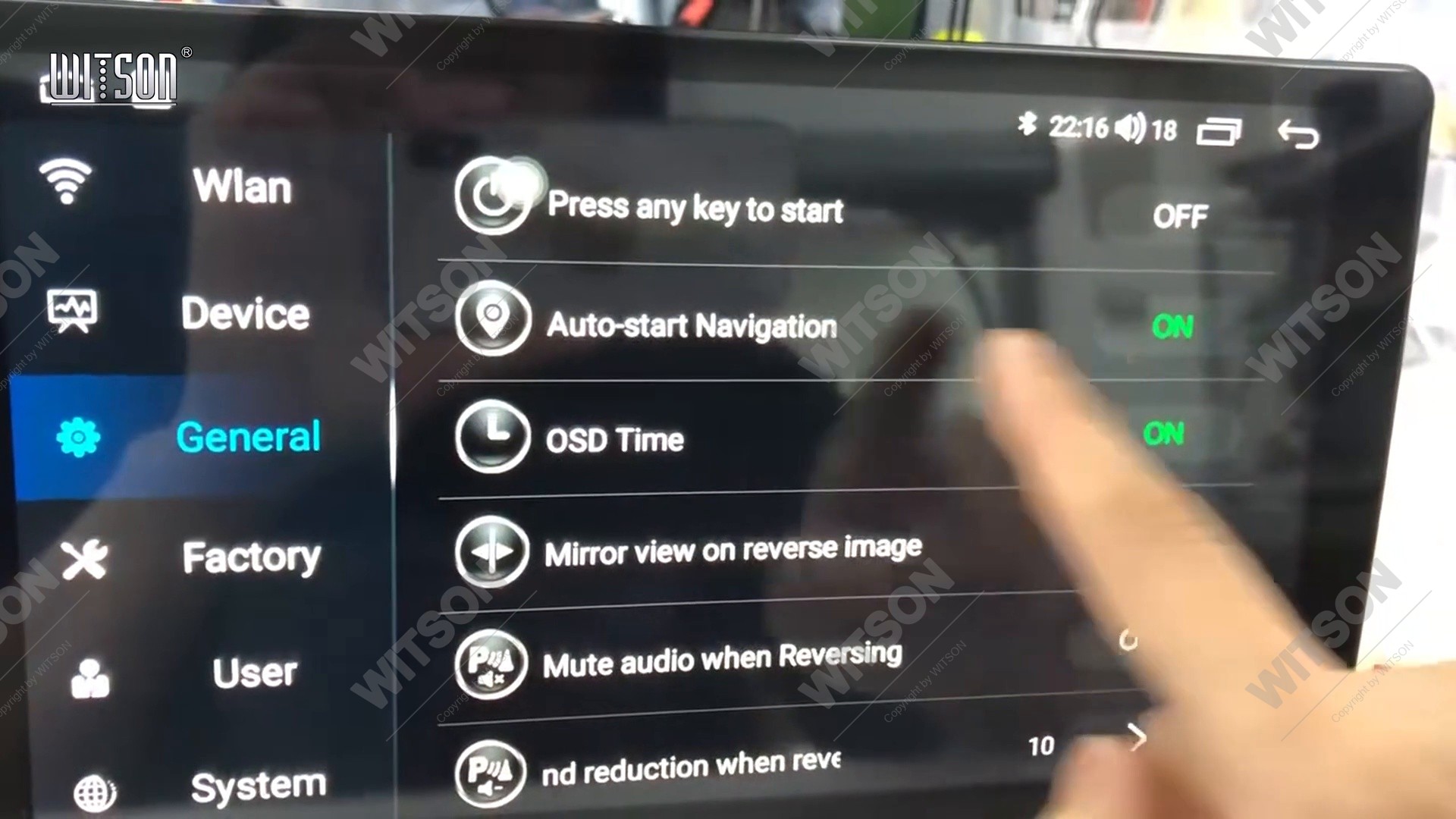
Tap Auto-start Navigation once. The green ON turns to a grey OFF, there is no dialog and no save button, and the change is written immediately. Get out of settings and the next start-up will land on the home page instead of the map.
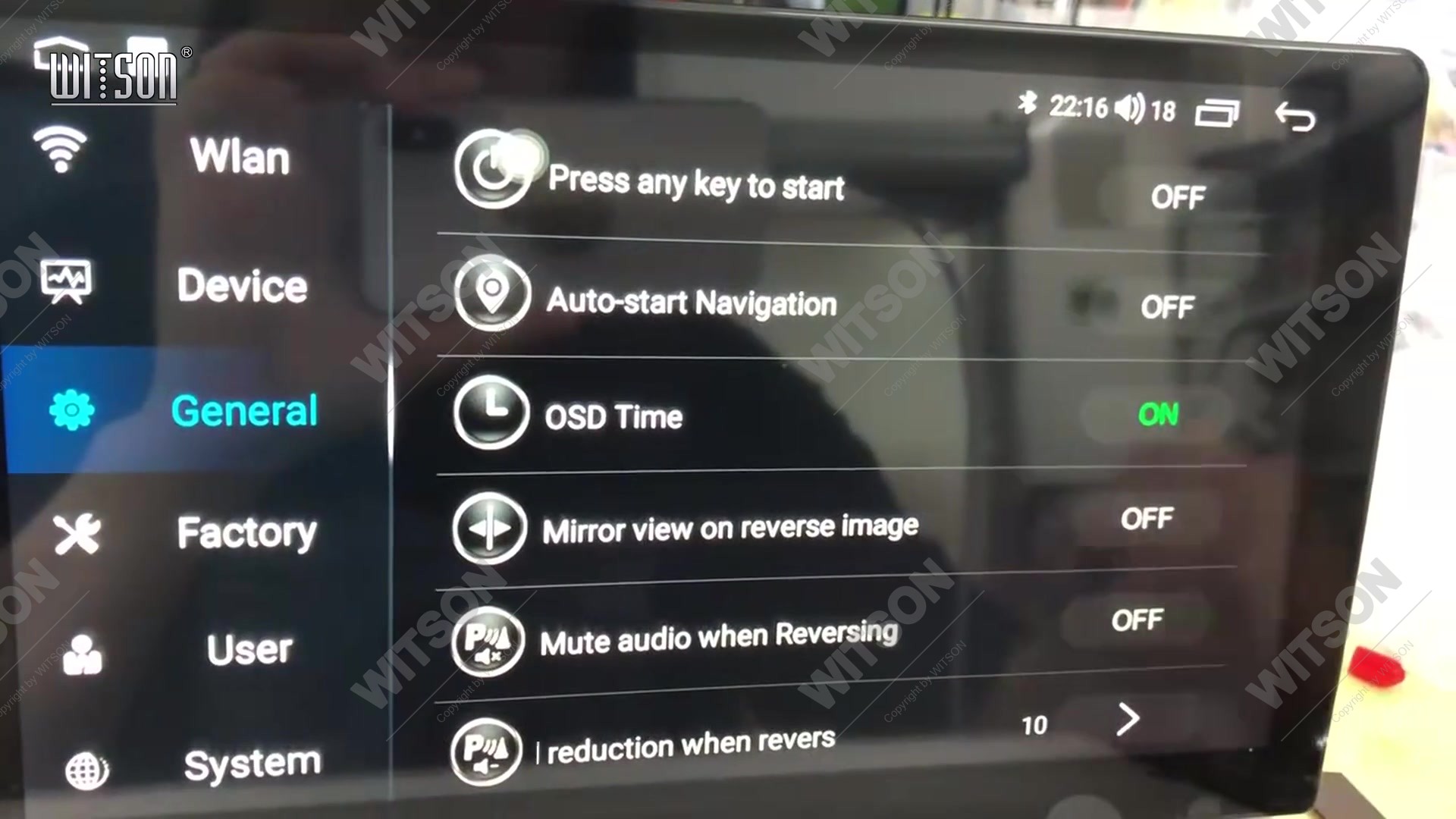
Two things trip people up here. The first is tapping twice, out of habit, which puts the value straight back to ON; read the word before you leave the page. The second is assuming the unit needs a restart to apply it. It does not, and a restart will not undo it either, because the value is already stored.
The General page carries six rows, and only the second one deals with the automatic launch. The rest are worth knowing so you do not change the wrong thing while you are in there.
Press any key to start wakes the unit from standby on a button press instead of a tap on the screen, which matters on a bench or in a car where the panel is out of reach. OSD Time puts the clock on screen over whatever is running. Mirror view on reverse image flips the reversing picture, and if that is your complaint the reverse camera mirror and format guide walks through it.
Mute audio when Reversing drops the volume while reverse is engaged, and Volume reduction when reversing sets how far it drops, in steps from 0 to 10. Neither of them has anything to do with the boot sequence. If you came here to stop the map opening, leave all five alone.
What about the factory menu? It is tempting to look there because the factory list holds so many of the deep settings, but this is not one of them. Auto-start Navigation sits in the user pages by design, so an owner can change it without the service code.
Switching off the navigation launch handles the loudest symptom, but the unit can still bring up smaller things behind your back: a guide screen, a voice helper, a media player resuming mid-track. Those are controlled one level deeper, on a page that lists every installed app with its own switch.
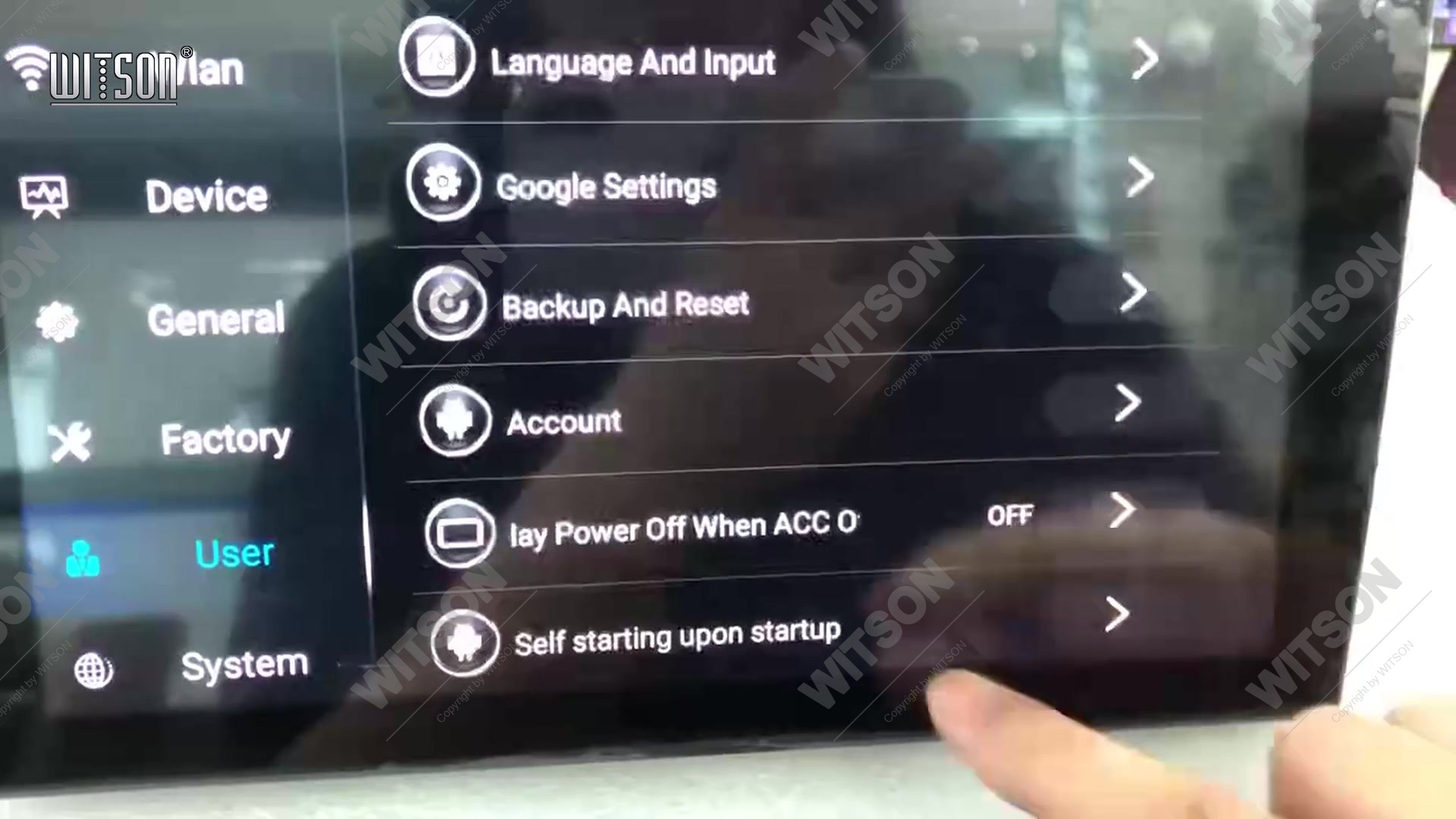
Open Settings again and tap System, the last item in the left column. The right side lists Language And Input, Google Settings, Backup And Reset, Account, Key Power Off When ACC Off and, at the bottom, Self starting upon startup. Tap that last row.
The panel that opens is a grid of every app on the unit, each with a green ON or a grey OFF on its right. On the units in this clip the list runs Operation guide, Touch-Assistant, Google, Bluetooth, Car Link 2.0, Gallery, Navi and Settings down the left, with iGO, Voice Search, AUX, Vehicle settings, FileManager, Music, Radio and Video on the right. Tap an app to move its switch, one at a time.
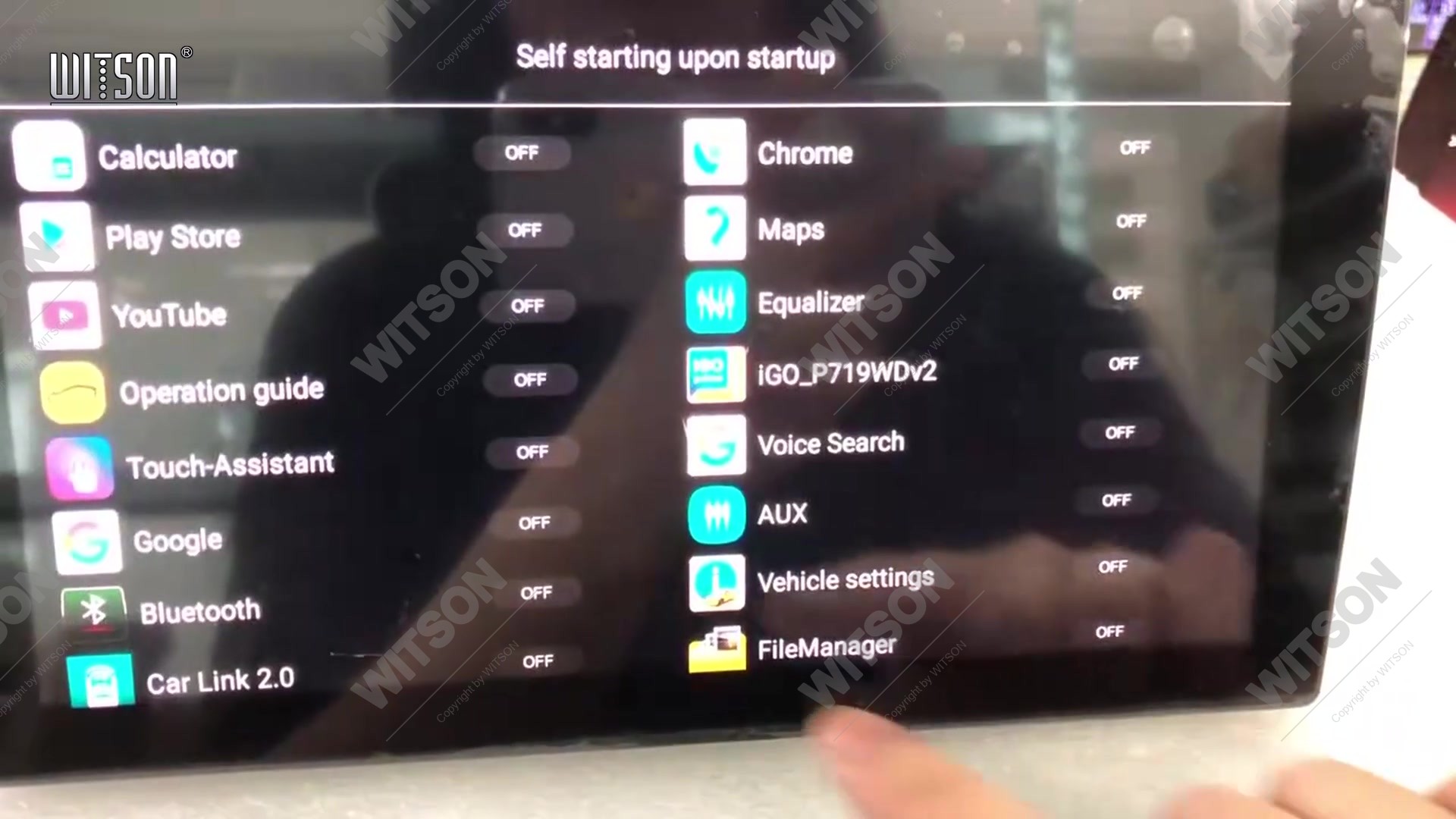
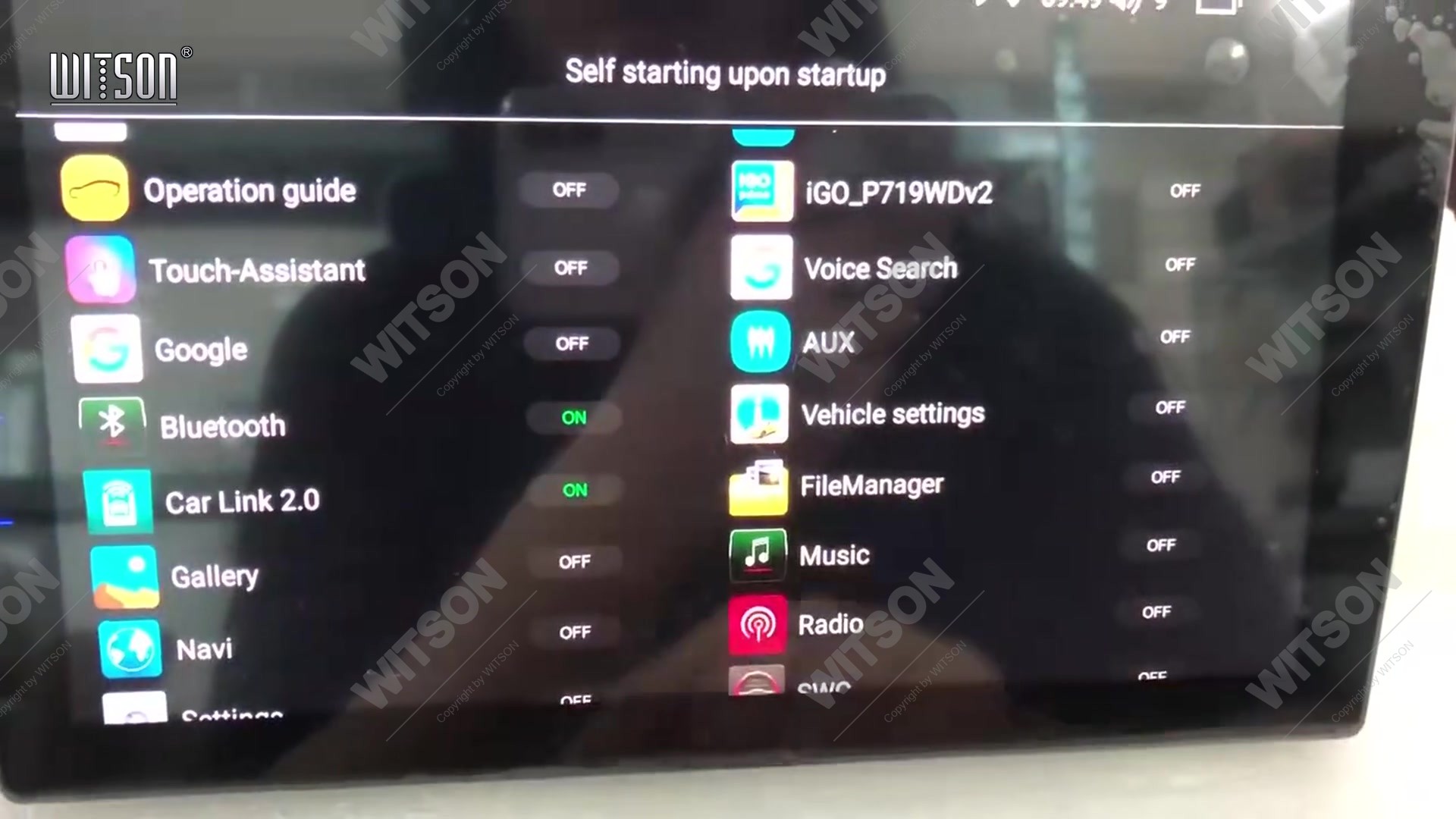
Bluetooth is the one worth leaving alone. It shows ON on both units here, and switching it off stops the phone reconnecting by itself when you get back in the car, which most people notice long before they notice a guide screen.
Both of these pages are user settings, so a factory reset returns them to how the unit left the factory: navigation launch back to ON, and the app list back to its shipped pattern. If you reset the unit to clear a different problem, expect the map to open again on the next boot, and do not read that as the reset having failed.
The reset also clears the settings that were tuned for the car rather than for you, which is the part that catches people out. The car model and CAN protocol, the door side, the camera format and the steering wheel key learning all go back to defaults, and each one has its own guide: CAN box and protocol setup, the driver door side and steering wheel control learning. Do those first, then come back here and switch the boot behaviour off again.
If Auto-start Navigation already reads OFF and the unit still lands somewhere other than the home page, the row is not the cause and tapping it again will not help. Work down this order rather than changing three settings at once.
First, look at what actually opens. A full map with a route prompt is the navigation app starting. A home screen that has simply been rebuilt around the map widget is a launcher question, covered in the launcher UI guide. A small floating window is neither, and belongs to the split screen and floating dot settings.
Second, open the System page and check the app grid. An app that is switched on there will start even with the navigation row off, and the grid is the only place that lists them. Third, note the model, the firmware version from Settings, System and a photo of the General page before you contact anyone; those three answer most of the questions a support desk would otherwise have to ask.
| What you notice | Cause | What to do |
|---|---|---|
| Map opens with a route prompt every time | Auto-start Navigation is ON | Settings, General, tap the row once so it reads OFF. |
| A guide or helper screen appears first | That app is switched on in the app list | Settings, System, Self starting upon startup, switch that app off. |
| Home screen looks like the map page | Launcher app or home layout, not the boot switch | Check the launcher and navi app rows in General; see the launcher UI guide. |
| Phone does not reconnect on its own | Bluetooth was switched off in the app list | Switch Bluetooth back on in the same panel and pair once more. |
| Map opens again after a reset | Factory reset restored the default value | Repeat step 2 after the reset; this is expected behaviour. |
| Row reads OFF but the unit still opens Navi | A second trigger, not this row | Check the app grid, then the launcher settings, before anything else. |
| Value flips back to ON by itself | The row was tapped twice | It is a toggle, not a menu. Tap once and read the word. |
Settings, then General in the left column. It is the second of six rows on that page, directly under Press any key to start. It sits in the user pages, so you do not need the factory code to reach it, and there is no matching row in the factory list.
No. The value is written the moment you tap and read again at the next boot, so there is nothing to confirm and nothing to reboot. A restart will not undo it either; the only thing that sends it back to ON is a factory reset or a second tap.
Not if you only change the navigation row. Bluetooth auto-start is a separate switch on the app panel under System, and it reads ON by default on the units shown here. Leave that one alone unless you actually want to pair by hand each time.
Then something other than the boot row is launching it. Check the app grid under System first, because an app switched on there starts regardless of the navigation row. If the grid is clean, the home screen itself is probably built around a map widget, which is a launcher setting rather than a start-up one.
Yes. A reset returns both pages to their shipped values, which means navigation launch back on and the app grid back to its default pattern. Do the car-specific settings first, since the unit needs those to work properly, then switch the boot behaviour off again at the end.
Reference
Switch already off and the map still opens, or the app list looks different from the one here? Send us the model, the firmware version and a photo of the General page.
Ask WITSON SupportMore in the WITSON how-to guides, including the launcher and home screen guide.