DHV Series - How-To Guide
Twenty-four slots, one held button each - and the wheel answers the unit again.
Steering wheel buttons that go dead after a DHV series unit is fitted are usually not broken. The unit simply never learned which key code each button sends. The SWC app holds 24 function slots; you teach them one at a time, then save the table with the tick. This guide walks the whole screen, what NULL means, and what to check before you start.
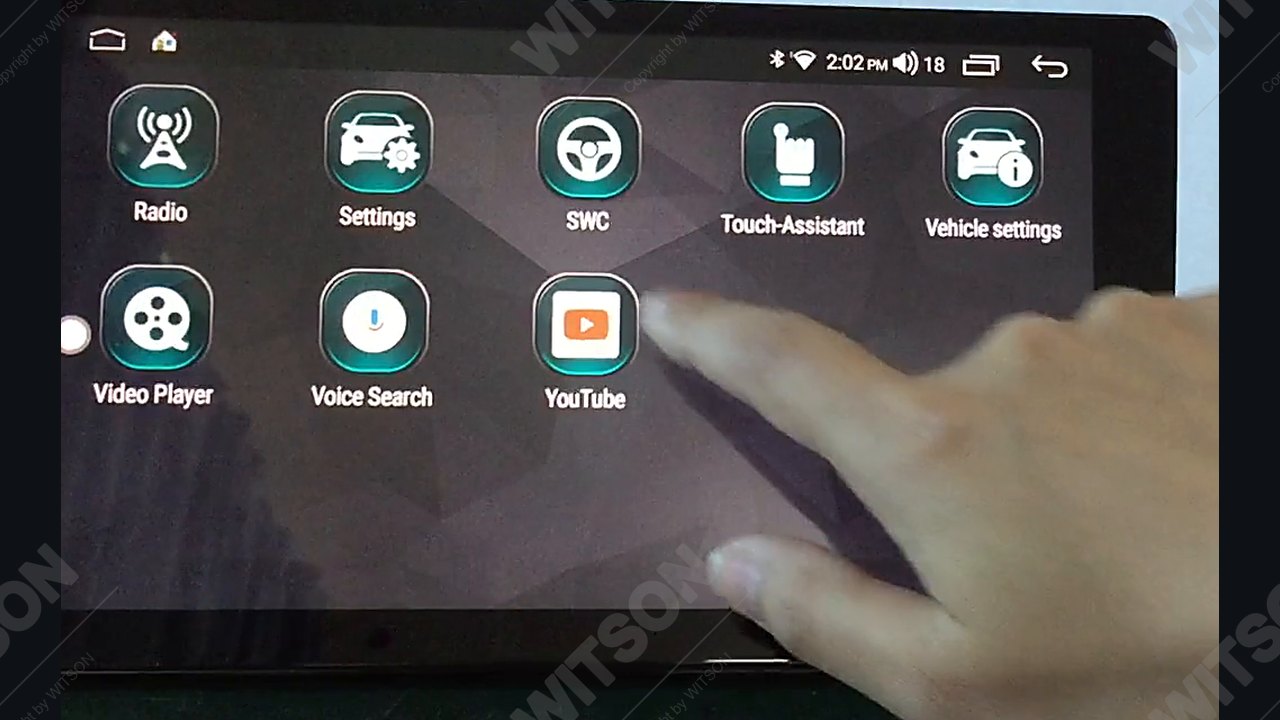
Written for DHV series units running the launcher shown here, with Radio, Settings, SWC, Touch-Assistant on one page of the app drawer. Wording and slot order differ on other platforms.
Quick answer
Open the app drawer and tap SWC. In the 8 by 3 grid, tap the function you want to teach - volume up, for example - then press and hold the matching button on the steering wheel until a number appears under that icon in place of NULL. Repeat for every key, then tap the tick to store the table. Tap the X to leave without saving.
Note: As our products are continuously upgraded, the interface on your unit may look slightly different. Please select the corresponding function according to your own model.
A steering wheel button is a switch with a resistor behind it, or one message on the vehicle CAN bus. Either way the unit does not receive "volume up" - it receives a number. Somewhere in the firmware a table maps that number to a function, and if the table has never been filled in for this particular car, the number arrives and nothing happens.
That is why a brand new DHV unit can show a perfect radio screen, respond to the panel keys, pair a phone, and still ignore every button on the wheel. Nothing is broken - the table is empty. The same table goes missing after a mainboard swap, after some firmware updates, and when a fitter moves a unit from one car to another, because the new car's resistance values have nothing to do with the old ones.
One more layer matters. Cars with a CAN bus adapter send key presses through the protocol box rather than through analogue wires, so the box must be set to the right vehicle model before any key data reaches the unit at all. If the wheel is completely silent, set the Canbus model first - the check is in section 02 - and only then start learning.
Both take a minute and both stop you learning a key into a slot that can never work.
Open the app drawer and tap Vehicle settings, or go through Settings - Factory to the Canbus entry, and confirm the protocol box is set to the car model you are working on. If the box is set to the wrong model, key messages arrive with values from another car's map and no amount of learning will make them stick. On a car without a Canbus adapter the wheel is wired to the key input instead, and this step is not needed.
Press NAVI, BAND or SETUP on the front panel. If those respond and only the wheel is dead, this is a learning job. If the panel keys are dead too, stop and check the key harness first - the unit is not receiving key input from anywhere.
The app is called SWC - steering wheel control. It lives in the app drawer, not in Settings: third icon on the second page, between Settings and Touch-Assistant, drawn as a steering wheel.
From the home screen, open the app drawer and swipe to the page that holds Radio and Settings. Tap SWC. The learning screen opens at once - no password, no submenu.
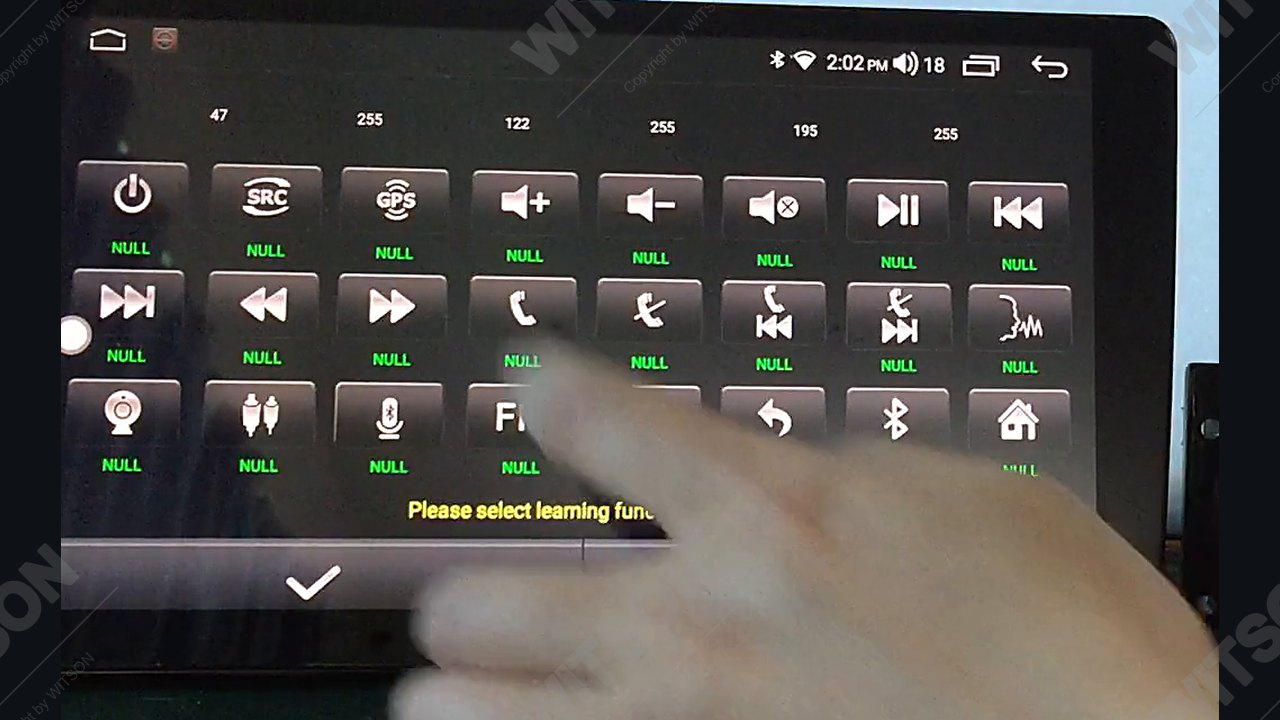
The screen is a grid of 24 function icons in three rows of eight - power, source, navigation, volume up and down, mute, play/pause, track skip, phone answer and hang up, microphone, FM, settings, back, Bluetooth and home. Under every icon sits NULL in green: that slot is empty. Tap the one you want - the speaker with the plus sign for volume up - and the tile gains a white border while the black bar reads Please select learning function button!.
Hold the matching button on the steering wheel down and keep holding. The bar turns red and reads please hold the button on the steering wheel into the learning state!. Do not tap and release - the routine wants a steady press so it can read the value more than once and be sure of it. On a bench harness the panel keys carry the same key line as the wheel, which is why our clip shows the front panel being pressed instead of a wheel.
When the unit has the value, a small integer - usually between 1 and 30 - appears in red where NULL used to be. Release the button. If no number appears, hold again for longer; if it still does not, the button is not reaching the unit at all and section 05 covers what to check.
Work through every button you actually have on the wheel - volume up and down, next and previous, mode, phone, voice - one slot each. Then tap the tick at the bottom left of the screen. The table is written to memory and the unit returns to the app drawer. The X at the bottom right throws the session away: use it if you learned a key into the wrong slot, then start again.
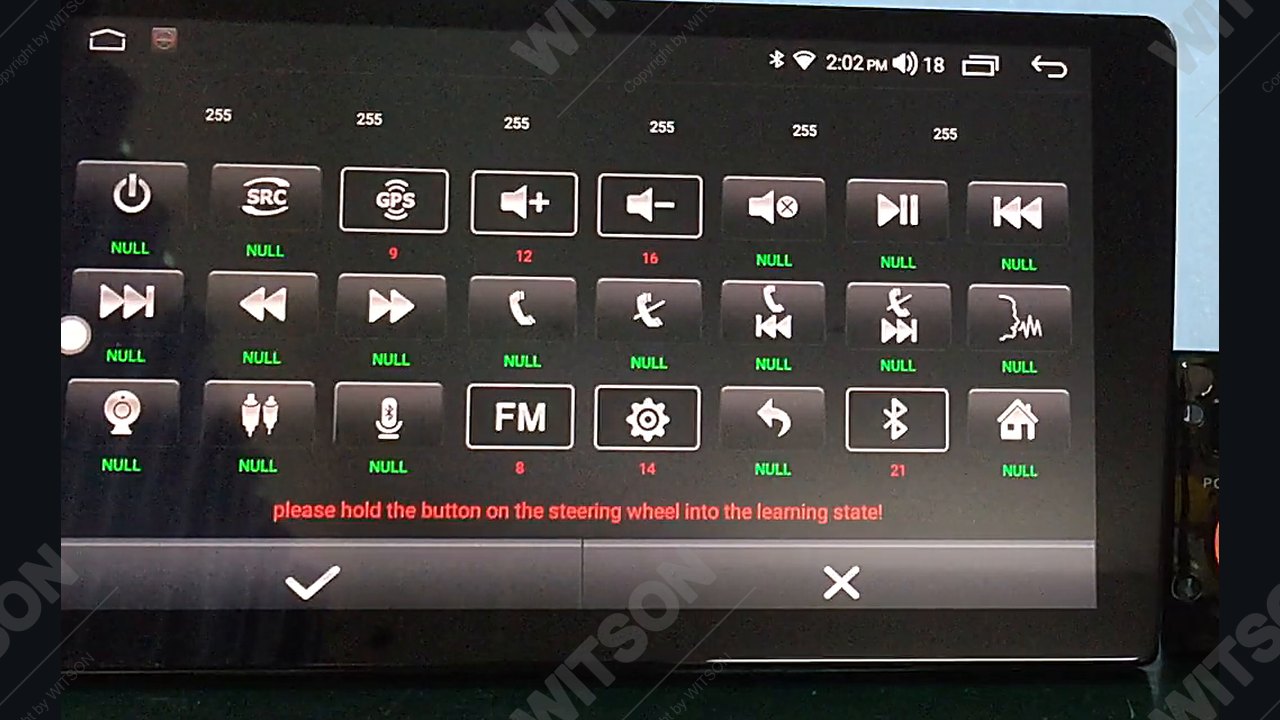
Three details on this screen explain most failed attempts.
NULL means never learned. It is not an error and it is not emptiness in the sense of a deleted value - the slot has simply never had a code written into it. A unit fresh from the box has 24 NULLs.
A red number means stored. Once a tile shows an integer, the mapping is in the table. Two functions cannot share one code: if you teach the same button into two slots, only one of them will behave the way you expect, and the other will fire at the same time.
One slot, one function. Teach volume up into the volume up tile, not into a tile you happened to reach first. If you swap two of them the wheel will work but backwards - volume down raising the level - and that is a slot-assignment job rather than a learning job. Nothing here touches your presets, paired phones or navigation: the SWC table is a small block of key mappings and nothing else.
Work down the table in order. The first two rows are learning jobs and finish in five minutes; from row three on the key data is not arriving at all.
| Symptom | Cause | What to do |
|---|---|---|
| All wheel buttons dead, panel keys fine, 24 slots at NULL | Table never learned on this car | Run the procedure once, function by function, then save with the tick. |
| Codes are stored but one or two buttons still do nothing | Never taught, or taught into the wrong function | Re-teach only that button; check the tile matches the function you pressed. |
| Nothing appears even while holding a button for ten seconds | Key line unconnected, or Canbus box set to the wrong vehicle | Set the box to the correct model, then check the key wire and its connector. |
| Learns fine, mapping gone again next morning | Settings lost at power-off, usually battery and ACC swapped at the harness | Check the memory and ACC wires are not reversed. |
| One button also triggers a second function | Same code taught into two slots | Open SWC, find the two tiles holding the same number, and re-teach one. |
| Volume down raises the level too | Codes written into the wrong tiles | Press X to discard, then learn again with the tiles matched to the function. |
Do not test with one button. Open the radio and press each learned key in turn, watching the volume bar or the track number - all should land on the first press. Then switch the ignition off, wait ten seconds and back on: a table that survives a power cycle was actually saved.
If your unit runs the 4 GB + 64 GB DHV platform, the HB / DHB 2+32 and HV / DHV 4+64 platform introduction lists the chipset and the Canbus options by variant. Default menu wording is in the WITSON operation manual download section, and the launcher itself is shown in the DH series interface video. If you are also setting up a phone, the wireless CarPlay pairing guide for the DH series covers that side of the same unit.
The clip below runs the whole procedure on a bench unit in the order above: drawer, SWC app, one function selected, the code appearing, the tick, then a check on the radio screen.
If your network blocks embeds, open the clip directly: watch the DHV SWC learning video on YouTube.
It is an app, not a settings page. Open the app drawer and swipe to the page carrying Radio and Settings; SWC is the steering wheel icon. If the launcher was rearranged, look for the same icon on the other pages.
Not after a normal update - the key table sits in a separate block and is kept. A factory reset does clear it, and so does a mainboard replacement. If the wheel dies right after an update, check the Canbus model setting first.
The code was stored into a function the launcher does not act on at that moment - a phone key while no phone is connected, for example. Test with the radio open. If it still does nothing, reopen SWC and confirm the tile is the function you expect.
No - panel keys are a separate table. The SWC app only holds the steering wheel slots. Front panel and touch keys are remapped from the Panel Key Learning entry in the Factory menu, which is a different screen with a different layout, and changing it by accident leaves the unit with no working buttons at all.
No. The SWC table is a small block of key mappings; presets, navigation, paired phones and apps are untouched. A clean slate is a factory reset, a separate operation - our DH series factory reset walkthrough covers what that erases.
Reference
Buttons still silent after learning? Send us the vehicle model, the year and a photo of the SWC screen with the codes visible.
Ask WITSON SupportBrowse the rest of the WITSON how-to guides, including our DHV touch screen calibration guide and the wireless CarPlay pairing guide for the DH series.