DH / DHV / DHB / DHF Series - How-To Guide
Wireless Apple CarPlay on WITSON DH, DHV, DHB and DHF series Android head units pairs over Bluetooth and Wi-Fi. This guide shows the exact on-screen steps to connect, use and troubleshoot CarPlay.
Last updated - covers DH, DHV, DHB and DHF series Android head units.
You need an iPhone (iPhone 5 or later with the latest iOS) and a WITSON DH / DHV / DHB / DHF Series Android head unit with built-in wireless CarPlay. The unit ships with Bluetooth and Wi-Fi already enabled for phone projection, so no extra cable or dongle is required for the wireless connection.
Keep your iPhone unlocked and Bluetooth turned on. Sit inside the vehicle with the head unit powered on (ignition accessory or battery mode). The first pairing takes about one minute; later connections are automatic once the phone is in range.
Not sure which hardware your unit runs? The HB / DHB 2+32 and HV / DHV 4+64 platform introduction lists the chipset, memory and display options for each DH series variant.
Follow the on-screen flow on the DH / DHV / DHB / DHF Series unit. The steps below match the real interface shown in the photos.
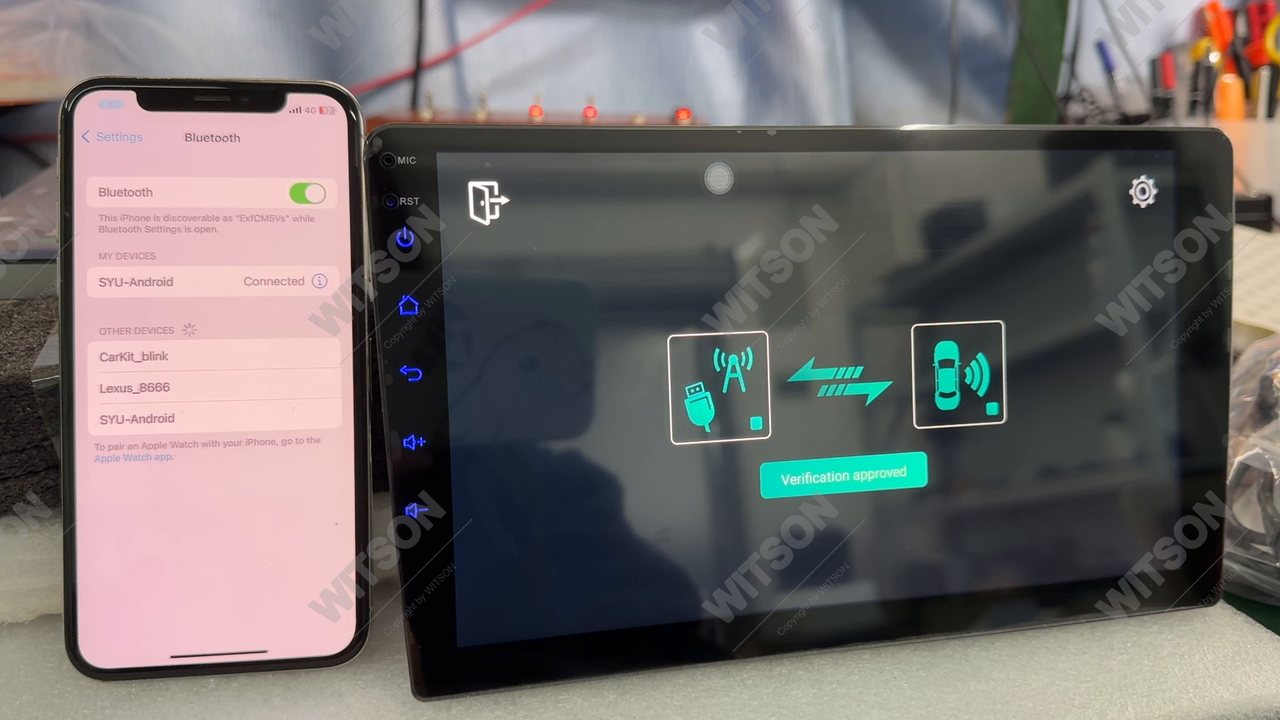
On the home screen, tap Bluetooth in the dock. The unit shows its own device name (for example CarKit_blinkissss or SYU-Android) and a Disconnected status before pairing.
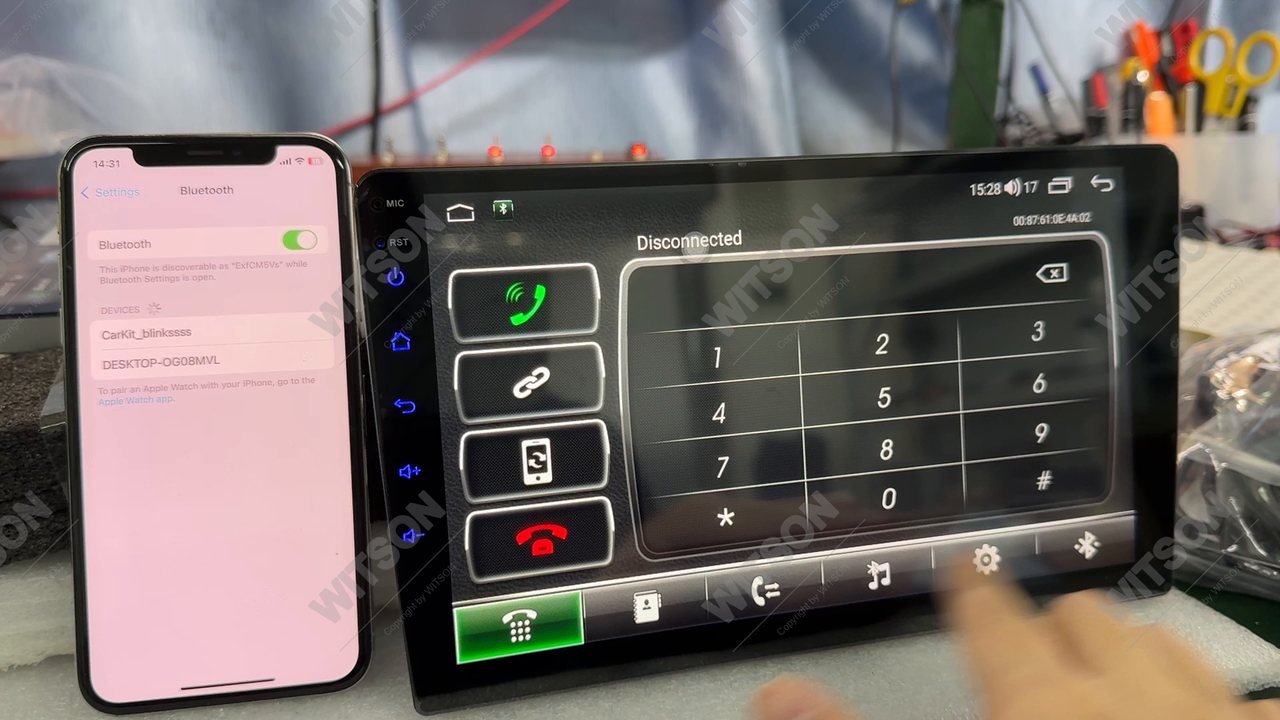
On your iPhone, open Settings - Bluetooth. Find the unit name in the device list and tap it. A pairing code may appear on both screens; confirm it on the iPhone when prompted.
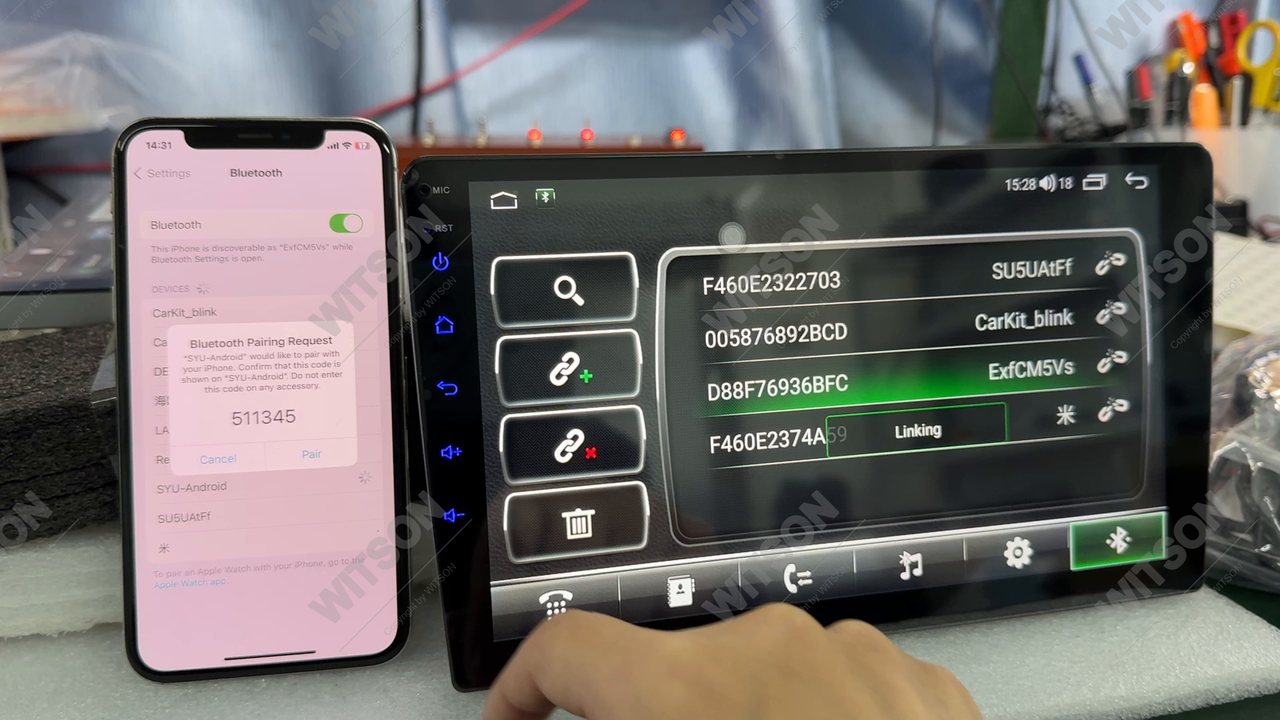
Once Bluetooth pairing succeeds, the unit builds the Wi-Fi link and the CarPlay home screen appears with app icons for Phone, Maps, Music, Messages and more. You can now use Siri, navigation and audio through the head unit.
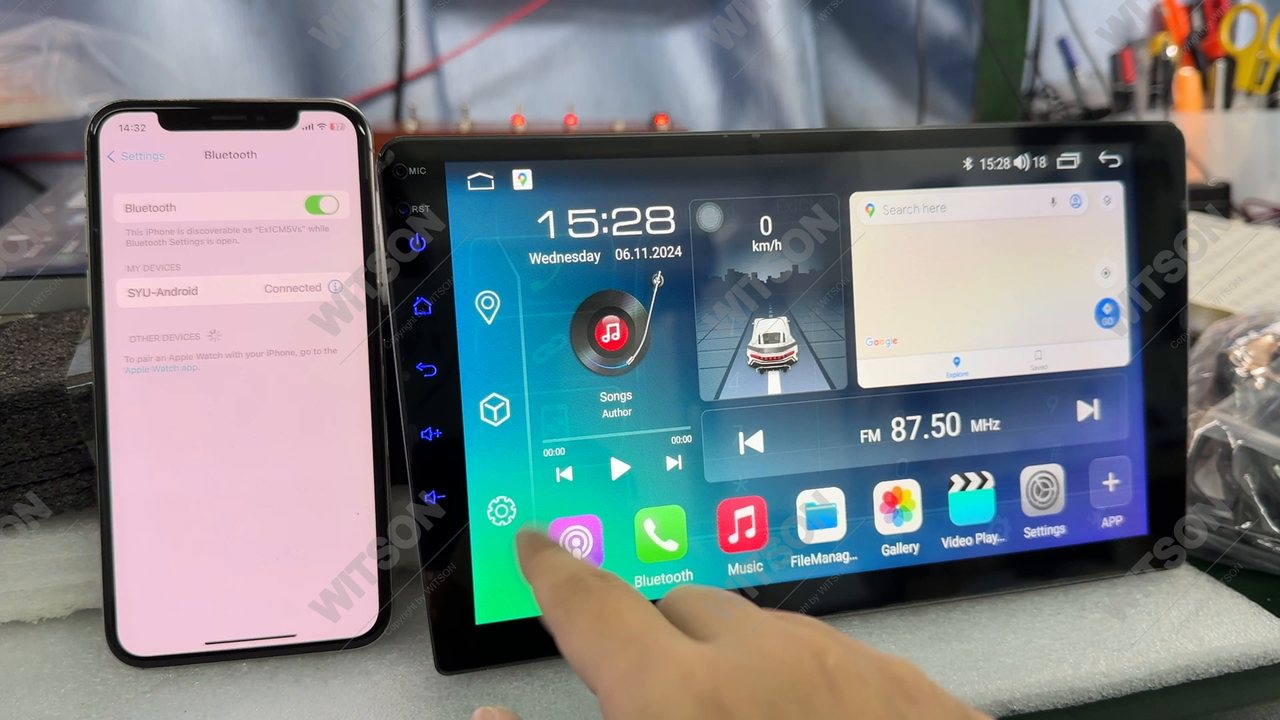
After the first pairing, the DH / DHV / DHB / DHF Series unit reconnects to your iPhone automatically when you start the car. From the CarPlay home you can:
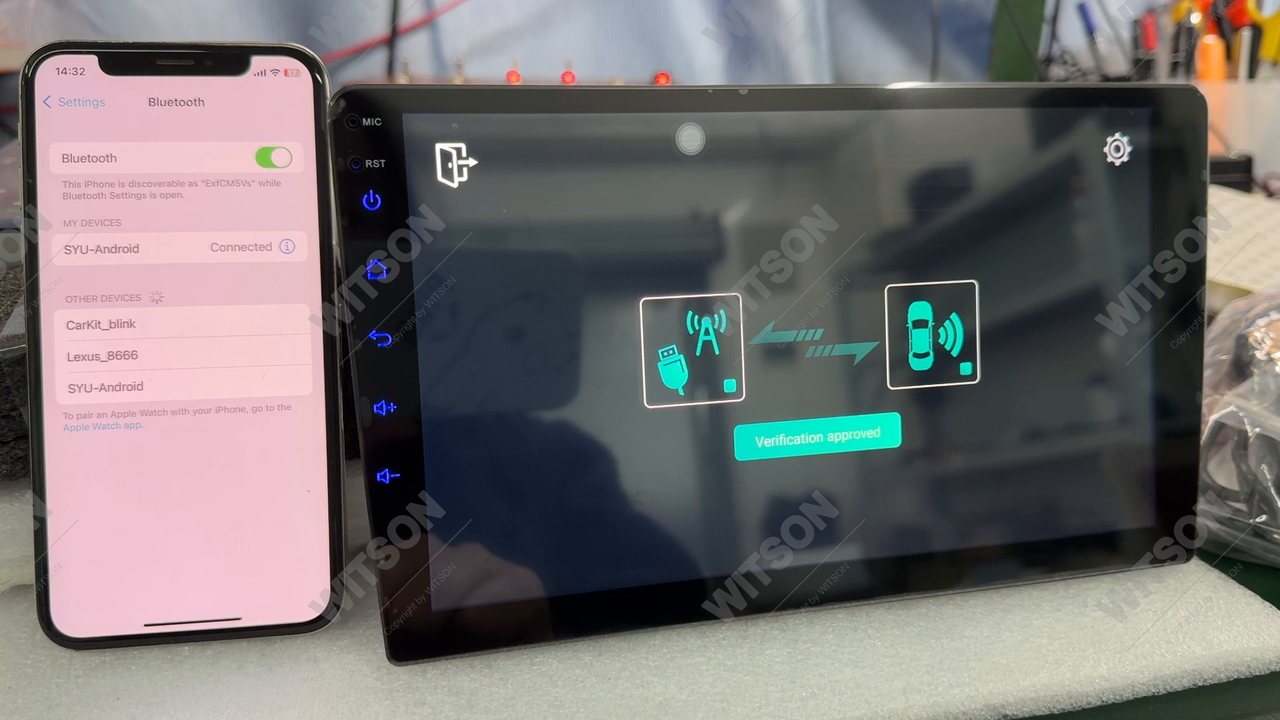
This official WITSON video walks through the DH / DHV / DHB / DHF Series interface, including the CarPlay connection and the ONE UI launcher.
Playback stays on this page. If your network blocks embeds, open it directly on YouTube: Watch on YouTube.
Most CarPlay problems on the DH series come down to three things: the iPhone is not paired, wireless projection is switched off on the unit, or the phone has auto-joined a different Wi-Fi network. If CarPlay is not connecting at all, work through the checklist below in order. If CarPlay keeps disconnecting after a few minutes, the cause is almost always the Wi-Fi handshake rather than Bluetooth.
| Symptom | Cause | Fix |
|---|---|---|
| CarPlay does not appear after Bluetooth pair | Wi-Fi projection not enabled | On the unit, open Settings - CarPlay / phone projection and make sure wireless projection is on, then re-pair. |
| Connects then drops | iPhone Wi-Fi auto-joins another network | Forget other Wi-Fi networks on the iPhone or keep the car Wi-Fi priority; restart the phone Bluetooth. |
| No sound | Audio routed to phone | On CarPlay, open the now-playing card and set output to the car speakers; raise the unit volume. |
| Siri not responding | Siri disabled on iPhone | Enable Siri in iPhone Settings, then hold the voice button on the steering wheel or tap the mic on screen. |
If the two devices are stuck in a half-paired state, clear both sides and start over. On the head unit open Settings - System - Factory data reset to return the unit to its default state (this clears saved Bluetooth and Wi-Fi pairings but keeps the installed firmware). On the iPhone go to Settings - Bluetooth, tap the unit name and choose Forget This Device, then also open Settings - Wi-Fi and forget any network that starts with the unit name. Power the unit off and on, then repeat the pairing steps above. A clean re-pair resolves most cases where CarPlay will not connect after a firmware update or a phone upgrade.
If you would rather connect with a cable while testing, plug the iPhone into the unit USB port - the DH series accepts wired CarPlay on the same port used for charging, so you can confirm the head unit itself is working before troubleshooting the wireless link again.
Running an Android phone instead? The same steps apply for wireless Android Auto; see the DH series UI video for the pairing screen. For hardware questions, the DH series operation manual covers menu layout and default settings.
Yes. All DH, DHV, DHB and DHF series Android head units support wireless Apple CarPlay that connects over Bluetooth and Wi-Fi without a cable or dongle.
No. The connection is fully wireless. A USB cable is only needed if you also want to charge the iPhone while driving.
Yes. CarPlay runs alongside the native Android interface. Tap the home button to switch back; CarPlay keeps running in the background so it reconnects instantly next time.
Confirm Bluetooth is on and paired, then open unit Settings and make sure wireless phone projection is enabled. If it still fails, delete the pairing on both the iPhone and the unit and pair again.
Yes. The same DH / DHV / DHB / DHF Series unit also supports wireless Android Auto for Android phones, using the same Bluetooth and Wi-Fi pairing flow.
CarPlay keeps disconnecting when the iPhone drops the direct Wi-Fi link to the head unit - usually because the phone auto-joins a stronger known network, such as a home or hotspot signal. On the iPhone turn off Auto-Join for those networks, or disable Wi-Fi Assist, then re-pair. Bluetooth alone cannot hold a CarPlay session; it only starts the handshake.
Yes. The DH series unit supports wired CarPlay through its USB port, so a cable is a reliable fallback while you diagnose a wireless problem. If wired CarPlay works but wireless does not, the head unit hardware is fine and the issue sits with Bluetooth pairing or Wi-Fi projection settings.
Need the right DH series unit for your vehicle? Send us your car model and year.
View the DH SeriesBrowse all WITSON how-to guides, or tell us your car model through Contact Us and we will confirm fitment before you order.