DH / DHV / DHB / DHF Series - How-To Guide
A factory reset returns a WITSON DH, DHV, DHB or DHF series Android head unit to its out-of-the-box state. It erases the Google account, downloaded apps, music and photos from internal storage, then boots the unit into the Android setup wizard. This guide shows the exact on-screen path, what is deleted, and how to get the unit ready to drive again.
Last updated - covers DH, DHV, DHB and DHF series Android head units.
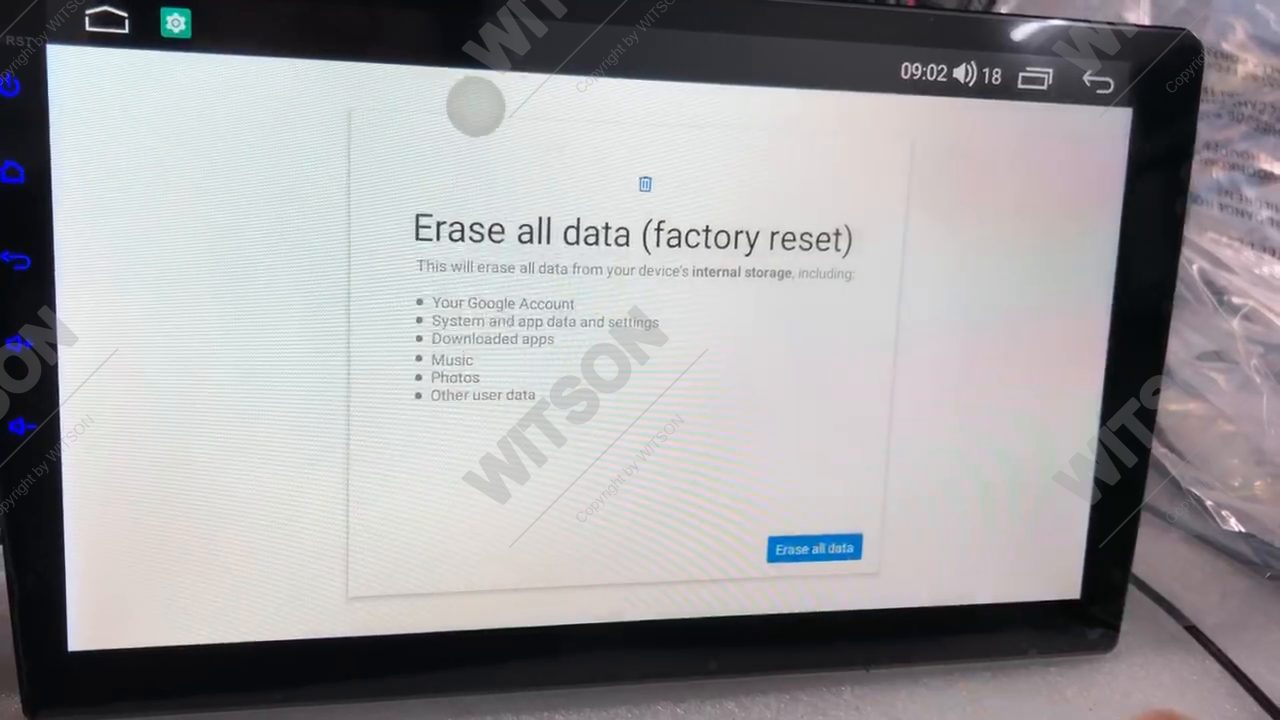
A factory reset on the DH / DHV / DHB / DHF Series is not the same as clearing a few settings. The confirmation screen on the unit lists exactly what gets removed from the device internal storage:
The firmware itself is not rolled back. A reset does not change the Android version, does not downgrade the display resolution and does not remove the built-in wireless CarPlay and Android Auto support. It clears your data, then boots the same software as a brand new unit.
If you only want to clear one thing, you do not need a full erase. The same menu has two lighter options: Reset Wi-Fi, mobile & Bluetooth clears only the network and pairing records (useful when CarPlay will not pair), and Reset app preferences restores default app behaviour without deleting accounts or files.
Two minutes of preparation saves a longer recovery later. Work through these in order.
You will also need the Wi-Fi password for your phone hotspot or home network, and the Google account password, because the unit asks for both during first-time setup after the erase.
Follow the on-screen flow on the DH / DHV / DHB / DHF Series unit. The five screens below are captured from a DHV series unit, so the labels match what you will see.
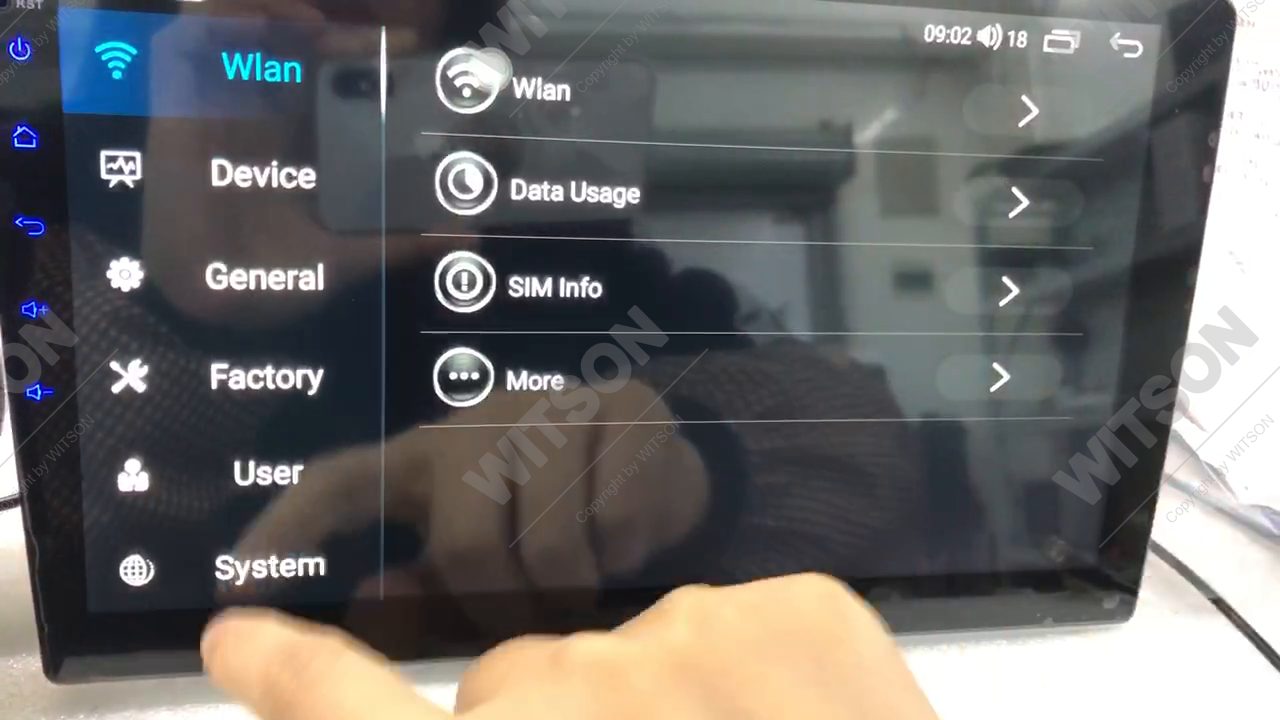
Open Settings from the app drawer or the status bar shortcut. The app starts on the network page, and the left column is the section list: Wlan, Device, General, Factory, User and System. Tap User.
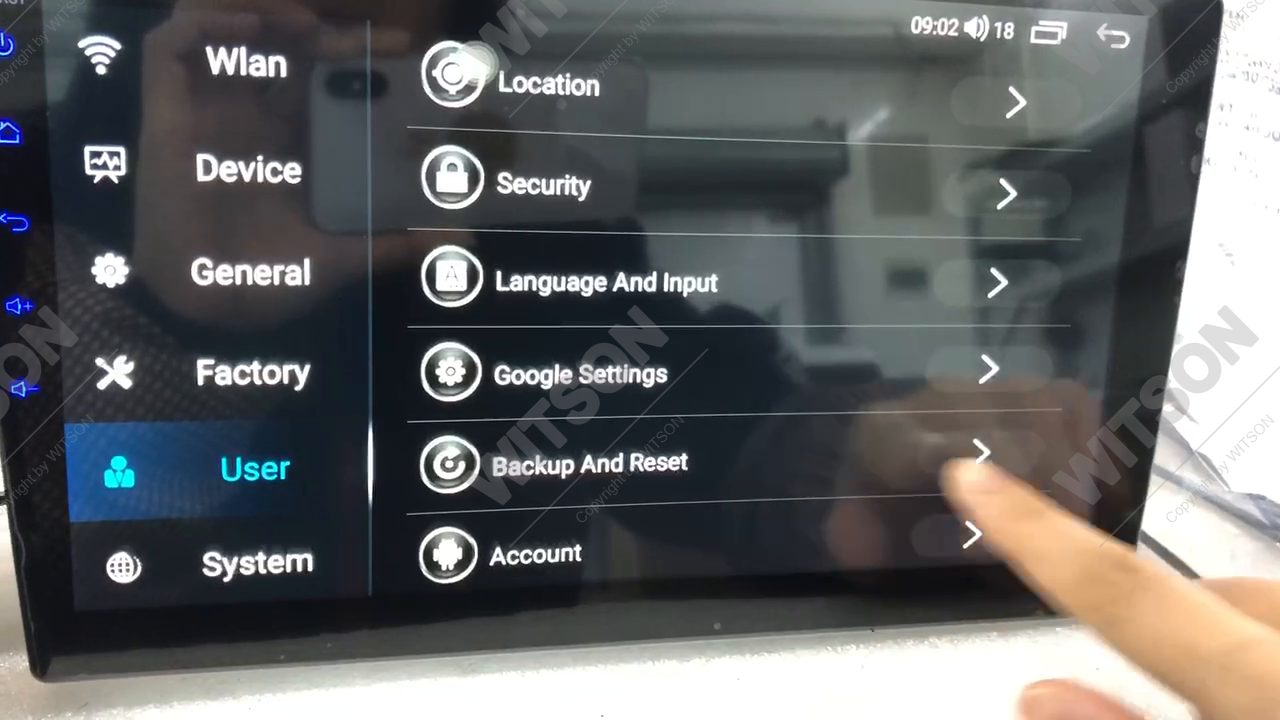
The User page lists Location, Security, Language and input, Google Settings, Backup And Reset and Account. Tap Backup And Reset.
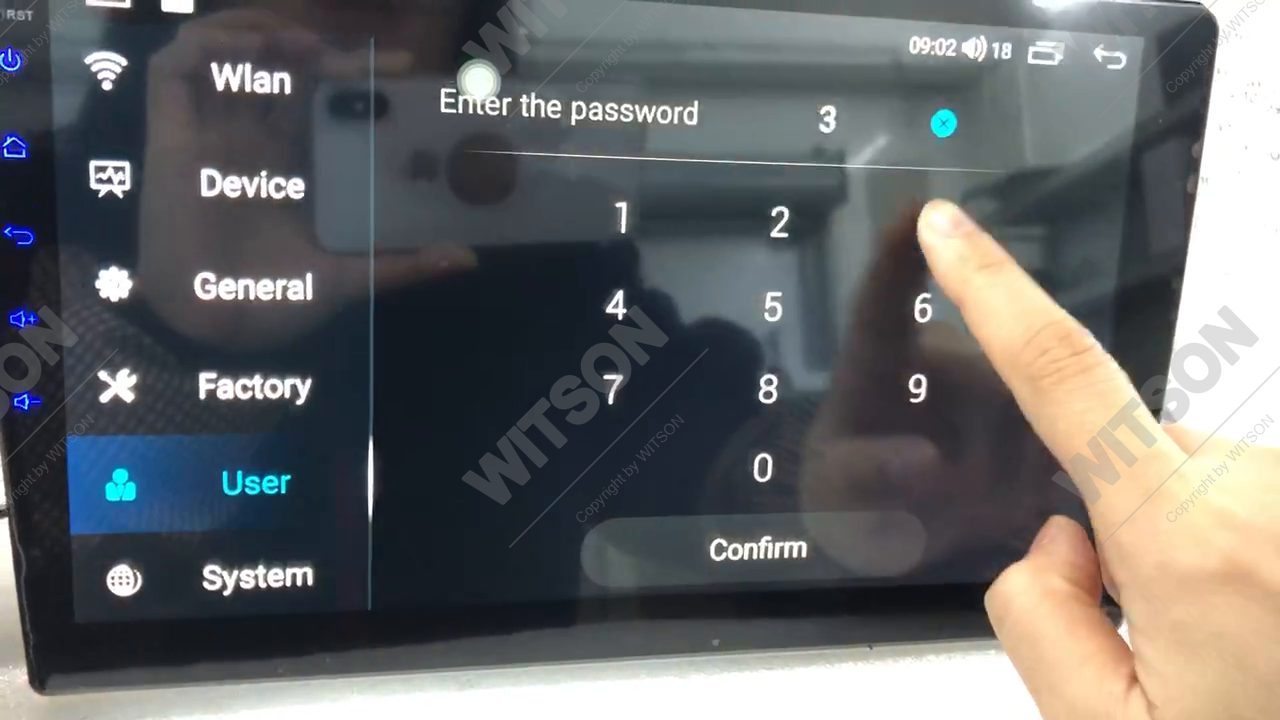
The unit asks for its service password before opening the reset menu. Tap the digits on the keypad and tap Confirm. Use the numeric code supplied with the unit; after several wrong entries the dialog simply closes, so there is no benefit in guessing.
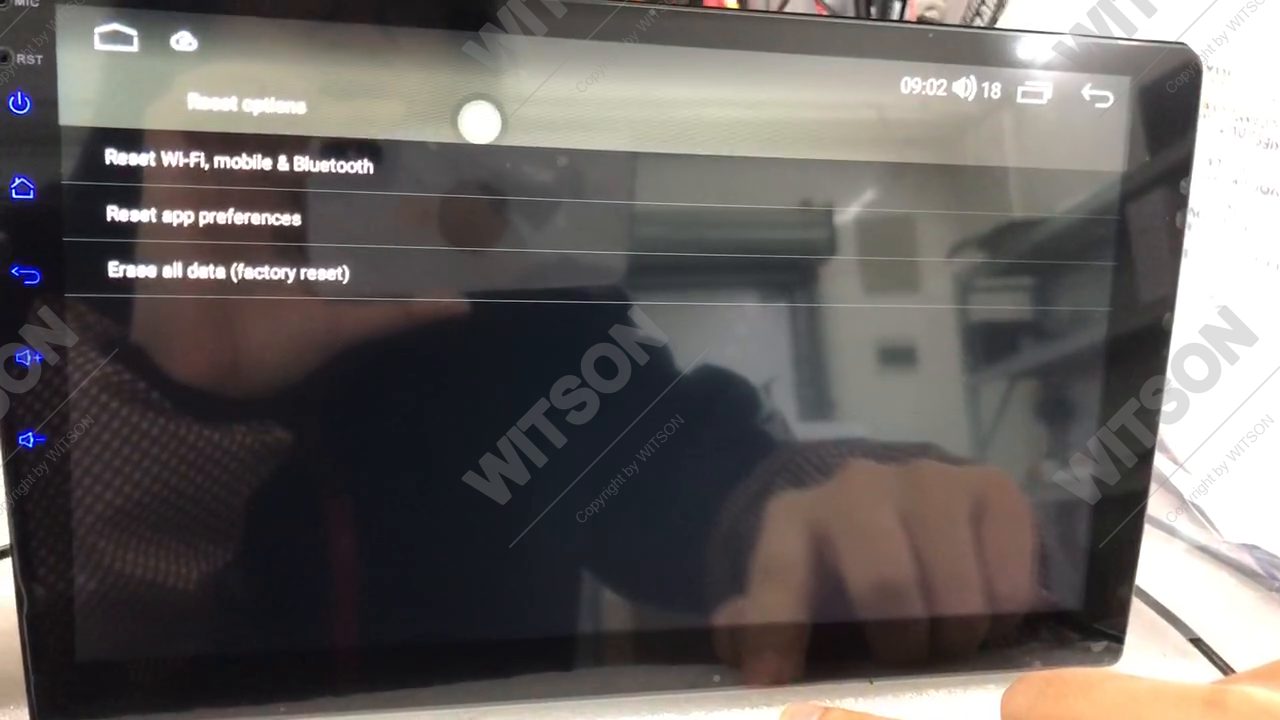
The Reset options page offers three actions: Reset Wi-Fi, mobile & Bluetooth, Reset app preferences and Erase all data (factory reset). Tap Erase all data (factory reset).
The final screen repeats what will be deleted: your Google account, system and app data and settings, downloaded apps, music, photos and other user data. Tap Erase all data. The unit clears internal storage, powers off by itself and boots into the Android first-run wizard. Do not switch off the ignition during this stage.
This 27-second walkthrough shows the same five steps on a DHV series head unit, from opening Settings to the unit rebooting factory clean. It is filmed on the actual device, so you can compare what you see on your own screen.
Playback stays on this page. If your network blocks embeds, open it on YouTube: watch the factory reset video on YouTube.
After the erase the unit behaves like a new head unit. Setup takes five to ten minutes and follows the Android first-run wizard.
If the unit runs a HB / DHB 2+32 or HV / DHV 4+64 board and you want to confirm which firmware branch it is on before reinstalling anything, the DH series platform introduction lists the chipset and memory of each variant. The DH series operation manual covers the default menu layout if you want to restore settings exactly as they shipped.
Most failed resets come down to a wrong password, a unit that lost power, or a date and time problem during setup. The table below covers the cases we see in support.
| Symptom | Cause | Fix |
|---|---|---|
| Password is rejected | Wrong service code, or a code changed by a previous installer | Re-enter the code supplied with the unit. If it was changed and is unknown, contact WITSON support with the model and order number; repeated attempts will not unlock the menu. |
| Reset options will not open | The settings app was interrupted, or a firmware update is still running | Power the unit off with the ignition, wait for the launcher to reload, then open Settings - User - Backup And Reset again. |
| Unit stuck on the boot logo after erase | Power was cut while internal storage was being wiped | Keep the ignition on for up to ten minutes. If it never reaches the setup wizard, contact support before re-flashing anything. |
| Google sign-in fails after reset | Wrong date, time zone or no network | Set date and time zone first, connect Wi-Fi, then sign in. If the wizard asks for a previous account, sign in with the account that was on the unit before the reset. |
| CarPlay will not connect afterwards | Bluetooth pairing was erased by the reset | Pair the iPhone again from Settings - Bluetooth, then let CarPlay build its Wi-Fi link. See the CarPlay how-to guide for the full pairing order. |
| Apps and offline maps are gone | Expected - internal storage was erased | Sign in to Play Store and reinstall, or restore the APKs you backed up to USB. |
Yes, for files stored in the unit internal storage. Music and photos on a USB drive or SD card are not touched, because the reset only wipes internal storage.
No. CarPlay and Android Auto are part of the firmware, so they stay after the reset. Only the Bluetooth and Wi-Fi pairing records are erased, so you have to pair your phone once more.
No. A factory reset clears user data and settings but keeps the installed firmware and Android version. The unit boots the same software it was running, without your data.
The numeric service password is supplied with the head unit and printed in the documentation that came with the shipment. If the code was changed by an installer and is no longer known, WITSON support can confirm it from your model and order number.
Yes. Open Settings - User - Backup And Reset - Reset options and choose Reset Wi-Fi, mobile & Bluetooth. That clears network and pairing records only, so accounts, apps and files stay in place. Reset app preferences does the same for app defaults.
The erase itself takes about a minute on the DH series, then the unit reboots and shows the Android setup wizard. Allow two to three minutes for the reboot, and a further five to ten minutes if you sign in to Google and reinstall apps.
Yes. Remove the Google account first, then run Erase all data so the next owner does not inherit your account, saved networks or personal files, and so the unit is not held by Factory Reset Protection.
Reset done but CarPlay still will not pair? Tell us your model and we will walk you through it.
Contact WITSON SupportBrowse all WITSON how-to guides, including wireless CarPlay pairing on the DH series, or check the DH series interface video before you order.