DHV Series - How-To Guide
The home screen is a setting, not a fixed face - and the unit ships with a dozen of them.
A DHV unit carries several complete home screen layouts. Two taps in the Factory menu swap one for another, and one more row decides which app sits in the home window.
0:44 - the layout swap, the restart, then Launcher App Setting on a bench unit. Open the clip on YouTube if the embed is blocked.
Note: As our products are continuously upgraded, the interface on your unit may look slightly different. Please select the corresponding function according to your own model.
Quick answer
Open Settings, Factory, enter the service code and scroll to the bottom of the list. Home Launcher Selection opens a grid of numbered layouts - tap one and the unit restarts into it. To change only the app inside the home window, use Settings, General, Launcher App Setting.
Owners usually ask for a different home screen with a picture in mind - a big clock, a map where the clock is, icons on the left instead of the bottom - and they expect to find a wallpaper or a theme picker. What the DHV unit actually stores is a set of complete launchers, each with its own clock, its own widget arrangement, its own dock and its own icon shapes. Switching is not reskinning the launcher you have; it is closing that launcher and starting another one.
That single fact explains most of the surprises. The wallpaper of the new layout is not the wallpaper you set, the dock may hold different shortcuts, and the widget on the right may show a different app. Nothing is lost - the old layout is still in the list - but nothing carries across either.
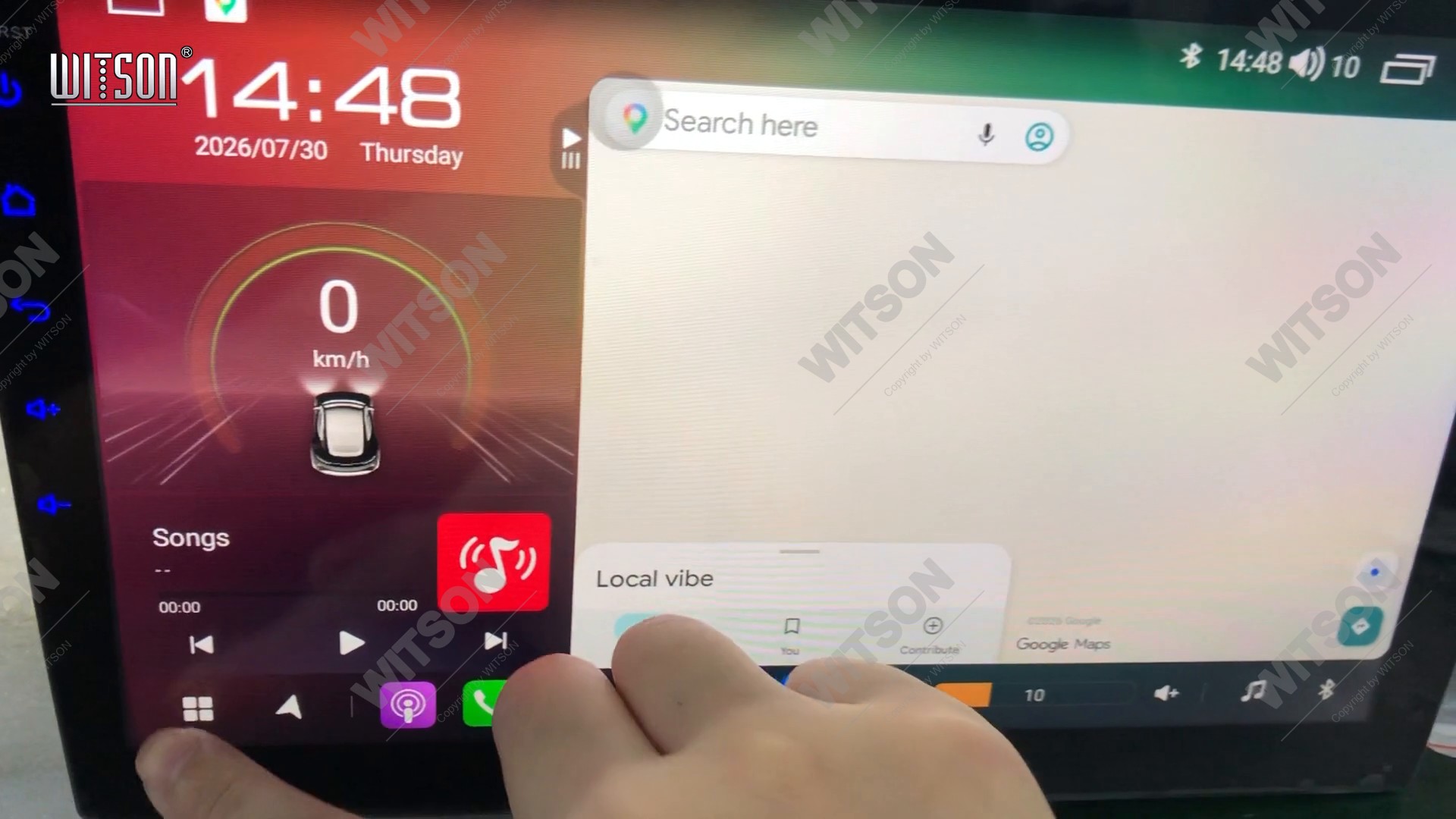
Two words in this guide are worth separating before we start. The layout is the whole home screen - what the Factory list calls a home launcher, and what the grid of thumbnails shows. The home window is the one panel inside a layout that runs an app, usually a map or a player. Changing the layout may change what that panel is; changing the app inside it is a separate setting, covered in section five.
The layout list is not in the normal Settings pages. It lives in Factory, the page meant for installers, which is why it is not reachable by tapping around the home screen.
Open Settings from the app drawer. The left column reads Wlan, Device, General, Factory, User and System. Tap Factory, the fourth one down, marked with a crossed spanner. The right side of the screen has been showing the entries of whichever column is highlighted; tapping a column changes that list rather than opening a new screen, so the rows change under your finger.
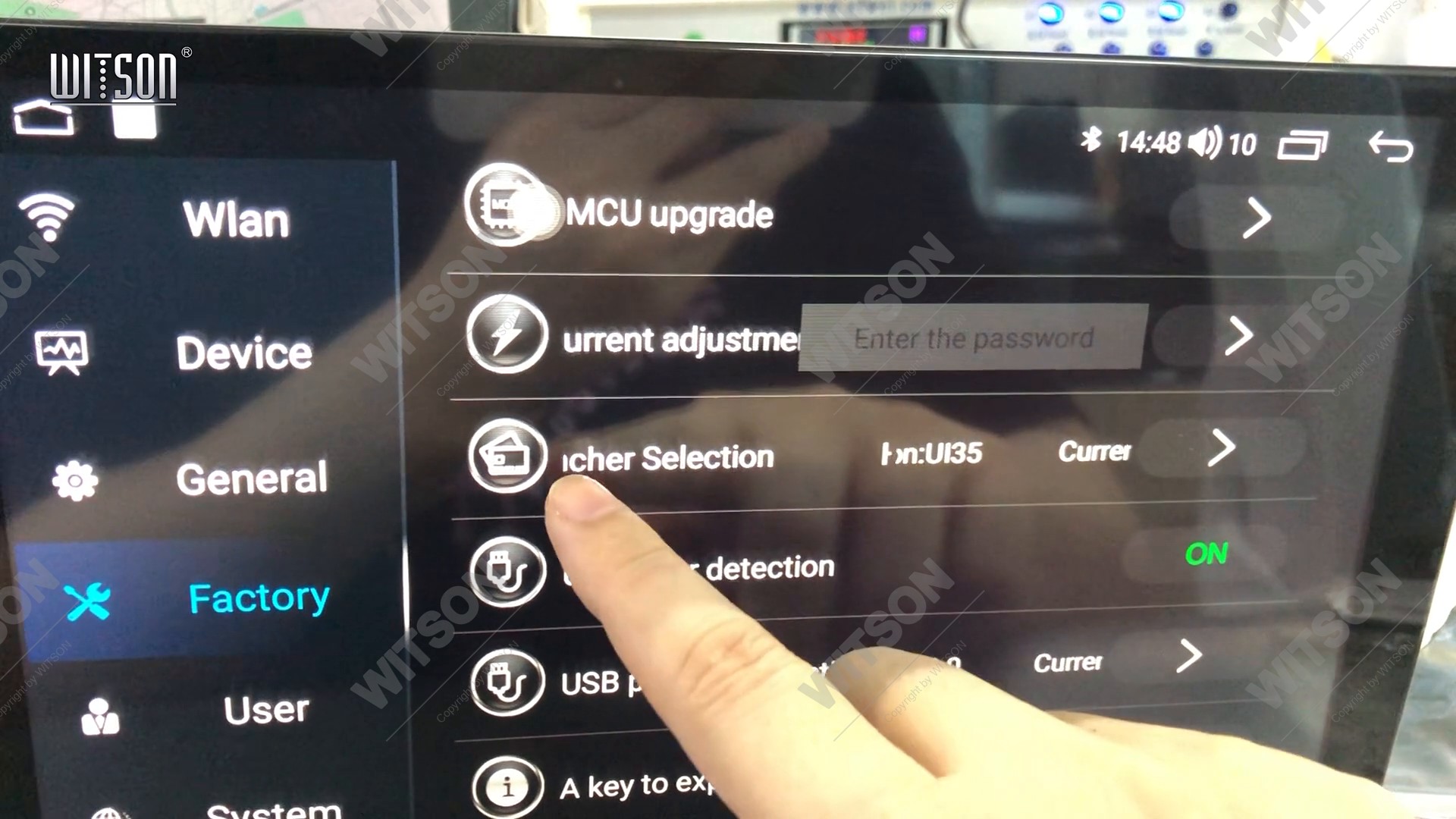
Factory asks for a code before it shows anything. A keypad appears with Enter the password above it and the digits 1 to 9 in three rows, 0 below, an X to clear and Confirm at the bottom. Type the code your unit expects - 3368 on the bench units we test, and the code your dealer gave you if it differs - then tap Confirm. Nothing on this page is a user preference; it is the same page an installer uses to set the car model and the CAN box, so treat it with the same care.
If the keypad closes without accepting the code, the list will not open at all - the four digits are the gate, not a suggestion. On a unit that has been reset to factory defaults the same code applies; it is stored in the firmware, not in the user profile.
The Factory list is long, and the row we want is at the bottom of it. Above it sit the installer settings: Touch Check, Original Car Agreement, Car Model (reading Null-OTHERNo protocol on a bench unit with no CAN box attached), Back MIC switch, 360 switch, Antenna normally on, Bluetooth mode auto open, Touch Screen Calibration, Panels light colours, Buttons Knob light, Reverse Power Supply, Volume Balance Settings, MCU upgrade, USB Error detection, USB protocol selection and A key to export. Keep scrolling past all of it.
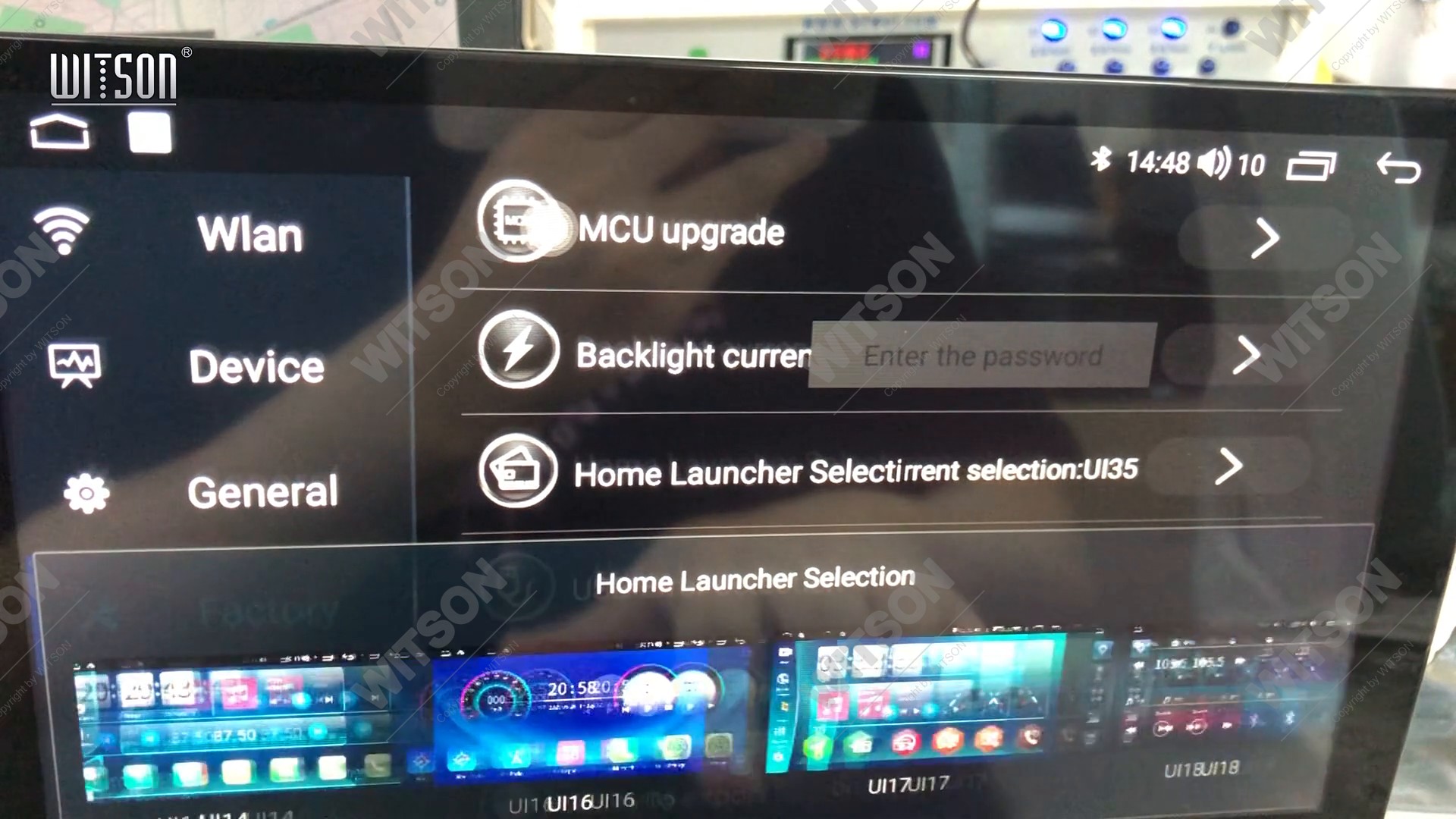
The row is called Home Launcher Selection, and on the right it names the layout in use - current selection: UI35 on the unit in the clip. That value is the whole point of the row: it tells you which layout you are about to replace before you replace it. Write it down if you think you may want to come back to it, because the list of thumbnails labels layouts by number, not by description.
Tapping the row opens a panel titled Home Launcher Selection across the lower half of the screen, holding a horizontal strip of thumbnails, each showing a miniature of the home screen it produces and numbered underneath - UI06, UI07, UI08, UI10 in the first screenful, and further along UI16, UI17, UI18, UI32, UI35 and up to UI101 and UI102. Swipe sideways to see them all; the thumbnails are small, so judge them by the arrangement of dock, clock and widget rather than by the wallpaper colour.
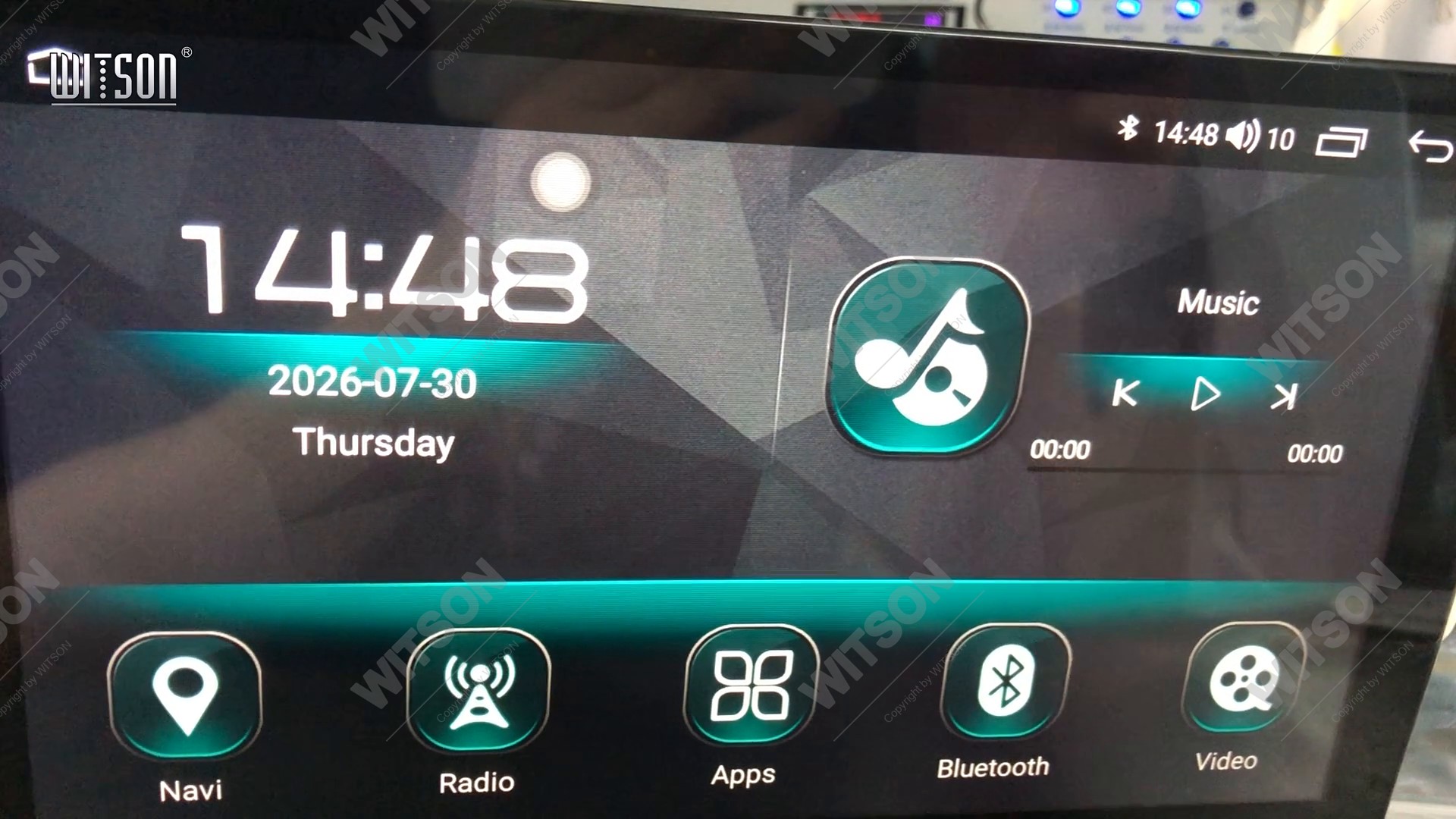
Tap the layout you want. There is no confirm button and no preview state: the choice is taken the moment the thumbnail is touched, and the unit restarts by itself to load it. The screen goes to the boot animation for roughly a minute, then the new home screen appears with its own clock, its own dock and its own widget. Do not switch the ignition off during that restart - the launcher is being swapped on the system partition, and interrupting it is the one step in this guide that can leave a unit without a home screen.
The good news is that a layout swap is shallow. It replaces the launcher application, and everything underneath stays where it was: paired phones, saved radio stations, navigation maps and their saved places, downloaded apps, the boot logo, the CAN box settings and the volume balance you set. The unit does not wipe itself, and it does not need to re-learn the steering wheel controls.
What does not carry across is everything that belonged to the old launcher: its wallpaper, the arrangement of shortcut icons on its home page, the widget it put on the right, and which app that widget ran. Those are properties of the layout, not of the unit, so expect to set them again after a swap - the settings behind them did not change, the new launcher simply reads its own defaults.
The physical picture also changes more than owners expect. In the clip the old home screen put a speed readout and a navigation panel on the right with a row of eight small icons along the bottom; the layout that replaced it moved to a large clock on the left, a music widget on the right and five dock icons - Navi, Radio, Apps, Bluetooth, Video - along the bottom. If your car has steering wheel buttons mapped to apps rather than to fixed functions, check them after the restart; a layout that moves the dock can leave a mapped button pointing at an icon you can no longer see.
Most layouts leave one panel on the home screen running an app - a map, a player, a speed display. Which app that is belongs to Settings, not to the layout, but it is not in the Factory list either. It sits in the ordinary user pages, which is why owners look for it there and give up before reaching it: the row is below the fold of the General list.
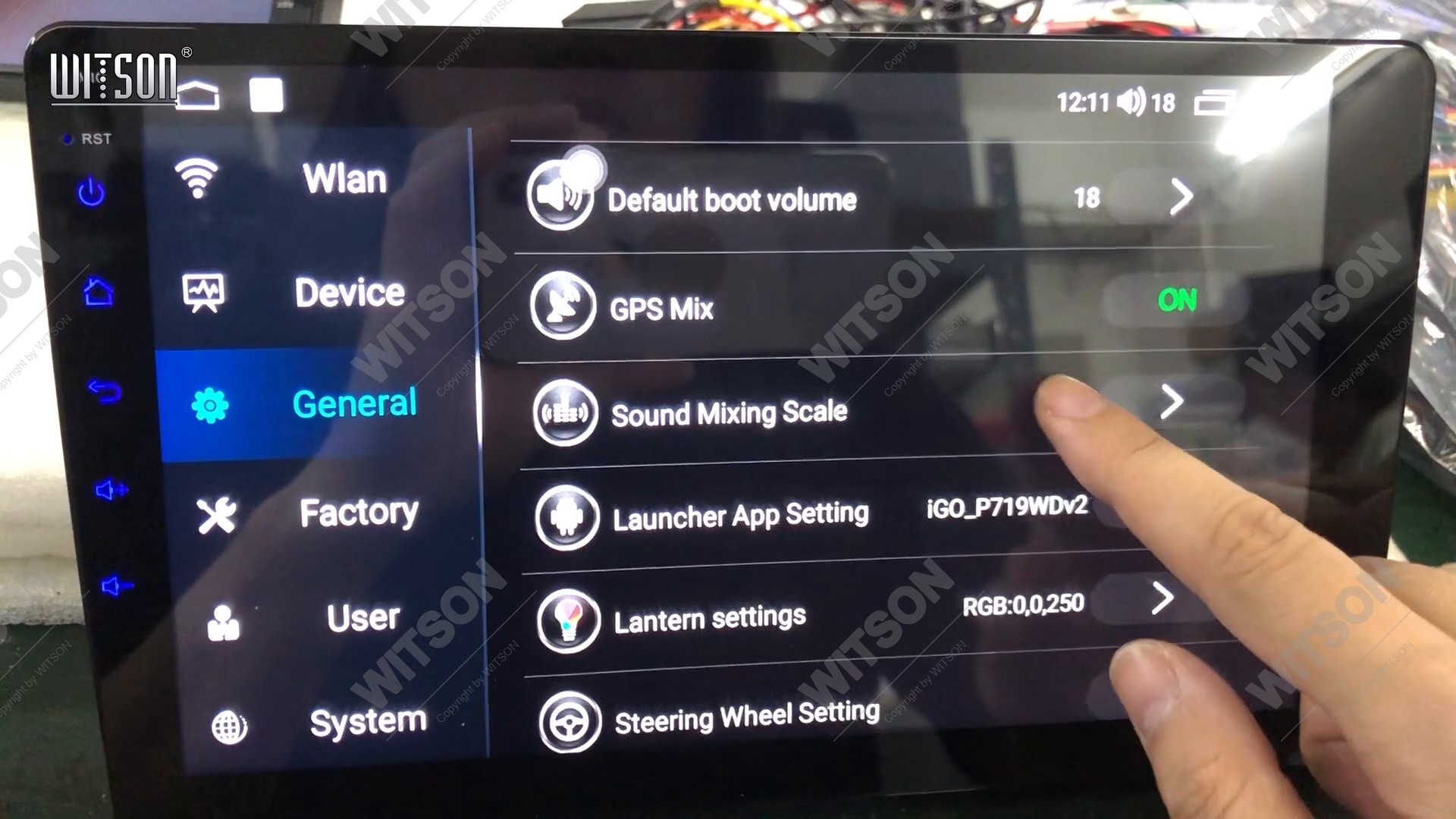
Open Settings and tap General in the left column. The list starts with Press any key to start, Auto-start Navigation, OSD Time, Mirror view on reverse image, Reverse Camera Up-Down Flip and Mute audio when Reversing, then continues with Default boot volume, GPS Mix, Sound Mixing Scale, Launcher App Setting, Lantern settings and Steering Wheel Setting. Scroll until Launcher App Setting is on screen. The value on its right is the app in the window right now - on the unit in the clip, iGO_P719WDv2.
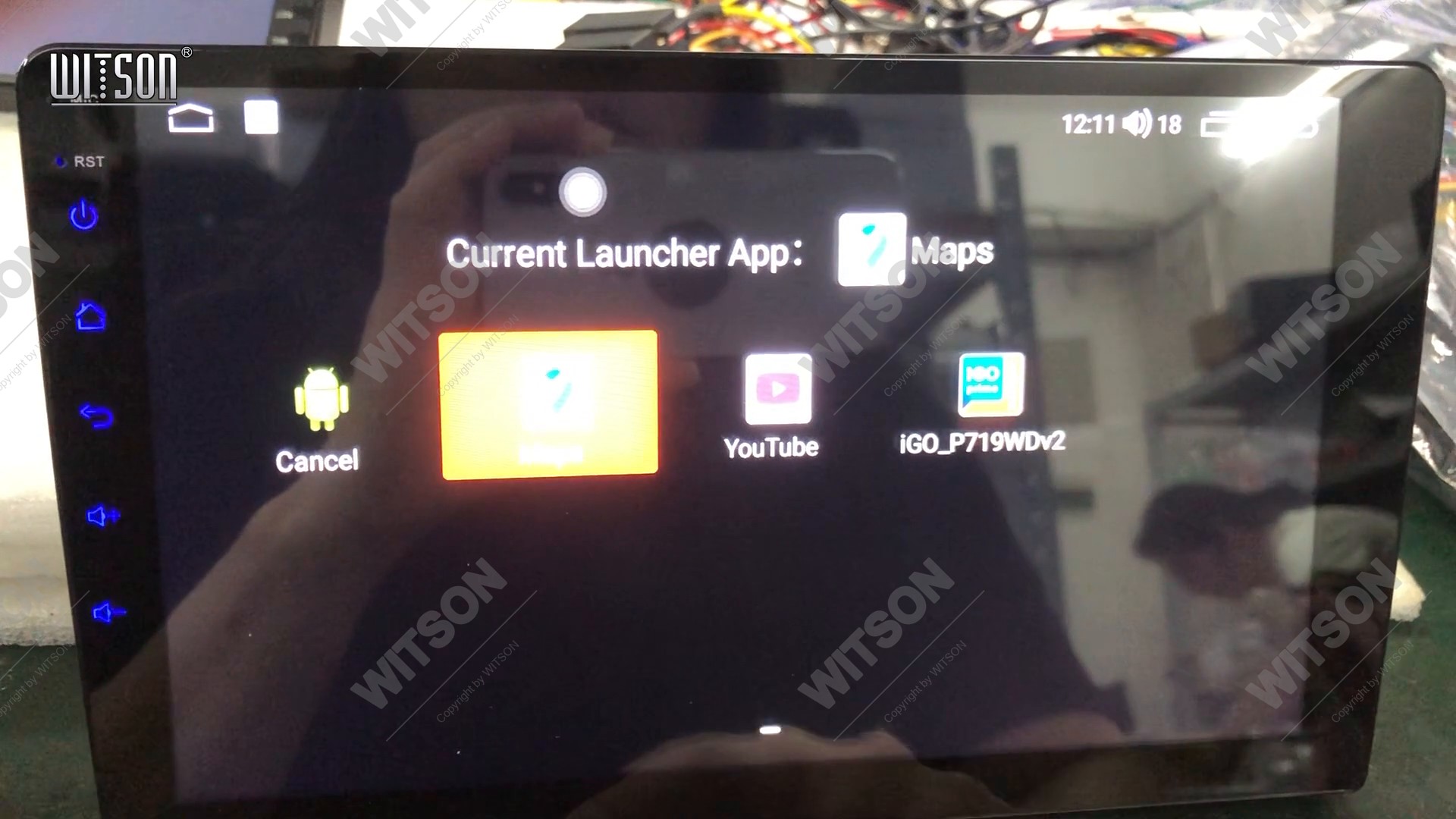
Tapping Launcher App Setting opens a dialog titled Current Launcher App: with four tiles - Cancel, Maps, YouTube and iGO_P719WDv2. The tile for the app in use carries a yellow outline, and the title of the dialog names it as you tap a different one, so you can read the result before you leave. Tap the app you want and close the dialog. There is nothing to save; the choice is written as you tap, the same way the layout choice is.
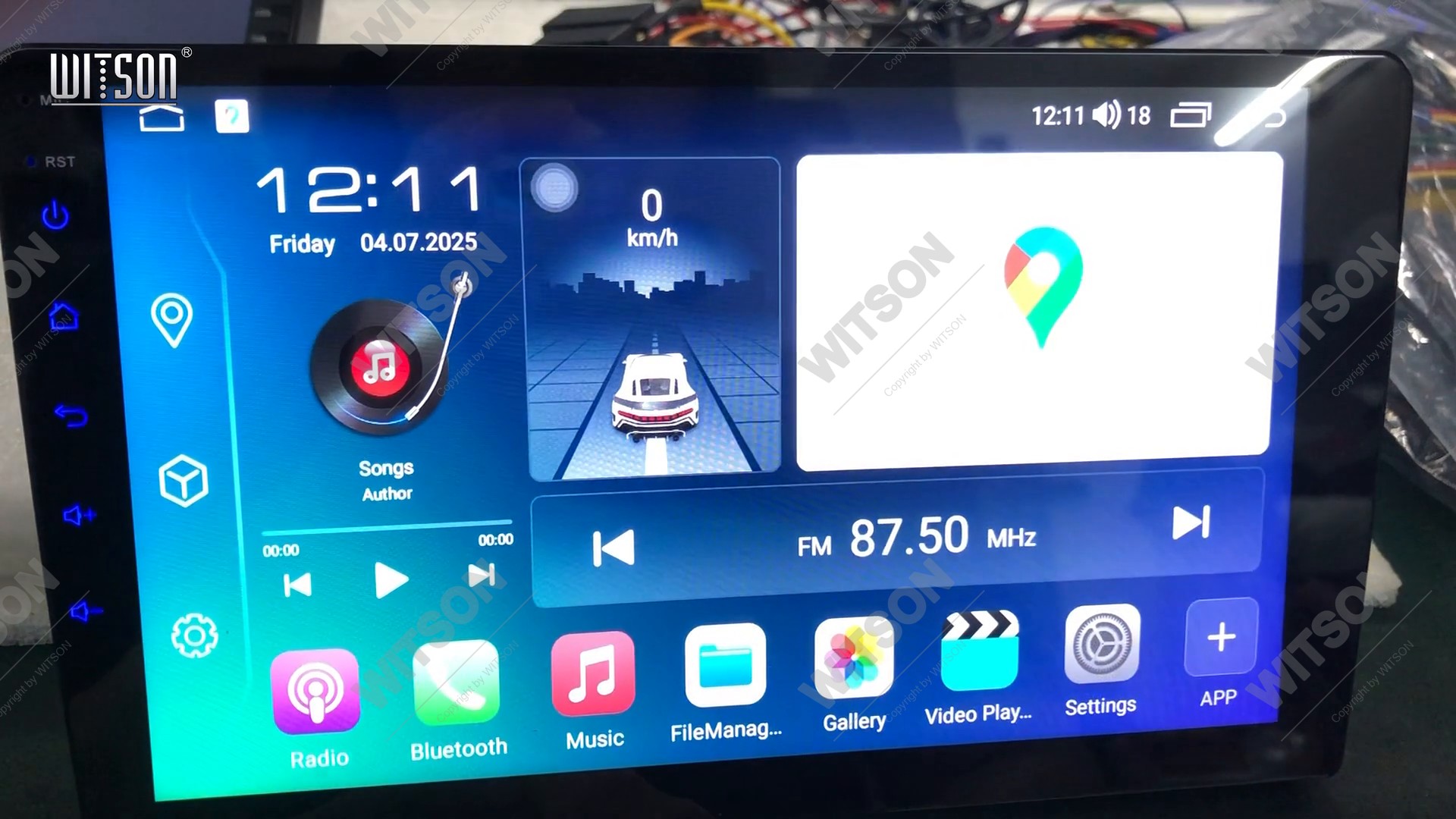
Back on the home screen the window reloads with the app you chose. On a bench unit the map appears with Looking for GPS signal... for a while, because there is no antenna in the workshop - that message is the app starting, not the setting failing.
One warning about neighbours: the row directly below, Navi App, is a different setting. It names the navigation app the unit launches when you press the navigation key or a mapped steering wheel button. Launcher App Setting only decides what the window on the home screen runs. A customer who wants the same map in both places has to set both rows, and a customer who sees the old map when they press the navigation key has changed the wrong one.
The list below separates the four usual causes: the code was not accepted, the layout did not survive the restart, the wrong row was changed, or the new launcher is running but the window shows an app that needs time to start.
| What you notice | Cause | What to do |
|---|---|---|
| Factory list never opens | Service code not accepted | Retype the four digits and tap Confirm; the list stays closed until the code is right. |
| Thumbnail taps do nothing | The strip was scrolled, not tapped | Tap squarely on the picture, not on the number below it. |
| Unit restarts back into the old layout | Restart interrupted, or power cut | Repeat the choice and leave the ignition on until the new home screen is fully drawn. |
| New layout, old wallpaper and old icons | Those belong to the previous launcher | Set wallpaper and shortcuts again in the new layout; nothing was lost. |
| Home window still shows the old app | Launcher App Setting not changed, or Navi App was changed instead | Open Settings, General, Launcher App Setting and pick the app there. |
| Window blank with a loading message | Navigation app waiting for a GPS fix | Check the antenna and give it a few minutes outdoors. |
| Dashboard buttons open the wrong app after a swap | The new dock holds different shortcuts | Re-map the buttons on the Steering Wheel Setting row, or pick a layout with the dock you use. |
Screenshots in this guide come from two bench units recorded on the same afternoon, so the theme colours differ between the Factory shots and the Settings shots - the menu paths do not. For the rows that sit around these, the neighbouring guides cover the rest of the same pages: split screen, picture-in-picture and the floating dot, learning the steering wheel controls, the AMP switch and audio output and CAN box setup and protocol data. More clips like this one are collected under the Video Showcase.
In Settings, Factory, behind the service code. Scroll to the bottom of the Factory list and tap Home Launcher Selection. It is not in the ordinary user pages and there is no theme picker on the home screen itself.
No. The swap replaces the launcher, and the data underneath it stays - paired phones, stored stations, maps, downloaded apps, the boot logo and the CAN box settings are untouched. Only the old launcher's own wallpaper, icon arrangement and widget choice are left behind, because they belonged to that launcher.
Because a layout is a complete launcher application, not a skin. The unit has to stop the running launcher and start the new one, and on the DHV firmware that is done with a normal restart. There is no confirm dialog; the tap is the confirmation, so choose deliberately and do not cut the power during the reboot.
Yes. The old layout stays in the same strip of thumbnails; open Home Launcher Selection again and tap its number. That is why the row shows the current selection on the right - note the number before you change it, because the thumbnails are identified by number only.
Launcher App Setting chooses the app shown inside the window on the home screen. Navi App, the row below it, names the navigation app the unit starts when the navigation key or a mapped steering wheel button is pressed. They are separate settings and changing one leaves the other as it was.
Reference
Layout list missing, or the code will not open Factory? Tell us the model, the firmware version and what the screen shows.
Ask WITSON SupportMore in the WITSON how-to guides, including the DHV split screen and picture-in-picture guide.