DHV Series - How-To Guide
One screen, two apps - and the three settings that decide how the second one behaves.
A DHV unit can show two apps at once, float a video over the home screen and run a chosen app in the home window. Here is where each of those lives, filmed on a bench unit.
0:38 - split screen from the right edge, a video in a floating window, then Launcher App Setting on a bench unit. Open the clip on YouTube if the embed is blocked.
Note: As our products are continuously upgraded, the interface on your unit may look slightly different. Please select the corresponding function according to your own model.
Quick answer
To put two apps side by side, open the first app, swipe in from the right edge and tap the second app in the panel that appears. To keep a video playing while you use other apps, leave the player running - it drops into a floating window. To choose which app the home screen window runs, open Settings, Device, General and tap Launcher App Setting.
Owners usually arrive here with one sentence - "I want two things on the screen at the same time" - and the DHV unit answers that sentence in four separate ways. They are easy to confuse because three of them put a smaller window on top of a bigger one, and the fourth only looks like it does.
Split screen divides the whole display into two halves, each running its own app with its own controls. Neither half is on top of the other; both are full applications, squeezed. This is the one that lets you read a web page while a film plays beside it.
Picture-in-picture keeps a video running in a small floating window that stays above whatever you open next. The app behind it is still full size. On the DHV unit the window has its own title bar, so it can be moved, resized and closed without touching the app underneath.
The home screen window is part of the launcher itself: the panel on the home screen that shows a map, a speed readout or a video. It is not a second app you opened - it is the launcher's own window, and which app fills it is a setting.
The floating shortcut dot is not an app at all. It is a round button that sits on top of everything and opens a small panel of shortcuts. Owners most often meet it by accident, decide it is in the way, and want it gone.
That is why "it does not work" rarely means the same thing twice on these units. The next four sections take them in that order.
Split screen is not a menu entry. There is no "split screen" row in Settings to switch on, which is why searching for one ends in nothing. It is a gesture, and it starts from the right edge of the display.
Start with the app you want on the left. In the clip that is the browser: a normal full-width page with its own tab bar along the top. Split screen only divides a screen that already has an app on it - from an empty home screen there is nothing to divide.
Put a finger on the very right edge of the display - not on an icon, on the glass edge itself - and drag left. A panel slides in over the right half of the screen. On the unit in the video the panel opens with a card that reads 2.3 GB available | 4.0 GB and a row of app cards below it.
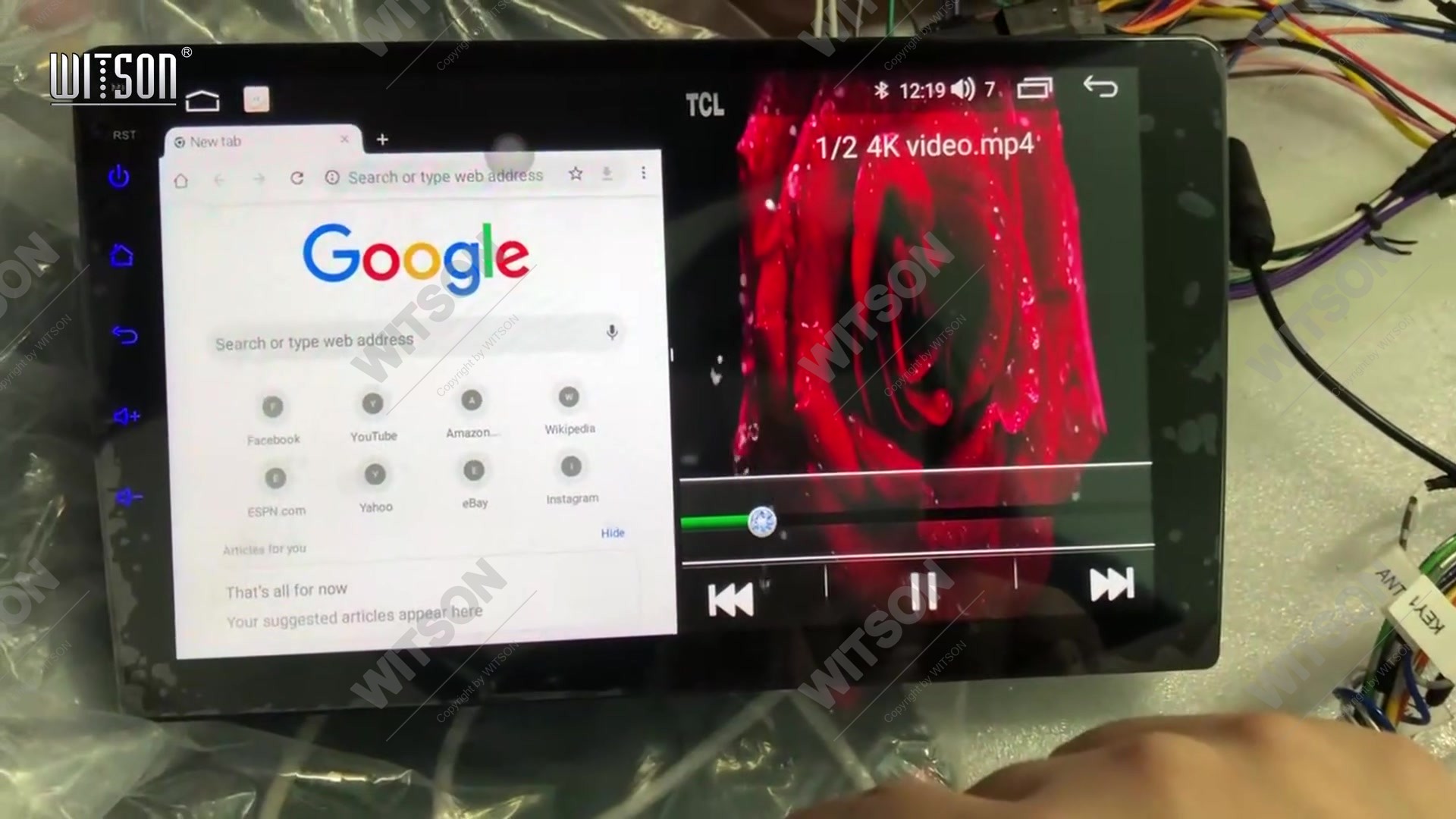
Tap an app card and it opens in the right half while the first app shrinks into the left half. In the clip the second app is a video player, and it starts playing immediately - the transport bar, the play and pause buttons and the timeline all sit inside the right half, not across the bottom of the screen. That is the quickest way to confirm the unit really is in split mode and not showing a floating window.
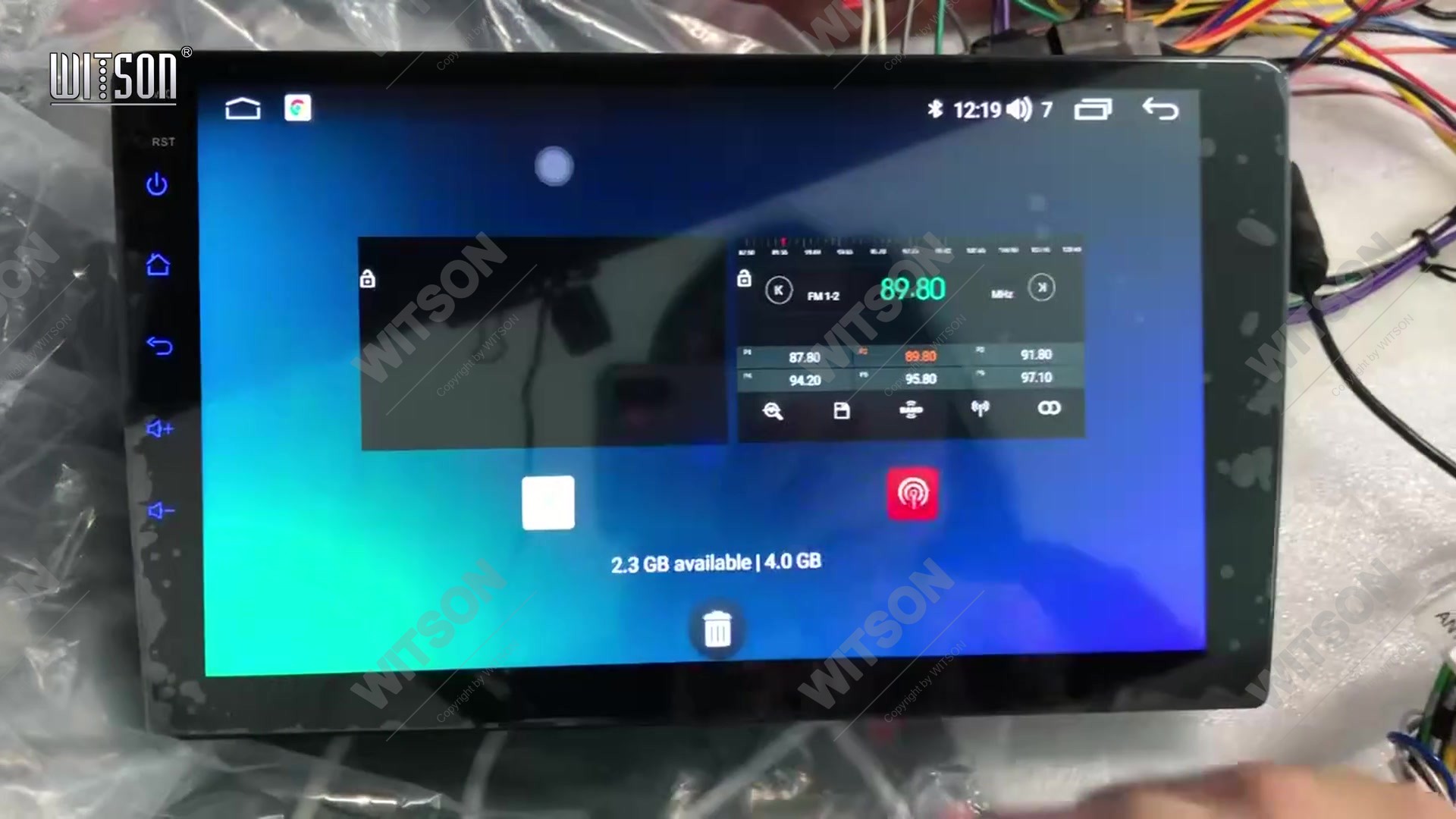
Two things worth knowing before you rely on it. First, the split survives only while both apps are alive: closing one returns the other to full width. Second, not every app can take a half - the panel only lists the ones that can, so an app that is missing from the panel will not appear however many times you swipe.
If the swipe brings nothing, check that you started on the glass edge rather than a few millimetres inside it. A protective screen that does not reach the edge, or a bezel that sits proud of the glass, makes the gesture unreliable; swipe from a point further towards the middle and watch for the panel's edge appearing before you lift the finger.
Picture-in-picture answers a different problem: you do not want a second app, you want the first one to keep going while you do something else. On the DHV unit the video keeps playing in a small window that floats above the launcher, and the home screen underneath stays fully usable - the clock, the dock and the app icons all keep working.
Play the video first and let the picture appear, then tap the home button instead of the player's back arrow. The player does not stop; it shrinks into a floating window with its own header - a search field reading Search here, a close cross and a few window controls - and its own transport bar underneath the picture. The clip's window sits over the right side of the home screen while the left side still shows the launcher.
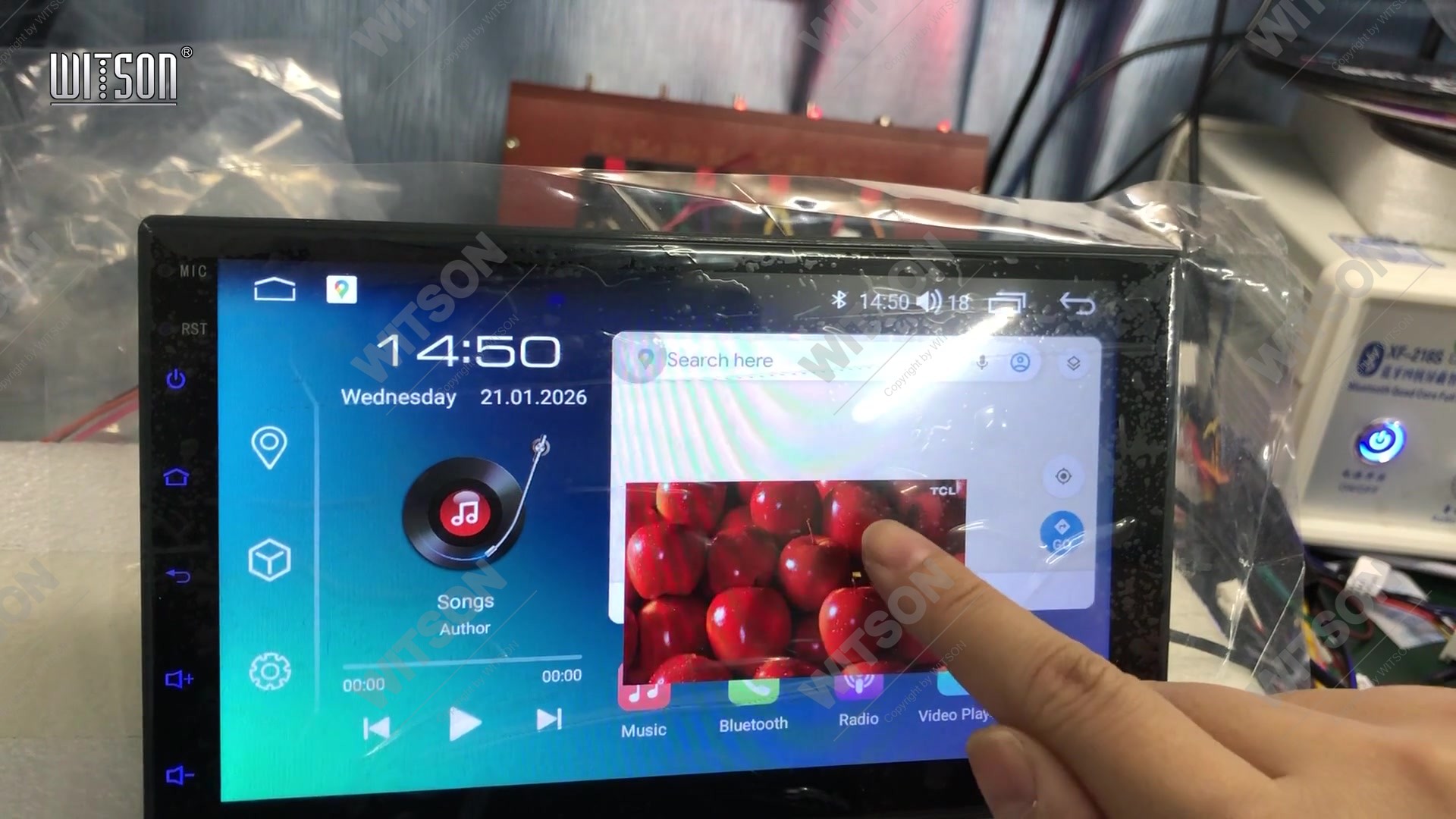
The window is an app window in its own right, which is both the good news and the catch. Good news: it behaves like one, so the cross in its header closes it and the picture keeps running while you use anything else. Catch: it is not pinned to a corner, so it can end up covering the icon you want, and it does not remember a position between sessions.
If a player drops out of the window the moment you press home, that app has not been granted the permission to draw over other apps. That is an Android permission rather than a DHV setting, and it is granted per app - a player that floats and a player that quits are usually two different players, not a fault in the unit.
The round dot on the home screen - a pale circle roughly the size of a fingertip, sitting over the wallpaper - is the touch assistant. It is not a widget and it cannot be dragged off the screen; it is drawn by an accessibility-style service that stays above every app, which is exactly why deleting it from the launcher does nothing.
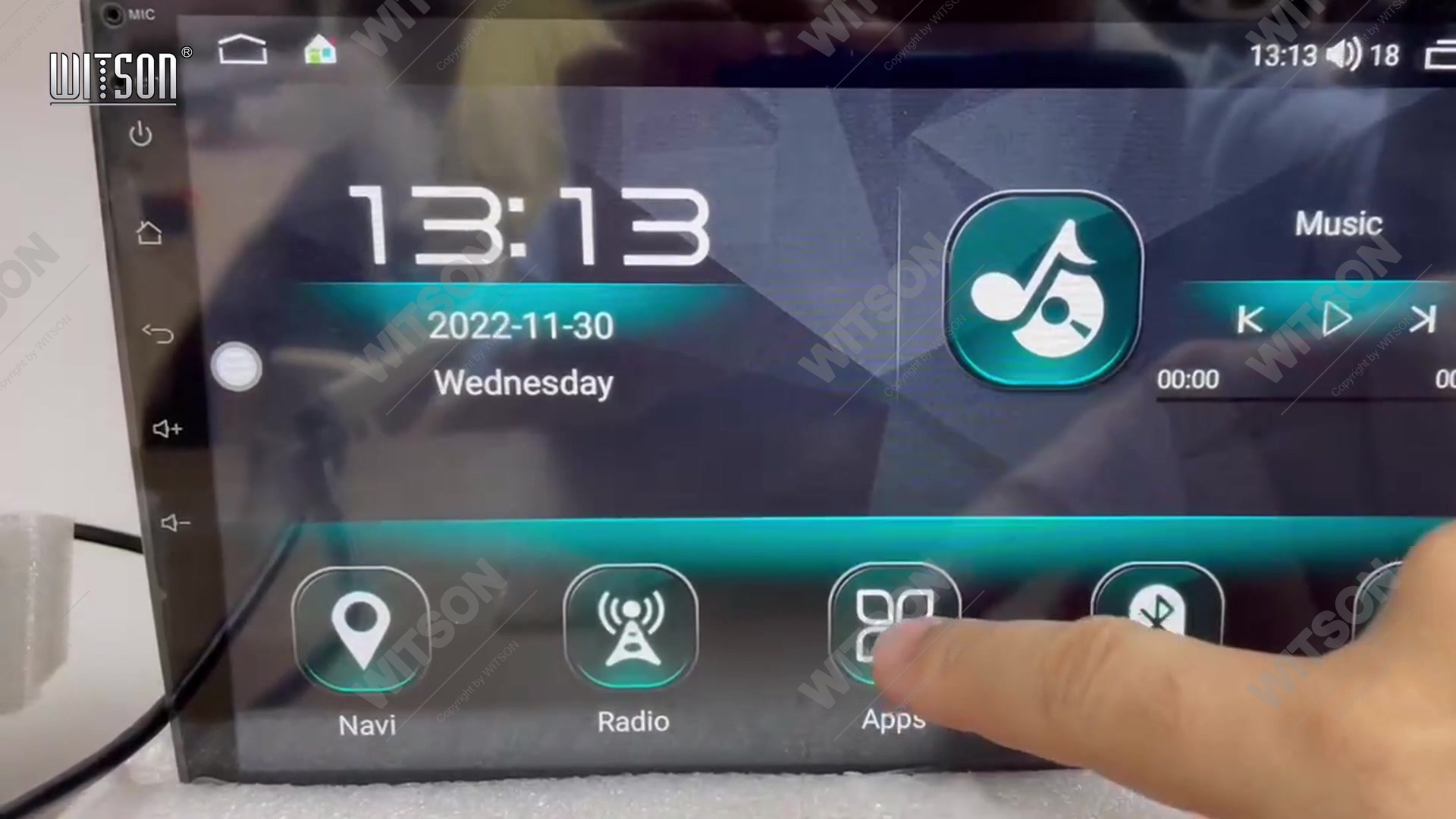
The dot has its own settings page, titled Touch Assistant Setup, with five rows. Display button is the row that decides whether the dot is drawn at all. Start automatically brings the assistant back on every boot. Hide when using auto-related applications. takes it off the screen while a car app is in front. Air conditioning protocol exists when using air conditioning function display controls the climate shortcut, and Adjust the button size opens a size control with an arrow on the right.
On the bench unit in the clip the tick marks read: Display button ticked, Start automatically ticked, Hide when using auto-related applications. clear, and the air conditioning row ticked. Those four ticks are the difference between a dot that follows you everywhere and one that appears only sometimes - so read them before deciding the assistant is broken.
To remove the dot, clear Display button. To keep the assistant but stop it covering the map, tick Hide when using auto-related applications. instead. Clearing only Start automatically does not remove it from the current session; it simply means the dot will not come back after the next reboot.
The third feature is the least obvious: the panel on the home screen that shows a map, a speed readout or a video is the launcher's own window, and the app that fills it is a setting rather than a shortcut. Owners who want a different map in that window hunt through the app drawer; the switch is in Settings.
Open Settings. The left column reads Wlan, Device, General, Factory, User and System; the right side shows the entries of whichever one is highlighted. Under Device the rows are Wlan, Data Usage, SIM Info and More - none of them is the one we need. Tap General instead and scroll: the list runs from Press any key to start, Auto-start Navigation and OSD Time through the camera rows and the volume rows, and further down through Default volume switch, Default boot volume, GPS Mix, Sound Mixing Scale, Launcher App Setting, Lantern settings, Steering Wheel Setting and Navi App.
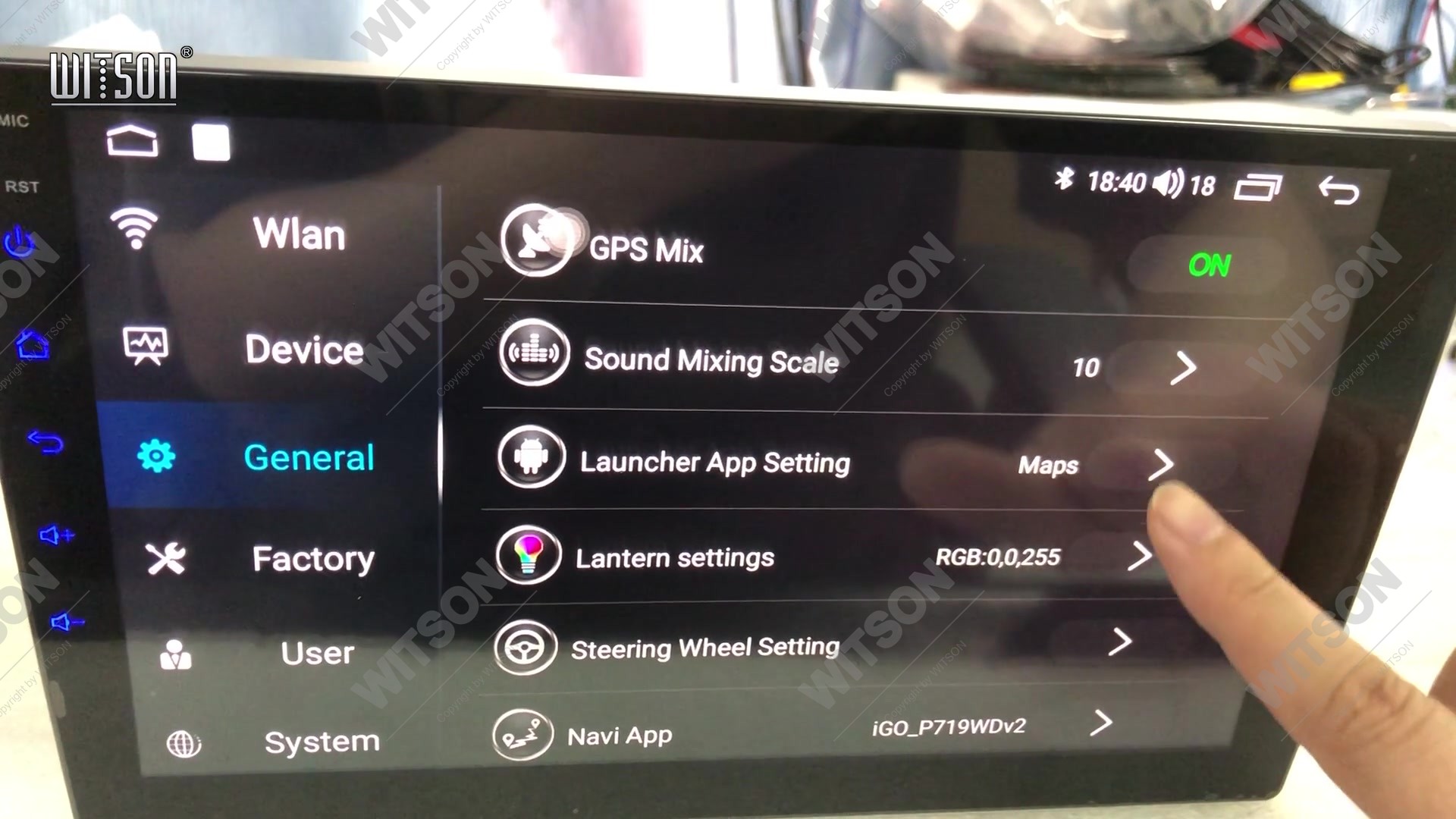
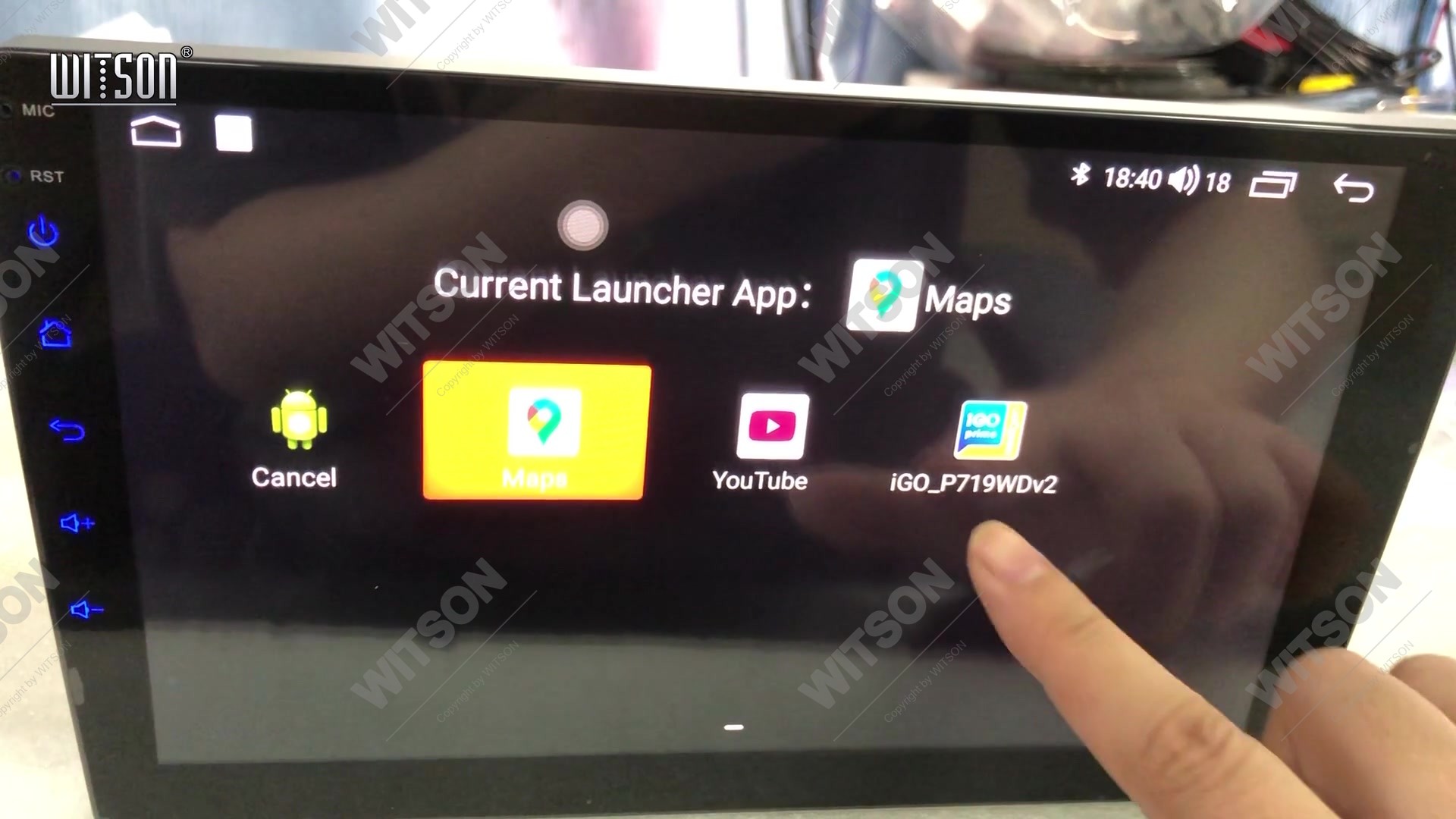
The value on the right of Launcher App Setting is the app in use - Maps on this unit. Tapping the row opens a dialog titled Current Launcher App: with four tiles: Cancel, Maps, YouTube and iGO_P719WDv2. The tile for the current app is outlined in yellow, and the title of the dialog updates to name the app as soon as you tap a different one. Tap the app you want; there is no confirm button, the choice is written as you tap.
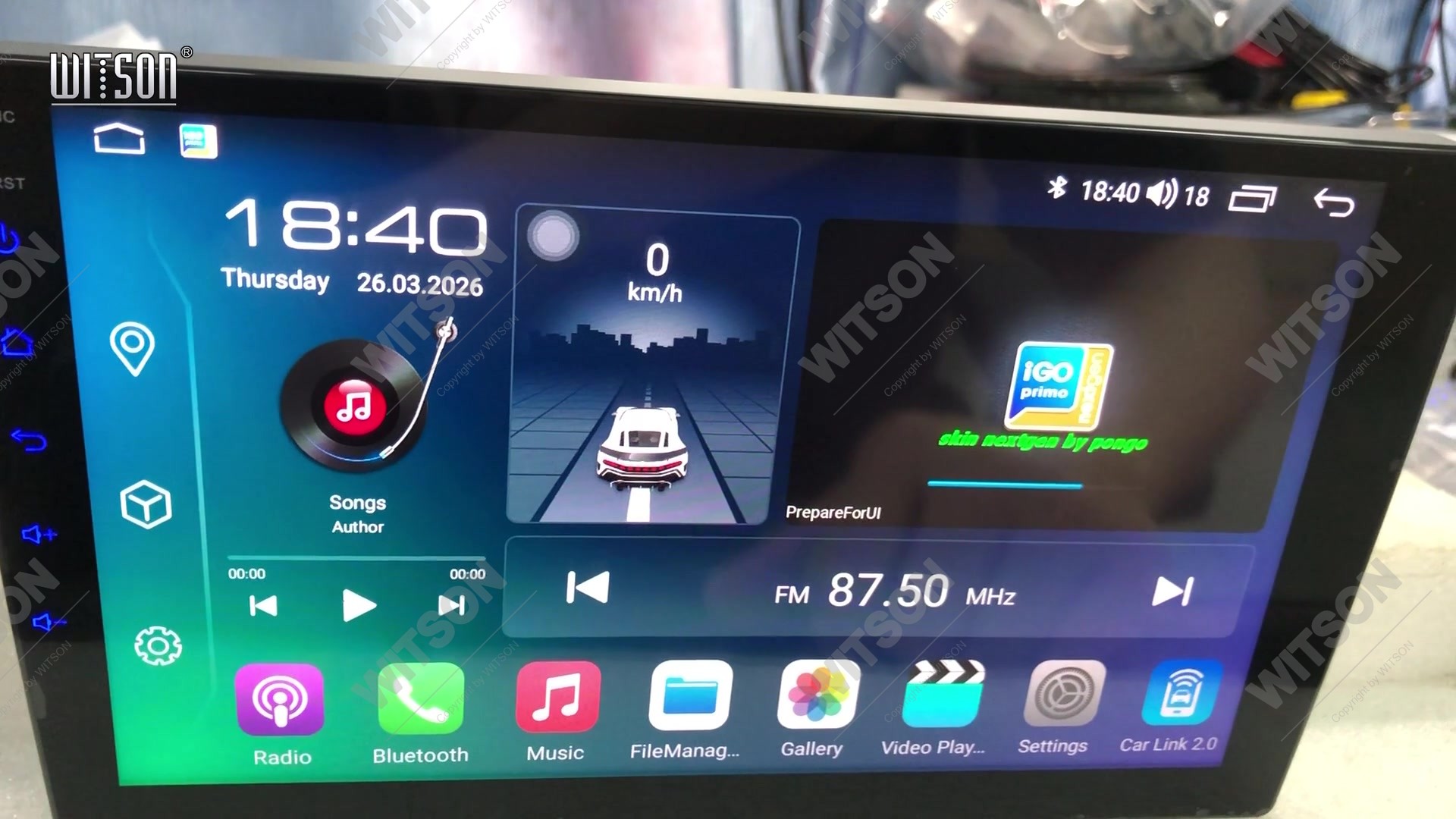
Leave the dialog and go back to the home screen. In the clip the window reloads with the map app and shows Looking for GPS signal... in its pane - the app has started but has no fix yet on a bench with no antenna, which is normal and not a symptom of a wrong setting.
Do not confuse Launcher App Setting with Navi App, the row directly below it. The first decides what the home screen window runs; the second names the navigation app the unit launches - iGO_P719WDv2 on our bench unit. Changing one does not change the other, and a customer who wants a different map in the window but the same app for navigation needs both rows set separately.
If a feature is missing entirely, the list below separates the three usual causes: the gesture never completed, the app does not support the mode, or the setting is on a different page than expected.
| What you notice | Cause | What to do |
|---|---|---|
| Swipe on the right edge does nothing | Gesture started inside the glass, not on the edge | Swipe again from the outermost millimetre of the display, slowly. |
| Panel opens but the app you want is missing | That app does not support a divided screen | Pick a different app for the second half; the list only shows the ones that can. |
| Video stops when you press home | That player has no permission to draw over other apps | Use a player that supports the floating window, or grant the permission to that app. |
| Floating dot will not go away | Display button still ticked in Touch Assistant Setup | Clear Display button; clearing Start automatically alone keeps it for this session. |
| Dot vanishes only when a car app opens | Hide when using auto-related applications is ticked | Clear that row if you want the dot visible everywhere. |
| Home window still shows the old app | Launcher window not reloaded after the change | Return to the home screen and wait for the app to restart in the window. |
| Home window blank with a loading message | Navigation app waiting for a GPS fix | Check the GPS antenna and give it a few minutes outdoors. |
For the settings that sit around these rows, the neighbouring guides cover the rest of the same screen: learning the steering wheel controls, reversed volume and track keys, the AMP switch and audio output and CAN box setup and protocol data. The connector layout and the platform itself are described in the HB / DHB and HV / DHV platform introduction, and more clips like this one are collected under the Video Showcase.
There is no menu entry for it. Split screen is started by a gesture: open one app full screen, then drag in from the very right edge of the display. A panel slides in with the apps that can take the second half, and tapping one divides the screen. Nothing in Settings switches it on or off.
In split screen both apps are full applications sharing the display, and neither is on top of the other. In the floating window one app keeps running in a small window above the launcher while the screen behind it stays a normal home screen. Split screen is started from the right edge; the floating window happens by itself when you leave a playing video.
Open the Touch Assistant Setup page and clear Display button. The dot is drawn by an assistant service that sits above every app, so removing its icon from the launcher or dragging it away does not work. If you only want it hidden while driving apps are open, tick Hide when using auto-related applications instead.
Because that particular player has no permission to draw over other apps. The floating window is an Android feature per app, not a global DHV switch, so a player that supports it floats and a player that does not simply stops. Try another player before assuming the unit is at fault.
No. Launcher App Setting decides which app fills the window on the home screen. The row below it, Navi App, names the navigation app the unit launches, and on our bench unit the two show different values - Maps in the window and iGO_P719WDv2 for navigation. Set both rows if you want the same app in both places.
Reference
Still no second window after the right-edge swipe? Tell us the model, the firmware version and which app you were trying to open.
Ask WITSON SupportMore in the WITSON how-to guides, including the DHV CAN box and protocol data guide.