DHV Series - How-To Guide
A blank, mirrored or upside-down reverse picture is three settings, not three faults.
Nothing in reverse, or the picture is flipped? The DHV series keeps the mirror and flip in Settings under General, the camera format in the Factory menu, and the front camera takes its own mirror button.
0:34 - the front camera after the app was reopened, on a bench unit. Open the clip on YouTube if the embed is blocked.
Note: As our products are continuously upgraded, the interface on your unit may look slightly different. Please select the corresponding function according to your own model.
Quick answer
For a mirrored or upside-down reverse picture open Settings, tap General in the left column, then turn on Mirror view on reverse image for a left-right flip, or Reverse Camera Up-Down Flip for an inverted picture. For no picture, or a picture that breaks up, tap Factory, enter the code, and set Reversing video format to match the camera: AHD or TVI.
Owners describe all three faults with the same sentence: "the camera does not work". They live in different menus, so the first job is to name the one you have.
Left and right are swapped. You can see the bumper, but a car approaching on your left appears on the right, and printed words read backwards. That is the mirror setting, in the General tab.
The picture is upside down. Ground at the top, sky at the bottom. Same tab, different row: the up-down flip.
Nothing appears, or the picture rolls, tears or drops to black and white. Reverse engages and the screen changes, but the image is missing or unstable. That is the video format, behind the Factory password.
One more case: the front camera. It can be mirrored while the rear camera is correct, because it does not follow the General tab. That is section 04.
The mirror and the flip are both in Settings under General. No password, no reboot.
From the home screen open the app drawer and tap Settings. The left column lists Wlan, Device, General, Factory, User and System. Tap General, the third entry, marked with the gear icon.
The General list reads, from the top: Press any key to start, Auto-start Navigation, OSD Time, Mirror view on reverse image, Reverse Camera Up-Down Flip, and Mute audio when Reversing. The two you want are the fourth and fifth entries.
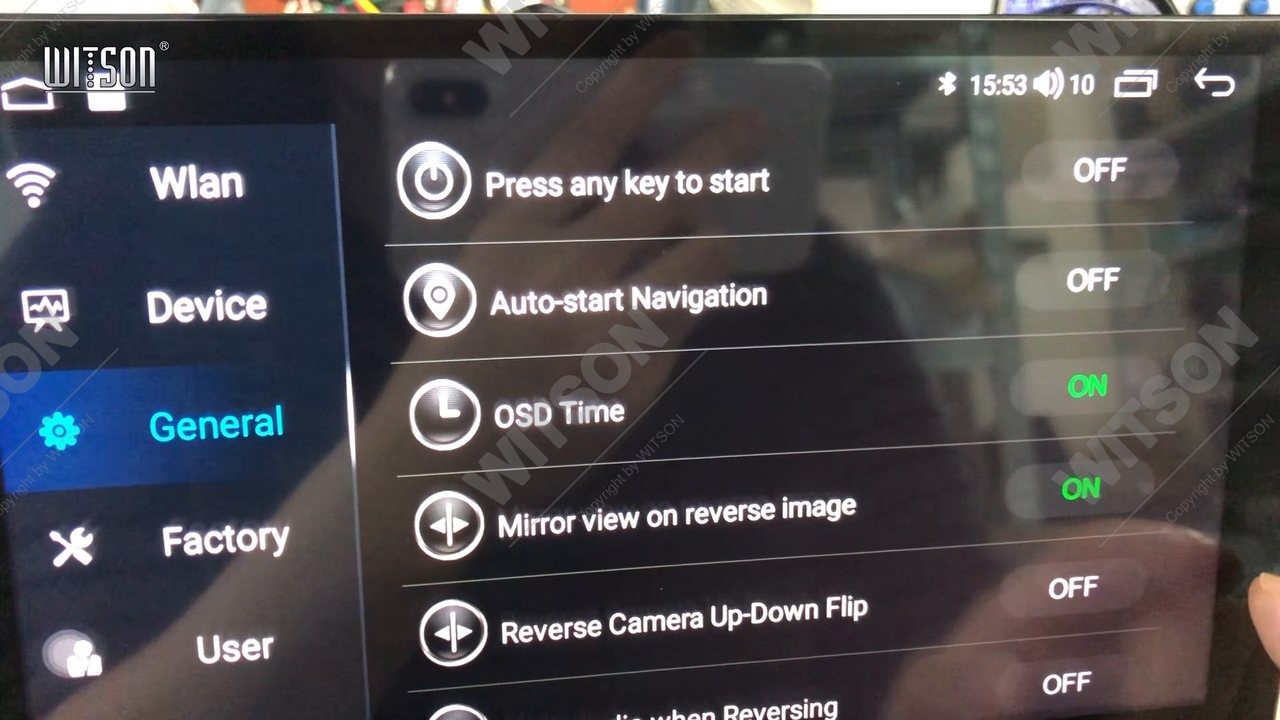
Tap Mirror view on reverse image if left and right are swapped; the value turns from white OFF to green ON. Tap Reverse Camera Up-Down Flip if the picture is inverted. There is no save button - the state is written as you tap it, and the next time reverse engages the camera picture uses the new setting.
While you are in this list, note Mute audio when Reversing. If the radio goes quiet in reverse, that row is the answer, not a fault.
A camera that powers up but shows nothing, rolls or drops out is usually a format mismatch: the unit expects one analogue standard and the camera sends another. On the DHV series that is one row, behind the Factory password.
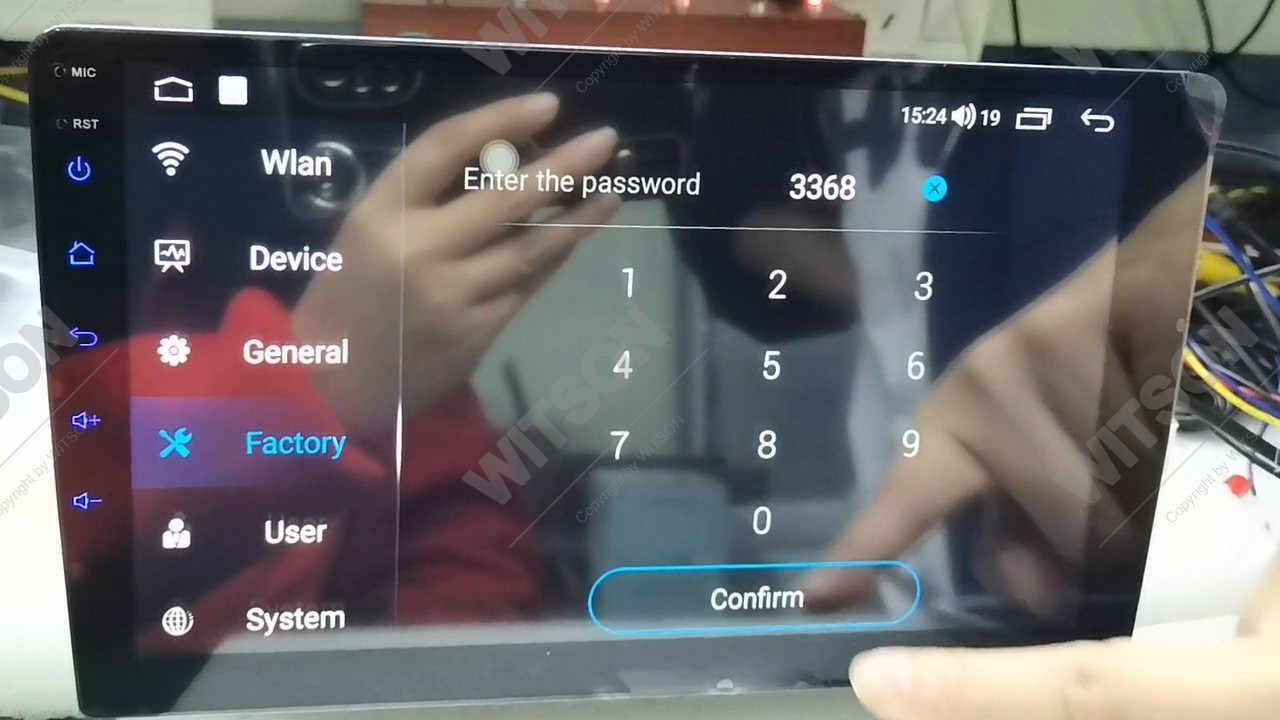
Back in Settings, tap Factory - the fourth entry, with the crossed tools icon. The keypad appears with Enter the password at the top. Type the four digits and tap Confirm. The unit in our clip takes the factory default; if a previous installer changed it, ask the company that supplied the unit rather than guessing.
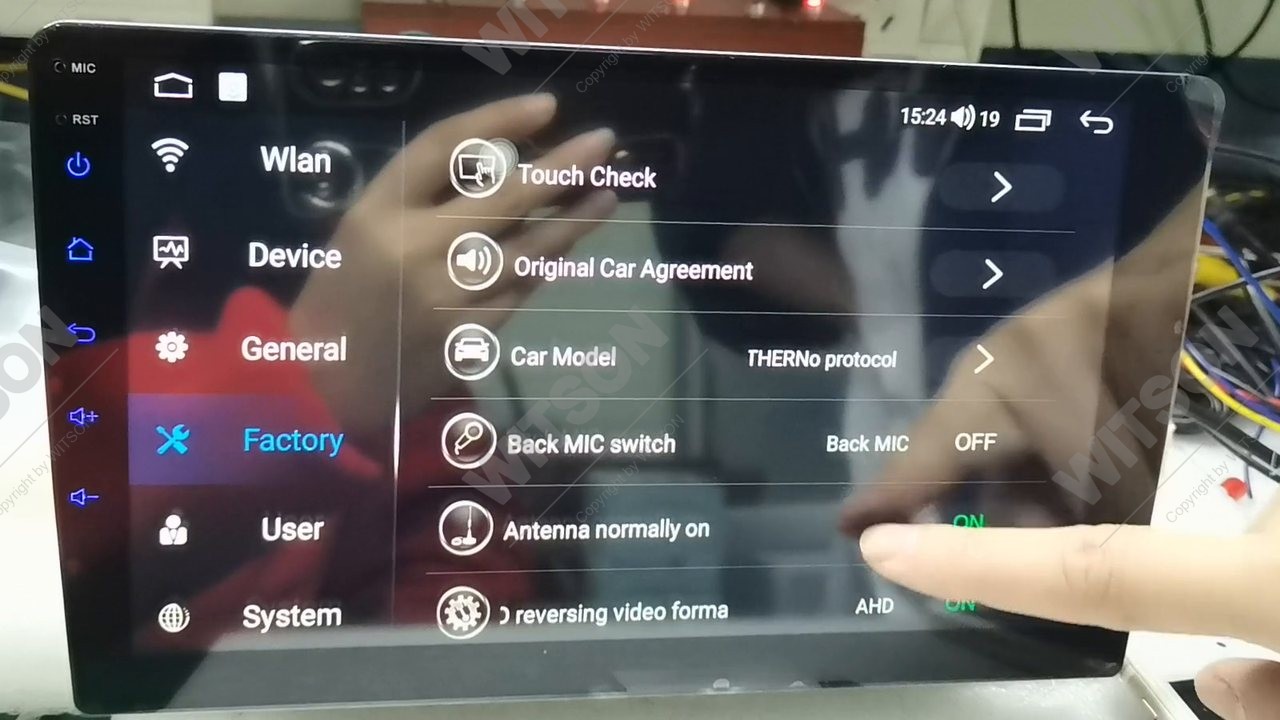
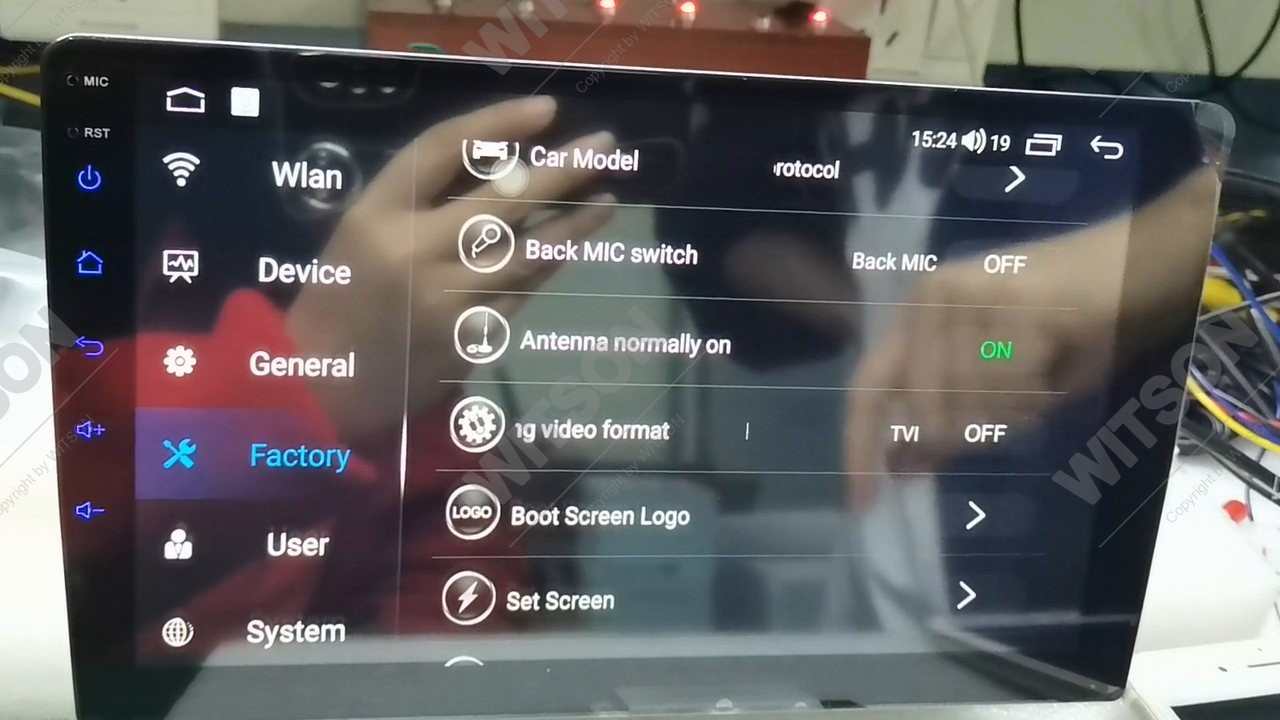
The Factory list opens with Touch Check, Original Car Agreement, Car Model and its protocol name, Back MIC switch, Antenna normally on, then Reversing video format, followed by Boot Screen Logo and Set Screen. The camera row sits between the antenna switch and the boot logo.
Tap the row and the value steps through AHD, TVI and OFF. Leave Factory and engage reverse after each change - the picture either locks in or it does not, which is faster than reading the camera box. If the camera label is gone, AHD is the common choice for an analogue HD camera sold with these units, and TVI for a TVI camera.
Two things this row does not do. It does not set the resolution the camera runs at, and it does not tell the unit when to switch to reverse - that is the reverse trigger wire. If every value gives the same black screen, the format is not your problem; go to section 05.
On a unit with a front camera input the front picture is drawn by the camera app, not by the General tab, so a front camera can be mirrored while the rear is correct - and Mirror view on reverse image will not touch it.
Open the camera app from the launcher. The live picture fills the screen, the parking guidelines are drawn over it, and a small floating panel sits at the right edge with the mirror button. Tap it - the picture does not change immediately, and a message appears across the screen: Mirror mode is open, please reopen the APP.
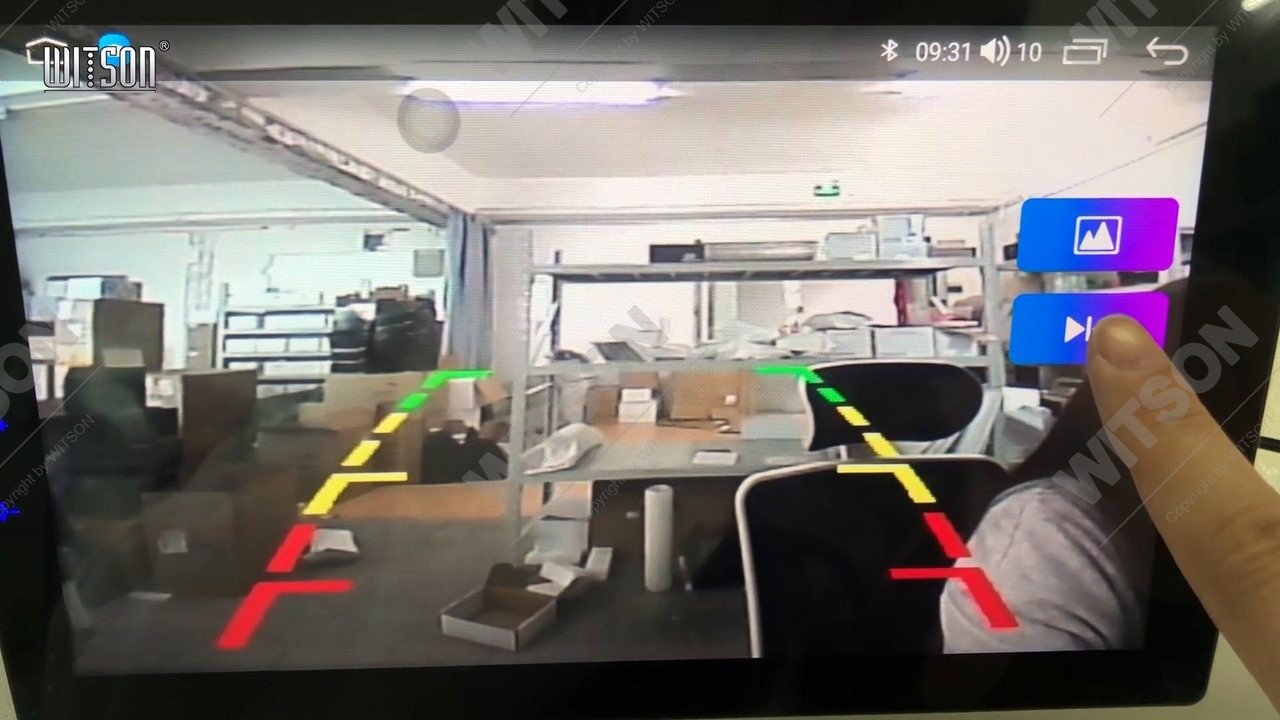
Go back to the home screen and open the camera app again. It reads the mirror flag only when it starts, which is why the message asks you to reopen rather than promising an instant change. No reboot and no settings save are involved.
If no setting changes anything, stop tapping and check the install. These three account for most of the "dead camera" cases that reach our support desk.
The reverse trigger. The unit switches to the camera screen when the reverse lamp feed reaches the reverse wire. If the screen never changes at all, the trigger is not arriving - check the tap on the reverse lamp and the fuse for that circuit.
Camera power. Most cameras take power from the reverse lamp as well. A camera powered from the head unit but triggered by the lamp, or the other way round, can show a picture only in one direction of travel.
The video cable. A loose RCA or a crushed cable gives exactly the symptom people call "the wrong format": a picture that appears, rolls, then drops out. Reseat both ends before you touch the format row again. A unit that does not answer touches at all is a different job - the DHV touch screen calibration guide covers that one.
Engage reverse with the ignition on and check three things: the picture appears within a second or two, left and right match the real world, and nothing rolls. Release reverse, wait, engage again - a setting that survives that is written properly.
Then switch the ignition off for ten seconds and back on. The General rows and the Factory row all survive a normal reboot and a normal firmware update; a factory reset returns them to defaults, which is why a unit that worked for months can come back with a mirrored picture.
If the rear camera is fine but the steering wheel keys misbehave, that is a different menu on the same unit: the SWC learning procedure handles keys that do nothing, and the reversed steering wheel button guide handles keys that work backwards. For the hardware behind the menus, the HB / DHB and HV / DHV platform introduction lists what each variant is built on, and the default menu wording is in the WITSON operation manual download section. The launcher itself is shown in the DH series interface video.
| Symptom | Cause | What to do |
|---|---|---|
| Picture appears but left and right are swapped | Mirror row off for a rear camera | General tab, turn on Mirror view on reverse image. |
| Ground at the top, sky at the bottom | Camera mounted upside down, or the flip row is wrong | General tab, toggle Reverse Camera Up-Down Flip. |
| Screen switches to reverse, picture stays black | Format mismatch, or no video signal arriving | Factory tab, step Reversing video format through AHD and TVI. |
| Picture rolls, tears or drops to black and white | Wrong analogue standard for the camera | Same row - try the other value, then reseat the video cable. |
| Screen never changes when reverse is selected | Reverse trigger wire not connected | Check the reverse lamp tap and its fuse, not the menus. |
| Rear camera correct, front camera mirrored | Front camera has its own mirror flag | Mirror button in the camera app, then reopen the app. |
| Radio goes quiet in reverse | Audio muting row, not a picture fault | General tab, turn off Mute audio when Reversing. |
No. They fix different faults. The mirror row swaps left and right; the flip row turns the picture upside down. A camera mounted the right way up needs only the mirror row. Switching on a row that was already correct adds a second fault on top of the first.
Then the format is probably not the fault. Check that the camera has power, that the video cable is seated at both ends, and that the reverse trigger wire is connected - a missing trigger leaves the screen on the previous source rather than on a black camera page. A camera that never receives power looks identical to a format mismatch.
Because the camera app reads the mirror flag once, when it starts. The button writes the flag, the running app does not re-read it, so the picture stays as it was until the app restarts. Close the app, open it again - no reboot of the unit is needed.
They survive a normal reboot and a normal firmware update. A factory reset returns the settings block to defaults, so the mirror row, the flip row and the camera format come back at their factory values. Check them after any reset before you assume the camera has failed.
Try AHD first on an analogue HD camera supplied with these units, then TVI. The two are not interchangeable, so only one gives a stable picture. If neither does, the camera is probably a standard composite camera, or the fault is in the wiring rather than the format.
Reference
Still blank after all three settings? Send us the vehicle model, the year and a photo of the General and Factory lists.
Ask WITSON SupportMore in the WITSON how-to guides, including the DHV touch screen calibration guide and the DHV SWC learning procedure.