OBD-II data / the screen that was never built to show it
You bought the dongle, it paired in ten seconds, and the dials that were supposed to land on the dash screen never arrived. No error, no prompt, nothing to tap. That's not a setting you missed - it's the difference between a screen that runs apps and a screen that only borrows them. The 16-pin port under the dash has been the standard on new cars in Europe since 2001.
Here's the version I hear most often. The dongle arrives, it pairs in ten seconds, the phone app draws a lovely set of dials, and the car screen carries on showing a map and a music tile. Nothing complains. The driver decides the adapter is rubbish and orders another one, which changes nothing.
Android Auto isn't a second copy of Android living in your dash; it's a host, which means your phone runs the app while Android Auto draws a driver-safe version of it on your car display. To get drawn there, an app has to sit in one of the categories Google publishes for cars - media, messaging, navigation, points of interest, connected-home devices, weather, and games or video while parked. Diagnostics isn't one of them.
The car app quality guidelines are blunt: an app "must not include features outside the app types intended for cars", and that line gets checked before anything else. A coolant gauge is useful, but there's no door for it on your launcher.
So where do the screenshots come from, the ones with a boost gauge sitting beside Google Maps? Two places, and neither is a normal install.
A dongle that talks to your phone is not the same thing as data on your dash. The gap is software, and the software sits on the car side.
Before you spend another hour, name the screen you actually have. Three different setups get called "Android Auto", and only one can install a diagnostics app at all. So which one is in your car?
| Screen type | Runs the app on | Data path | Gauges on the car display |
|---|---|---|---|
| Android Auto (phone projection) | Your phone | Dongle to phone | Only through a sideloaded plugin or mirroring |
| Aftermarket Android head unit | The unit itself | Dongle to unit, BT or USB | Yes, like any other Android app |
| Android Automotive OS (built into the car) | The car | Through the car's own app store | Rarely, under the same category rules |
Easy to confuse the last two, because both say Android. The difference is who owns the app store.
How I read it: only the middle row gives you an ordinary app install. The first row is where most drivers live, and where workarounds get messy.
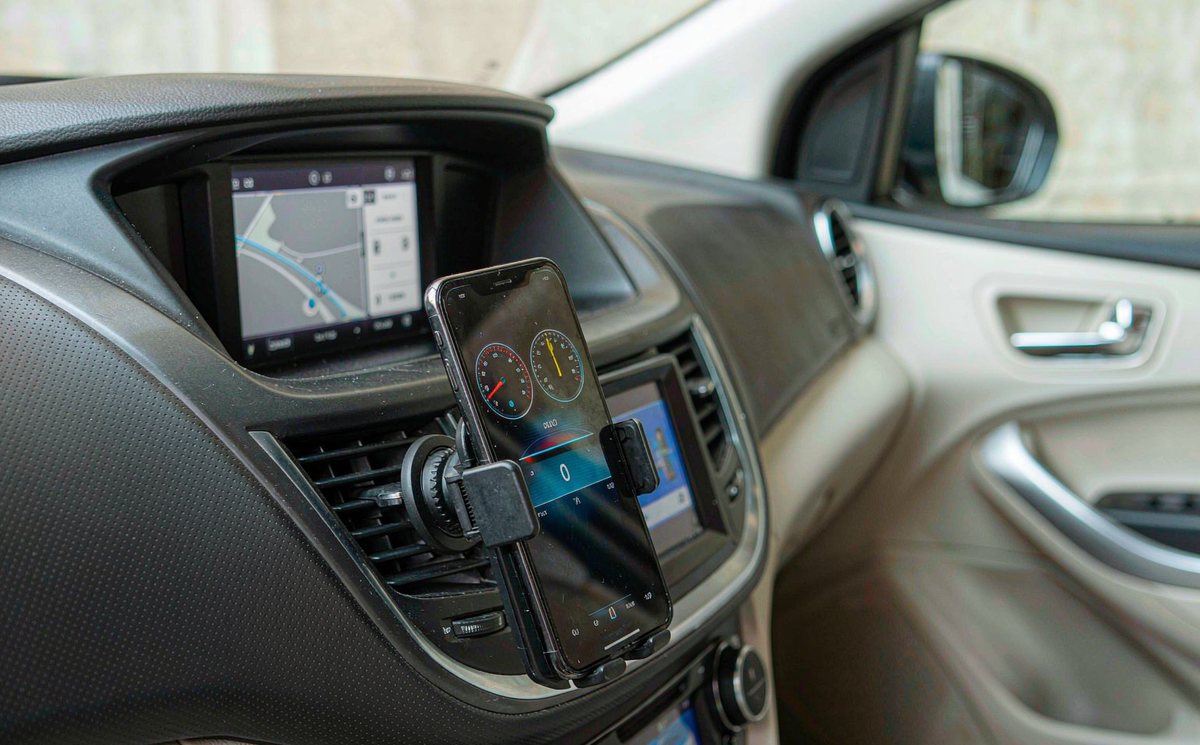
If your car has an aftermarket Android head unit - one that boots to its own home screen with a Play Store icon - the problem collapses into a normal install. Ten minutes, if the adapter behaves.
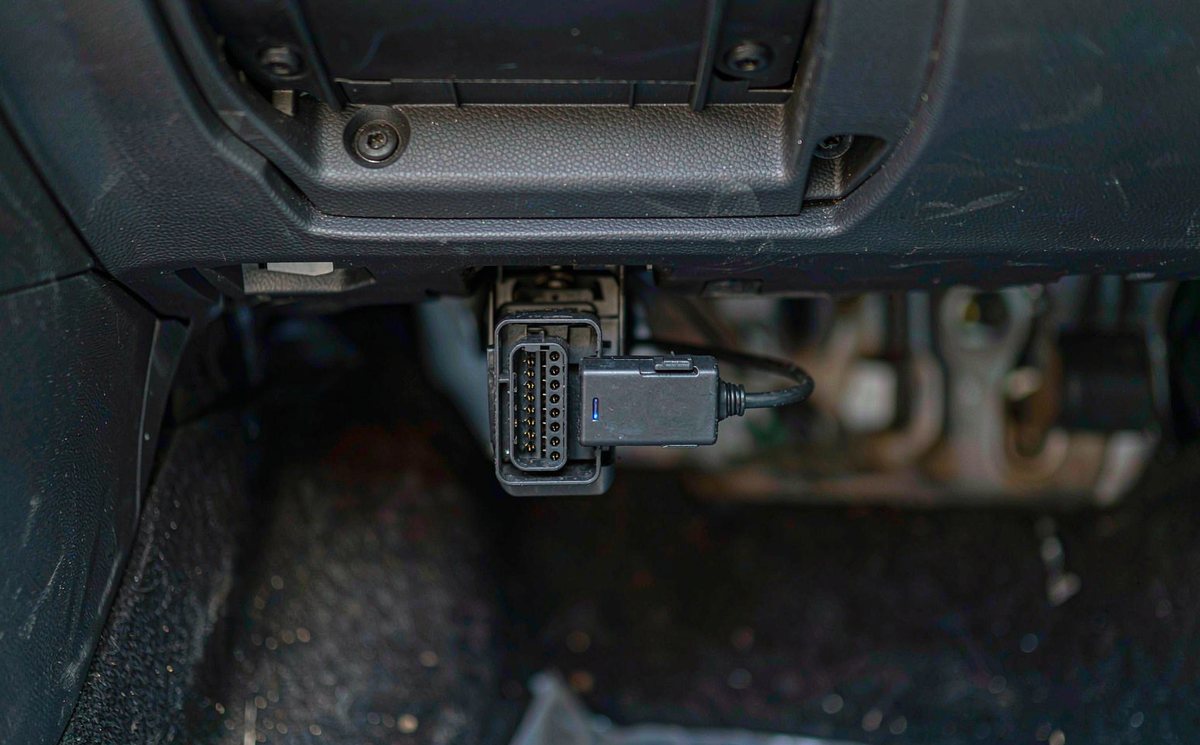
One detail worth knowing: the unit's Bluetooth is often busy with your phone for calls, and a cheap adapter fighting for that radio can drop out mid-drive. Move it to USB.
Once the app is installed, pin it where you can reach it in one tap; the shortcut trick is the same one I use for quick shortcuts for OBD and camera apps, and it saves swiping at a red light.
If your unit only offers CarPlay and Android Auto with no app drawer, stop here. That's the hardware class, not a firmware gap.
Two routes get gauges onto an Android Auto screen, and both live outside Google's front door. I'd rather you knew that before you spend an evening on it: the frustrating bit is how often it breaks.
The first is a sideloaded bridge: a small plugin that registers as a car app and pulls values out of the diagnostics app on your phone. You unlock developer mode in Android Auto, allow unknown sources, install the plugin from somewhere that isn't the Play Store, then hope the next Android Auto release doesn't change the rules. On some phones it runs for months; on others it dies after an update.
The second is full mirroring, where the phone's display is copied onto the car screen and the app runs inside that copy. That's android head unit screen mirroring from phone doing something it was never designed for: your car display becomes your phone at arm's length, with phone-sized buttons and warnings.
Both rest on software the platform owner doesn't support, and if you want gauges daily, the mistake is picking the hack over the hardware. Put the app on a screen that owns it.
When the link won't come up, don't start by buying a better adapter. The first three levels cost nothing, and they answer what the fourth can't.
Level 01 - no tools
Test on your phone first, because it has the fewest variables; if your phone can't hold the link, your unit never will. Then check the unit's app drawer; a missing app is an install problem. The mistake I see most often is a second dongle ordered before that drawer was ever opened. Read the protocol line the app reports, something like ISO 15765-4 CAN, 11-bit, 500 kbps. A protocol that won't resolve usually turns out to be no power at the port, or an ECU that isn't answering. The adapter is the usual suspect and rarely the guilty one.
Level 02 - a multimeter
On the standard 16-pin connector, pin 16 is battery positive and pins 4 and 5 are ground. Ignition off, you should still read roughly 12 V between 16 and 4. Zero means the port is dead or a fuse is out, and no app on your phone will fix that. Then watch the adapter's light: none at all is power, a light that never blinks is usually the link to the ECU.
Level 03 - parameters
Firmware labels are optimistic. I've seen dongles sold as version 2.1 report 1.5 inside the app, and that number changes which commands work. Bluetooth Classic and BLE are different stacks, so a BLE-only adapter won't answer an app looking for a serial profile. Bus speed decides how smooth the gauges look: CAN at 500 kbps is common on cars from the mid-2000s on, while older K-line cars can deliver a correct reading slowly enough to make a needle stutter.
Level 04 - parts
Buy an adapter that names its chip and the protocols your car uses, not one that promises to work with everything. For a permanent install I'd take USB; for a dongle that travels between cars, Bluetooth Classic is the least fussy. And be careful with the cheapest mini units: some keep drawing from pin 16 after the car sleeps. Unplug yours for a week and see whether the flat-battery complaint disappears - an awkward test that tells you more than any listing.
Four transports show up in the listings, and what matters in a car isn't on the spec sheet: pairing behaviour, refresh rate, and what happens when the phone does something else.
| Transport | Pairing | Good for | Trade-off |
|---|---|---|---|
| Bluetooth Classic | System menu, usually with a PIN | Moving between cars, most units | One device at a time, competes with phone audio |
| BLE | Inside the app, no PIN | Newer phones, iPhone users | Older apps may not list it |
| USB | None, just a cable | Permanent installs, fast refresh | Cable routing, one more connector to fail |
| Wi-Fi | Joins the adapter's own network | Logging lots of parameters | Phone loses internet while connected |
How I read it: if your unit stays in the dash, take USB, because boring is what a daily driver needs. A dongle shared between cars gets Bluetooth Classic, because pairing shouldn't be a fight. Wi-Fi is for whoever reads logs afterwards.
Two things bite here, and neither is about wiring.
The first is the platform's own caution. android auto restrictions while driving exist because a moving car punishes anything that needs more than a glance, and a wall of dials is the opposite of that design. If you run something that ignores those rules, the risk lands on you.
The second is your own screen. An android car radio with split screen multitasking lets you keep navigation on one half and two gauges on the other, which beats a wall of dials. My rule is two live values while moving - coolant and battery voltage in winter, boost and intake temperature if that's your thing - and everything else logged for later.
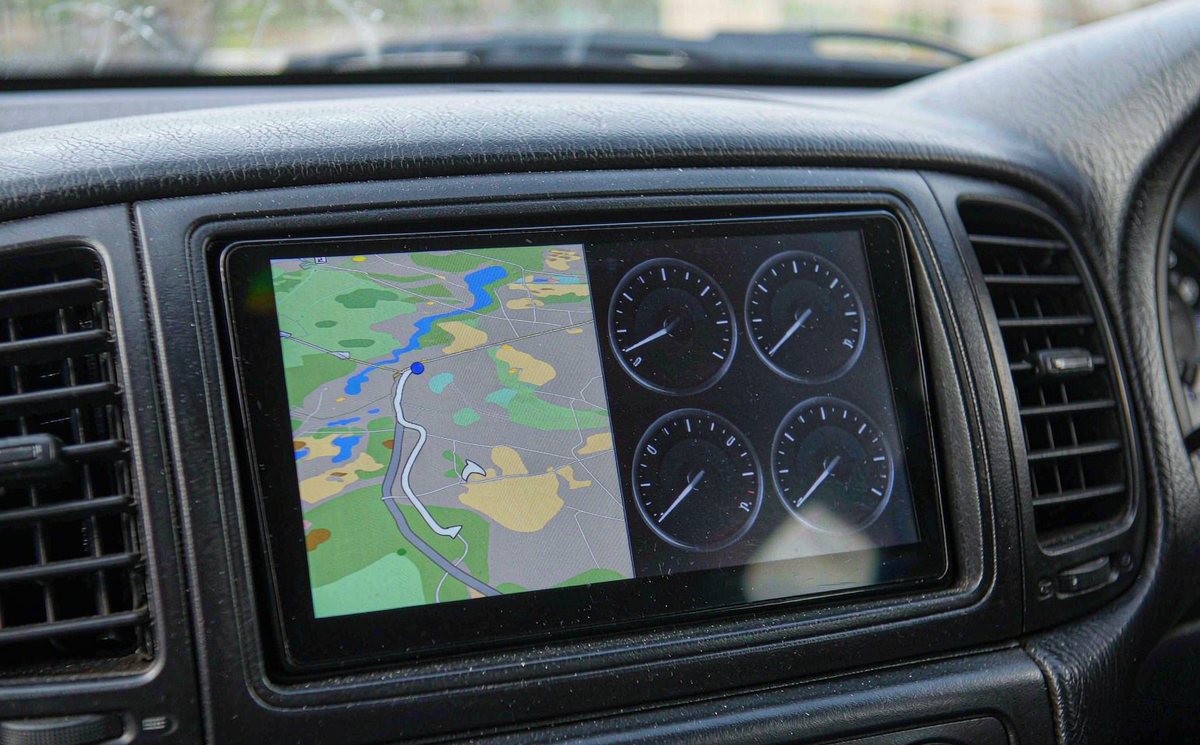
There's a smaller trap: on many units the moving-video lock also kills a floating widget, so a gauge overlay can vanish the moment you pull away, which is maddening the first time it happens. Nothing is broken. It's the same idea behind every car android system while driving restriction - the screen isn't allowed to compete with the road.
If the four levels are clean and the unit still drops the link, that's hardware, not a setting. WITSON units run the diagnostics app natively instead of borrowing a phone, and the range is listed under Android head units. Send the model year, trim and unit you're considering, and support will confirm what fits.
Tell us the model year and trim of your car, and we'll confirm which unit fits and which adapter it pairs with before you spend anything.
Tell us your carNot through the normal launcher. Google's supported car app categories have no diagnostics entry, and review rejects apps that add features outside them.
Both work, and USB is steadier for a fixed install. Bluetooth is easier when the dongle changes cars. Just don't assume a BLE adapter behaves like a Bluetooth Classic one; they pair differently, and some apps only look for one.
A connection is only the radio link. Zero values usually mean the wrong protocol is selected, an ECU that isn't answering, or a port with power but no data. Check the protocol line first, then measure pin 16 to pin 4 before blaming the adapter.
Look for an app drawer or a Play Store icon on the unit's own home screen. If all you get is CarPlay, Android Auto and a settings menu, it's projection-only and nothing can be installed on it.