Navigation settings / the alert that does not live in the map app
A van pulls out of the yard at 6:40 with the tool bag still on the bench, and nobody knows until the first job of the day goes wrong. A fence alert is the cheapest cure for that morning. On an aftermarket Android head unit, though, the setting you're hunting for usually isn't in the navigation app at all.
Here's what I see week after week. A GPS receiver does one job, working out where it is and handing that position to whatever software asks for it; the boundary you want - leave this yard, buzz my phone - exists only once an app draws it. No satellite knows about your yard, and no satellite sends you a notification.
So when you ask me where the fence setting is, the answer depends on which device is doing the watching. I've watched installers spend a whole afternoon in the navigation menu hunting for a radius slider that was never part of that app. That's a tedious way to lose a day. Before you dig any further, pick one of the three routes below, because the steps differ and the results aren't equally reliable.
This is the comparison I show a fleet owner who asks why the feature is missing from the map screen. All three routes work, so which one should you pick? Look at what keeps running once the key is out.
| Route | Where the logic runs | Watching with the key out | What it asks of you |
|---|---|---|---|
| Phone app the driver carries | The phone, using its own GPS | Yes, while the phone is with the driver | A location permission that survives a reboot |
| App on the head unit | The Android unit, using its GPS antenna | Only if the unit keeps power and data | A SIM or hotspot, plus sleep settings that allow it |
| Hardwired GPS tracker | A sealed box with its own SIM and battery | Yes, independent of the screen | Wiring, a data plan, and usually a subscription |
Read the third column first. It decides whether you get an alert at 2 a.m. or only while the screen is awake. A yard in Europe and a yard in North America want the same alert; the wiring rules differ.
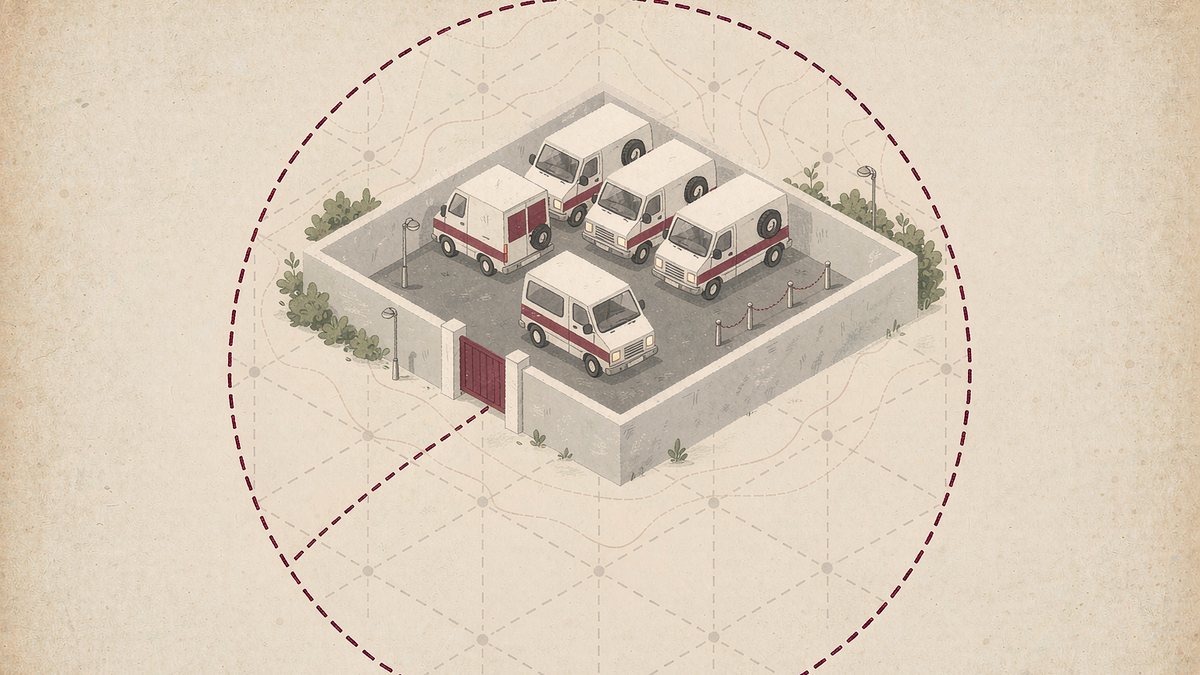
The route you'll probably take is the second one, because it feels tidy: one screen, one app, one account. It's also the route with the most ways to fail quietly, which is what the manuals skip. Your screen can look perfect and the alert can still be dead, because the unit went to sleep, lost its data link, or had the app cleaned out of memory by the launcher. That fault is annoying to explain to a customer, and it's rarely the app alone. If you need the trip record afterwards, exporting the navigation route history is a separate job.
Do four things before you buy anything. You don't need tools, and it takes about ten minutes; this answers the question that decides the next step: is the missing piece a setting, or a device that can't do the job?
01Open your navigation app and search its settings for words like place, alert, notify or zone, because if the entry isn't there the app simply doesn't have the feature. No amount of menu digging will produce it.
02Check whether your phone and the head unit are signed into the same account. A fence you created on one device often doesn't exist on the other, and you'll blame the car for that.
03Turn off Do Not Disturb for a test drive, and confirm the app is allowed to post notifications. Dull work, and it's frustrating how often that's the whole fault.
04Drive out of the zone with the app open, then again with it closed. The two results show whether it watches in the background or only while you're looking.
Order matters more than the menu names, which vary between firmware builds. A fence isn't the same job as android car radio navigation while driving: the map only has to work while you're looking at it, and the fence has to work while you aren't. Work top to bottom and you won't have to redo it after the next cold start.
One owner only. If your phone and the head unit both watch the same zone, you'll get duplicate alerts and spend an evening working out which one is late. For a family car, the phone is easier. For a van that runs all day, the unit with a SIM is the better owner.
Set the centre on the actual gate, not the address the map suggests. Radius is a trade: too tight and a slow exit fires late, too wide and you're alerted while the car is still in the next street. On a city block, 150 to 250 m is a sensible start.
Location needs to be allowed all the time, not only while the app is open. On the head unit, take the app out of the launcher's automatic memory clean as well, and turn off battery optimisation for it. Skip this and the fence works until the next cold start - which is exactly when you stop testing.
Drive out, wait for the notification, drive back in, wait again. Note the delay. A minute or two is normal for apps that check position on a timer. Ten minutes means the app is being frozen in the background, and no radius change will fix that.
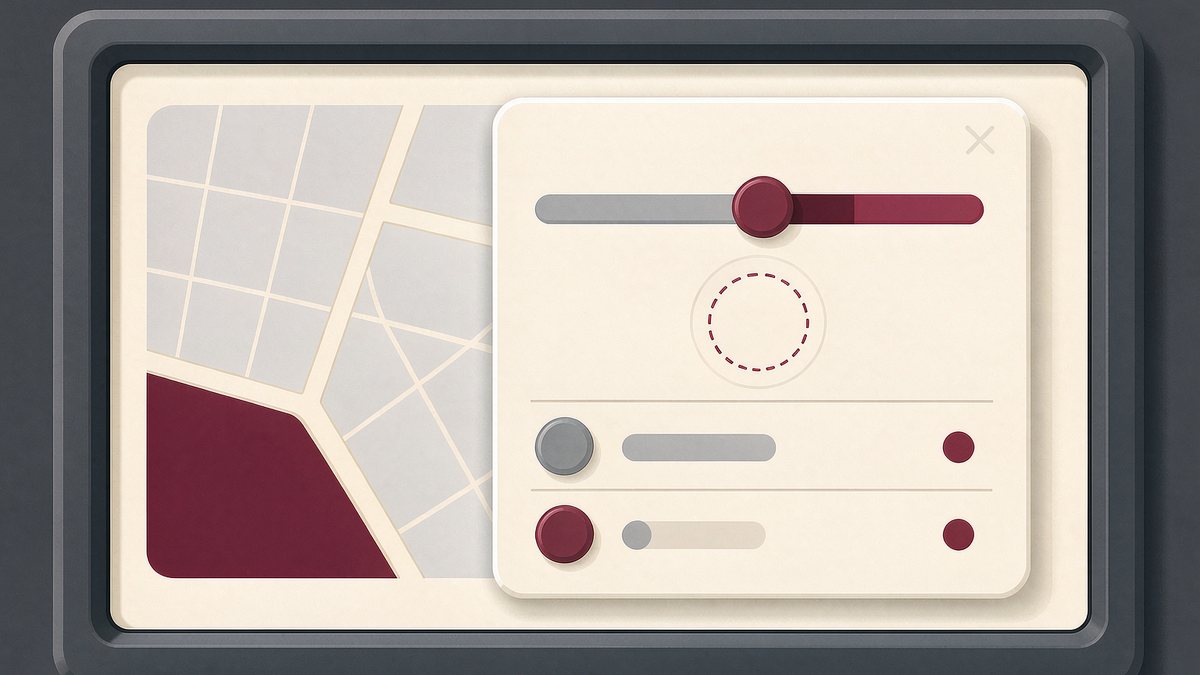
If your android car radio with split screen multitasking can hold both apps side by side, use it. The fence app stays visible enough that the system is less eager to close it. That isn't a cure, but it's a cheap way to keep both alive on a unit with modest memory.
A fence alert is a notification, not an immobiliser. It tells you something happened; it doesn't stop the car, lock a door, or bring a vehicle back. Read it that way and you won't be surprised.
Your alert is also only as fresh as the last position fix. In an underground car park or a street of tall buildings, the reported point can sit still for minutes, so an exit alert may arrive late or skip a small movement entirely.
And it watches a place, not a person. If the phone travels without the car, the fence on the phone will still fire - fine for a family agreement, and awkward the day you need to prove where the vehicle went.
One more thing: tracking a car somebody else drives needs their knowledge and, in many countries, their consent. Sort that out before you set the radius.
This is where most of my messages come from: the fence is drawn, the test drive happens, and then nothing. Work down these four levels in order. Each one costs less than the next, and your answer is usually waiting in the first two.
Level 1 - free
Notification permission, Do Not Disturb, the account that owns the zone, and whether the app was installed on the unit or only on your phone. Check the notification log too: a cleaning app can swipe the alert away before you see it. That's the usual suspect, and it gets misdiagnosed as a dead app.
Level 2 - wiring and power
An Android head unit drops into standby with the ignition, and a standby rail isn't a live feed. If the fence app has to run with the key out, the unit must keep a stable supply on its memory wire, and the app must survive the sleep. So how do you tell a sleeping unit from a dead one? Measure the feed with the key out instead of trusting the label on the harness.
Level 3 - parameters
Check the satellite count on a clear road, not in the garage; a weak fix usually turns out to be the antenna. Confirm your SIM has data and the access point is right. Then look at the firmware's sleep and auto-clean rules: many units close background apps aggressively to protect a small battery, and a fence app is the first casualty. Whitelisting it is a parameter change, not a purchase.
Level 4 - hardware
If the unit has no SIM slot and no reliable data link when parked, no setting will turn it into a 24-hour watch for you. At that point a small hardwired tracker with its own battery does the job properly, and the head unit goes back to being a screen.
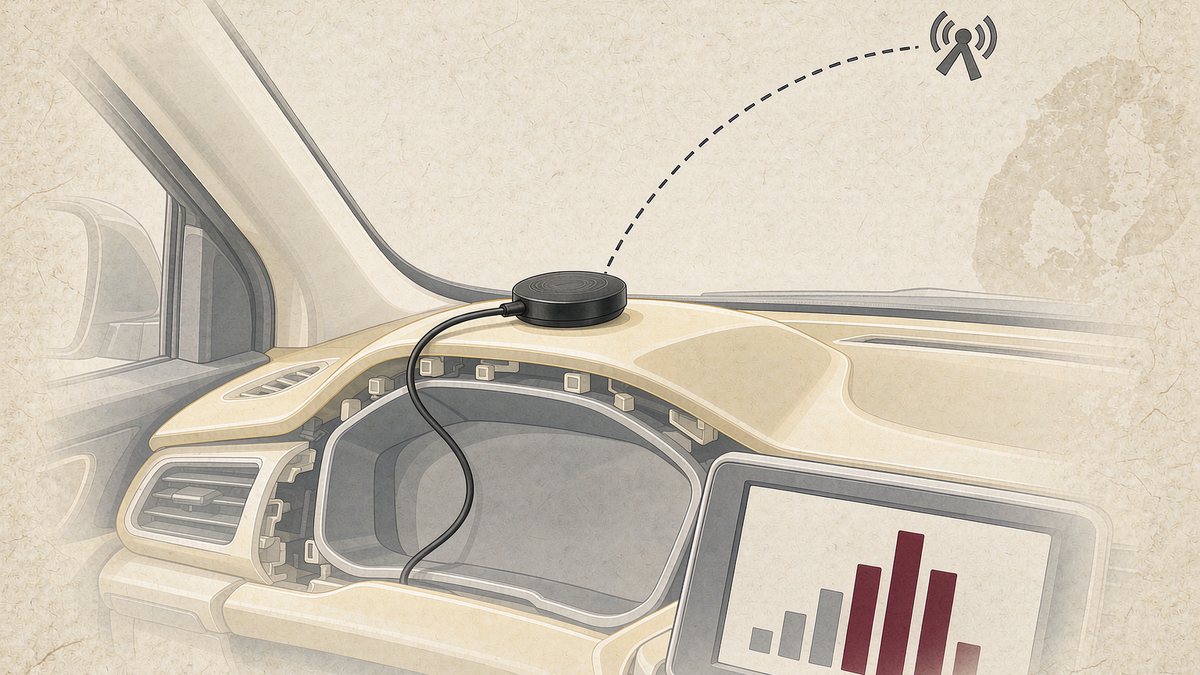
Here's one I see often: the antenna was tucked under a metal dash frame, and the unit still reports a position - just a stale one. A position that updates once every few minutes looks like a broken alert and is really a reception problem. Move the antenna first, retest, and only then start reading firmware notes.
If the four levels are done and the unit still can't hold a data link while parked, that's a hardware gap rather than a setup mistake. An android head unit with 4G SIM card slot support can carry the fence on its own; a unit without one can only mirror a phone. WITSON builds both, and the range is listed under Android head units. Tell us the model year, the unit you have and where the alert has to reach, and support can tell you what the fence would depend on in that car. That conversation belongs at the end, not the start.
Stuck at level two or three? Send us the unit model, the car's model year and a photo of the GPS antenna position. Support can tell you whether the fence has to live on the phone or on the unit in that car.
Ask our support deskNot as a fence around a vehicle. Google Maps can notify you when a person you share location with arrives at or leaves a place, and that alert follows the phone. Drawing a boundary around your own car is a job for a fleet or tracker app.
Only if the unit is the device watching the fence. With a SIM or a reliable hotspot, the unit can report a crossing while it's awake. Without one, the fence has to sit on your phone or on a separate tracker. A phone hotspot is fine for testing and dies the moment the phone leaves the car.
A late alert usually means the app checks position on a timer, or the unit had a weak fix. A double alert is common when the car parks right on the boundary line, so the position flickers in and out. Move the centre point or widen the radius slightly.
Yes if something with its own power is watching: a phone in the car, or a tracker with a backup battery. A sleeping head unit watches nothing.