Car screens - apps, updates and lag
Every couple of weeks someone sends me a clip of their screen, finger stabbing at the map, and the map crawling. Nobody touched a setting. What did change is that a handful of apps pulled new versions down overnight while the car sat on the drive, and the unit has been rebuilding itself ever since. The fix costs nothing and lives in a menu plenty of owners never open.
An Android head unit treats apps the way a phone does: the store may fetch a new version whenever the unit has a connection. That's a fair trade on a phone you replace every three years. On a car screen built around older hardware it isn't, because each new version is written for newer chips and asks for more memory before it does anything useful. You can turn the fetching off, keep the patches that matter, and find out within three days whether updates were ever the problem.
An install isn't one download. The unit verifies the package, unpacks it, replaces the old files and rebuilds the compiled copy it runs from. The first launch after that is the slowest one you'll see, because the caches were just thrown away. Do that for six apps on the same night and the drive to work on Monday feels like a different car. Annoying, and avoidable.
What we see when a unit arrives complaining about speed is rarely a broken board. It's a pile of applications that grew while the hardware stood still. A map app written for a newer Android release asks for services and memory that the same screen didn't have to spare two years ago, and the delay lands on you as a map that takes eight seconds to draw.
That difference matters when you fit a retrofit android head unit for older car platforms, where a 2019 board is running 2026 app builds. Nobody lied to you about the specification. The apps simply moved, and I've found that plenty of owners end up blaming the screen for a decision an app developer made. And a android car radio with split screen multitasking makes it worse: two apps stay awake at once, both asking for memory, both getting updated in the background.
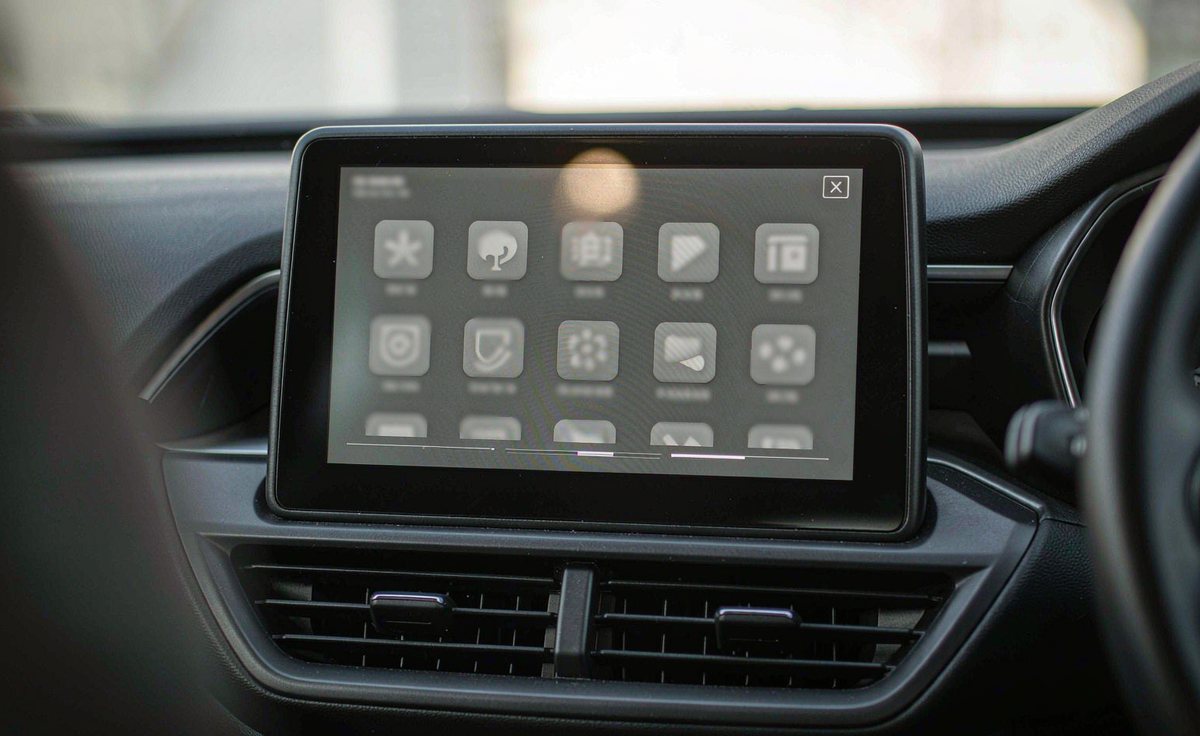
Don't change a setting until you know what changed on its own. Three checks, all free, and you can run them in a car park with the engine off.
Open the store, go to the managed list of installed apps and sort it by the last update. If a dozen entries changed in the past week, you've got your suspect.
System settings, then storage. Below about a tenth free, an install has little room to unpack, and the unit spends its time shuffling files rather than running them. Tedious to watch, and easy to miss.
Start the car with a stopwatch and note how long the launcher takes to accept a tap. That number is your baseline, and you'll want it again in three days.
One more thing to settle before you touch a menu: which store is on the unit. If the app drawer has Google Play, section 03 is yours. If it has a seller-branded market instead, that program has its own update setting, and the Play steps below won't appear anywhere. The common trap is buying a faster unit before checking which of the two you're looking at.
The first switch is the one everybody means. Open the Play app, tap your profile picture, then Settings, then Network preferences, then Auto-update apps. Four choices sit behind it, and only the last one stops the fetching.
| Setting | What it does | When it suits a car |
|---|---|---|
| Update over any network | Fetches on Wi-Fi and on the car's own data connection | Rarely, unless the unit has a generous data plan |
| Use a small amount of mobile data | Spends a slice of the monthly allowance, prioritising apps it thinks you use | Only where that option is offered at all |
| Update over Wi-Fi only | Waits for a known network, then updates everything | A parked car outside the house |
| Do not auto-update apps | Nothing moves until you ask for it | The usual answer for an older unit |
Pick the last one, then walk the second switch, which is per app: profile picture, Manage apps and device, Manage, tap the app, then the more icon, and switch auto update off for anything you want frozen. That includes the map, the music player and the launcher, the three that decide whether the screen feels quick.
Two details worth knowing, and neither is obvious. The global choice belongs to the signed-in account, so if a second account is on the unit, check that one separately. Google also notes that a sign-in error can stop updates on its own, that an update may ask for new permissions, and that a restart is sometimes needed before an updated app behaves.
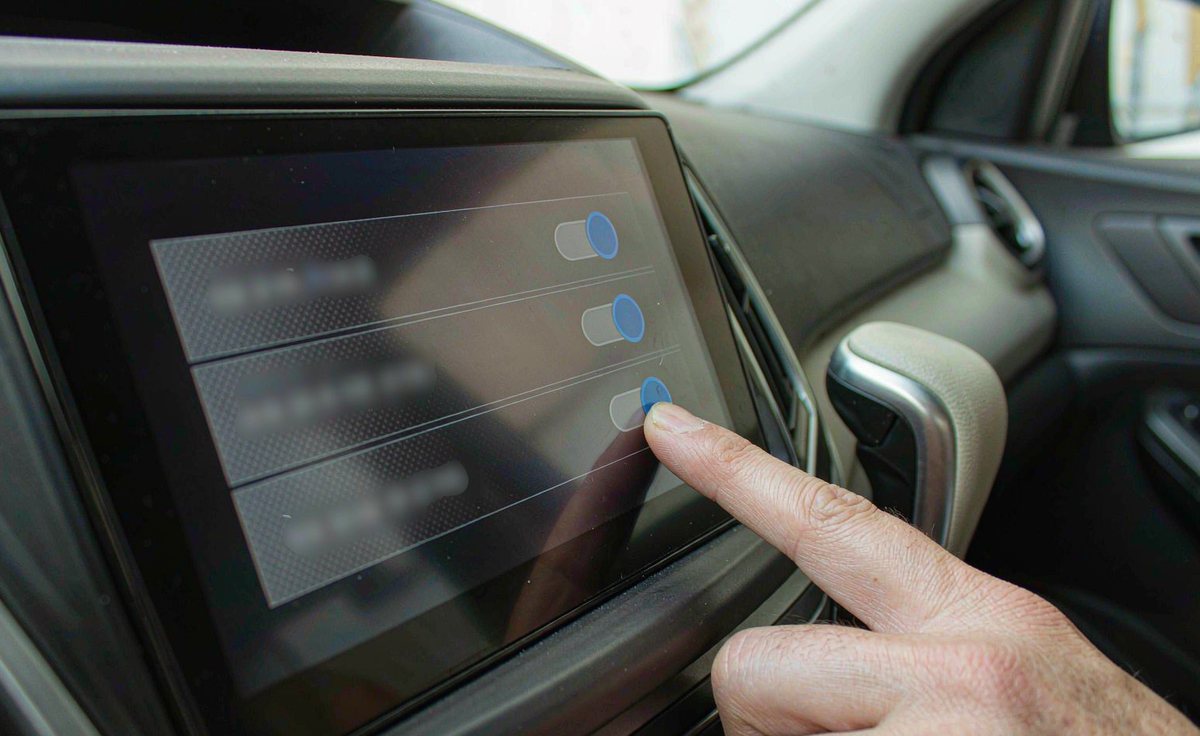
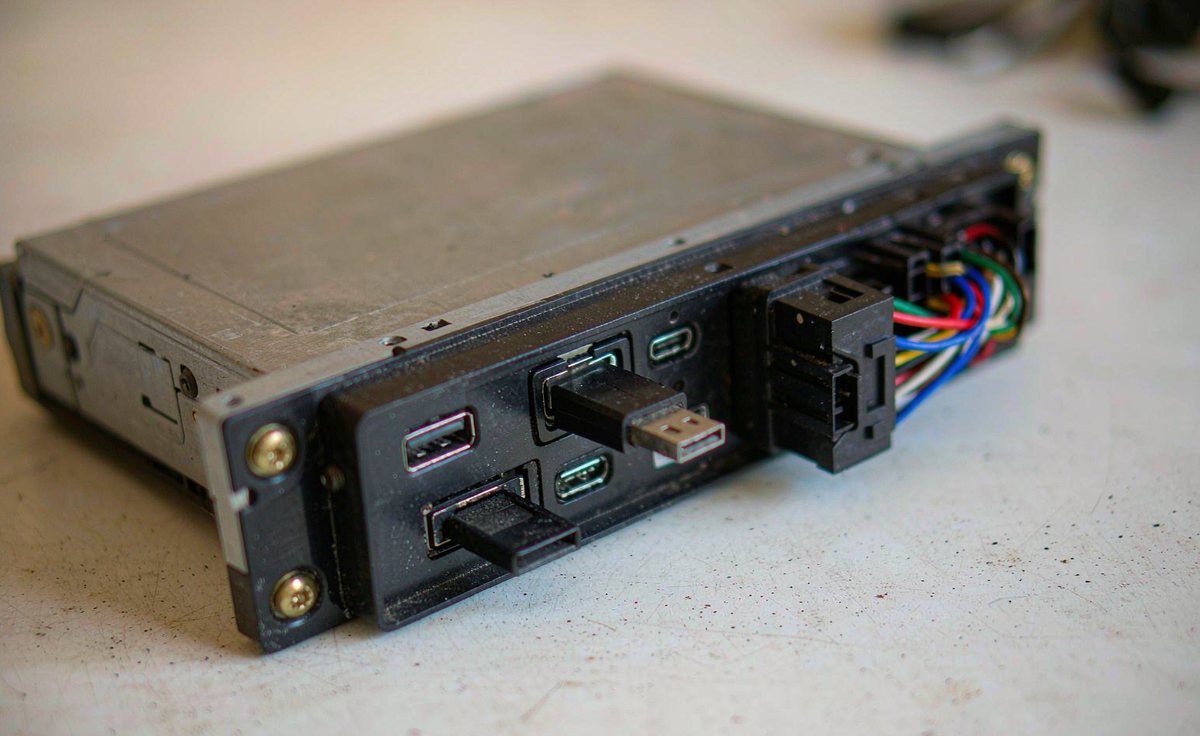
Play only manages what Play installed. An app copied onto the unit from a stick, or pushed there by the seller's own installer, is invisible to that setting and can keep changing underneath you. Silly, but that's the way it works.
Map content is a separate story. The map application is one thing, the downloaded map areas are another, and those areas go stale and re-fetch on their own schedule. Killing app updates won't freeze your offline maps, and it shouldn't: stale maps mislead you at exactly the wrong junction. The areas you're allowed to download depend on where you are, so a pack that covers Germany is no help in Spain.
Firmware is a third thing. The system update entry in settings, or the seller's flash tool, isn't the app store. Don't switch it off to slow the unit down. Skipping firmware leaves real bugs in place, and on newer Android builds there's a hard rule that catches up with old installers: Android 14 refuses any package whose target version is below API 23, so a very old APK simply won't install there.
Switching everything off forever isn't the answer either, because some of those builds carry security fixes. If the car parks near the house, the Wi-Fi-only option plus a manual pass once a month gets you most of the benefit with none of the surprise. Do it while you're doing something else: plug in, open the store, tap update all, walk away for twenty minutes.
Then let the system do some of the housekeeping. Android hibernates apps nobody has opened for a few months: permissions are reset, background jobs and notifications stop, and cached files are cleared. An app in that state can't be eating memory on the school run. You pay for that once, when you next open the app and re-grant what it asks for. Awkward, but it's a one-time cost.
Give it three days of ordinary driving, then answer three questions. Is the launcher quicker to the first tap than it was on the stopwatch? Has anything stopped working, such as voice guidance, a streaming login, or a paid app demanding the newest build? And is the update list actually standing still, or is it still filling up from somewhere you haven't found?
Quicker, nothing broken, standing still: you're done. If the list keeps growing, the other updater is still running, and section 04 is where to look.
Here is the order I work in, cheapest first, and I would rather you spend an afternoon than a budget.
Power comes before software, and power isn't the usual suspect until you test it. A unit that stutters when the blower starts, or reboots as the engine cranks, is being starved rather than overloaded. Measure at the connector with the accessories on and again with the blower and lights running. What I see on older installs is a volt or so of drop across a tired ground; compare it with the battery figure and you'll know whether the cable is the problem. A ground shared with an amplifier is worth moving anyway.
Next, read your own hardware honestly. The about screen gives the Android version and the free storage figure, and the specification sheet gives memory. Those figures explain much of what a screen can and can't do in 2026, and the type of chip behind the storage number decides how long an install takes. If you want that detail, eMMC and UFS storage speed in car head units is worth twenty minutes before you blame an app. Units sold as android car stereo 4GB RAM 64GB storage cope with navigation and music; they were never meant to run two heavy apps plus a game. Our own model pages list this plainly, and I'd read the one and two DIN range the same way before blaming the software.
Only after all of that does a different unit make sense. If the storage is full of an app you can't remove, or the platform stopped at an Android version that current apps no longer support, then the hardware is the answer and no setting will rescue it. It's the last step, not the first, and it's the one that costs money.
If you have switched the updates off and the screen is still slow, send us the Android version, the memory figure and what the unit does when it stumbles. That is usually enough for the WITSON team to say whether a setting, a cable or the hardware is behind it.
Read the full support scopeYes, and it's the better habit on a car screen. Leave the global setting alone if you like, open the app's own page in the store and switch its auto update off. Navigation and music are the two I'd freeze first, since those are the two you feel.
The install replaces the app's files and drops the compiled copy, so the first launch rebuilds it.
Only if the unit runs Google Play. A unit without it has no Play setting to change, and whatever market came preinstalled holds its own switch inside its own settings. Look for the account section in that program rather than in Android settings.
Not through the store. It only moves forward, so going back means uninstalling and installing an older file you still have, which clears the app's saved data. Worth knowing before you freeze anything: keep one version you trust on a stick.