Car infotainment - setup
Two different wishes arrive in the same sentence, and they don't share an answer. One is "I'm backing up and I still want the map in front of me". The other is "I'm towing and I want a rear view beside the map for the whole drive". Work out which one you're after first, because the second is the one that's really about split screen - and a camera is not an app you can drop into a pane.
Read a forum thread on this and you'll see four separate problems wearing one name. Reversing with the map still up. A trailer camera you want live the whole drive. A camera window floating over the map. And two plain apps side by side, where the camera isn't part of the question at all. They get asked in one sentence, and they aren't handled by the same part of the car.
| What you're asking for | When it happens | What decides it | First thing to check |
|---|---|---|---|
| The map stays visible while I reverse | Gear in R | The unit's reverse handling, not a split setting | Shift into reverse parked and watch the screen |
| A rear view on screen the whole drive | Any gear, towing or a long vehicle | Which video input the camera is wired to | Look at the socket the camera cable lands in |
| The camera as a window over the map | Any time | A camera window feature inside the firmware | Look for a window button inside the camera app |
| Two apps side by side, no camera | Any time | The launcher, and the two apps | Long-press the overview button and try to pair them |
The third column is where the decision sits, not a verdict on what your unit can do. Two of these can be true at once on the same deck.
Here's the common trap, and a frustrating one. You buy a bigger screen because the camera won't join your map, when panel size is the least of it. The limits are where the camera is plugged in and whether the firmware can draw a video input in a window. So which of the four are you?
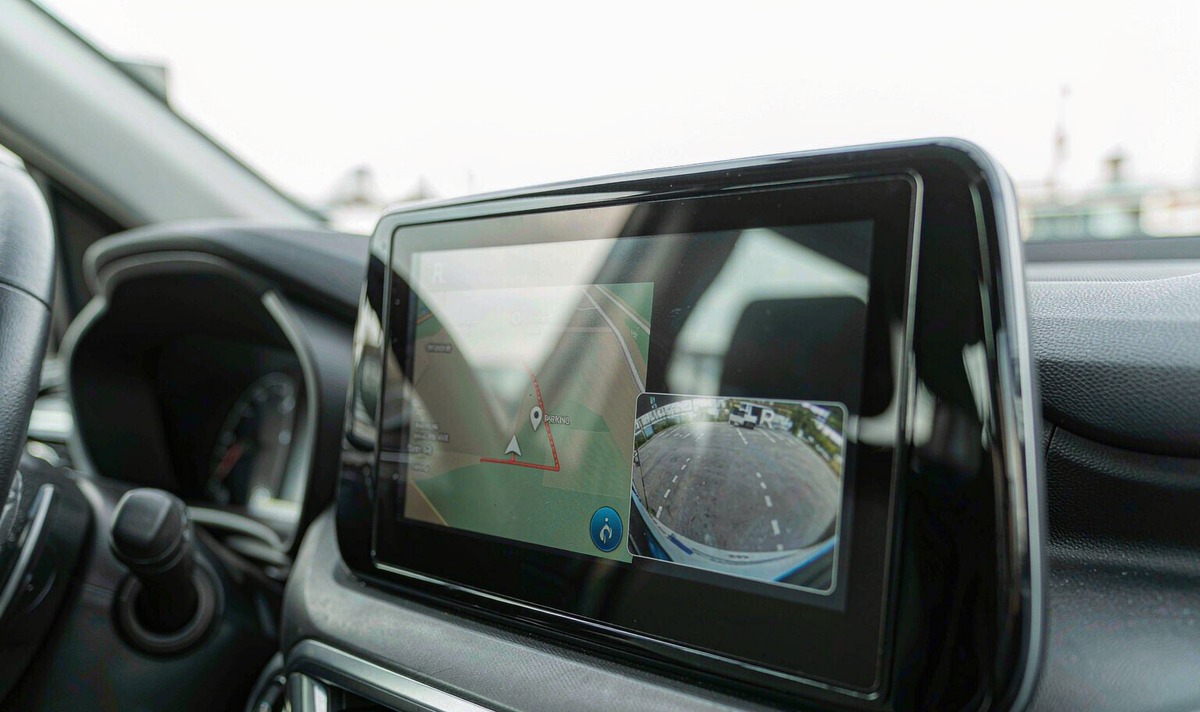
The glass can be divided by three different things, and they don't negotiate. Working out which one you're relying on is the tedious part.
Android Auto and CarPlay build their layout on the phone, not on the radio. Google's card-based redesign began reaching cars in January 2023 and divides the screen between navigation, media and calls. A reversing camera isn't one of those cards - the picture never leaves the car, so you can't add it in.
This is Android's own multi-window. Split screen arrived with Android 7.0 (API level 24). From Android 12 (API level 31) on a large screen, the system can put an app into multi-window even when it declares that it doesn't support it, and that declaration only decides whether it can be resized. On a smaller screen the declaration plus the app's own minimum width and height decide, and an app that opts out takes the whole screen instead. Which rule you get depends on how the panel measures in density-independent pixels, not on inches.
A camera picture doesn't come from Android. It arrives on a video input - composite on an RCA plug, or AHD on the same style of connector - and the unit switches the display to it. That's why you won't find it in a list of apps to pair, and why a camera only shares the glass on builds whose firmware draws it in a window.
Two apps share a screen because both of them are apps. A video input joins in only when the firmware draws it.
UN Regulation No. 46 covers devices for indirect vision, and its edges are worth knowing. It defines the device - a mirror, a camera-monitor system or something else - and ties each class to the field of vision it has to provide, along with approval and installation requirements for the vehicle type. What it doesn't do is regulate the infotainment screen: how the glass is divided between a map and a camera picture, or how a radio composites two video sources. A camera setup that meets those rules says nothing about whether the same picture stays usable in a small pane.
Work down these four steps parked, with the handbrake on. Each one ends in something you can see, so you know whether to keep going.
Look at the label beside the socket on the back of your unit, or at the source list on the screen. If the camera sits only on the reversing input, that picture appears in reverse and not otherwise. A second video input - front camera or aux - gives you something to work with. Verify which socket the yellow plug is in before you change anything.
Where this lives varies with the build, so hunt rather than assume: the display section of the settings, a button inside the camera app, or a small window icon in the status bar. Then test it - open the camera window and press home. If it survives over the map, the deck can draw it on top of other apps. If your window vanishes, you've found a source switch, not a split.
Android keeps this in Settings, then Apps, then Special app access, then Picture-in-picture. Apps on that list can shrink into a floating window; apps that aren't can't. If your navigation app appears there, it can be the small window while the camera takes the rest. The common mistake is hunting for the switch inside the map app - the split belongs to the system or the launcher.
Two apps: open one, long-press the overview button, then pick the second. A camera pane: only through the deck's window feature from step 2. Then confirm the thing people forget - does your map still call the next turn out loud while the second pane is up? Some builds keep drawing the map and quietly stop updating it.
If step 2 comes back empty and step 3 doesn't list a camera, that deck can't put a camera into a split. It isn't a fault you can update away - the firmware either draws video in a window or it doesn't. There's still a route to what you wanted, and it's wiring rather than menus.
Here's the annoying part, and nobody mentions it at the counter: it's wiring rather than settings. The reversing input is switched by a trigger - usually 12 volts from the reversing lamp, or the reverse signal the car already puts on its bus. While that trigger is live, the unit shows your camera; the moment it goes away, so does the picture. So the usual suspect is the input rather than the deck: a camera wired there can't be a permanent pane - there's nothing to draw the rest of the time.
The reversing input is a doorway, not a window.
What you do instead is move the camera onto the second video input and power it from an ignition feed rather than the reversing lamp, so it's alive whenever your radio is. Select it from the source button and leave it up. The reversing input keeps priority, so shifting into reverse still takes over the screen, which is what you want. If the unit has only one camera input, this route isn't open, and the honest options are a separate monitor or the reverse-only picture.
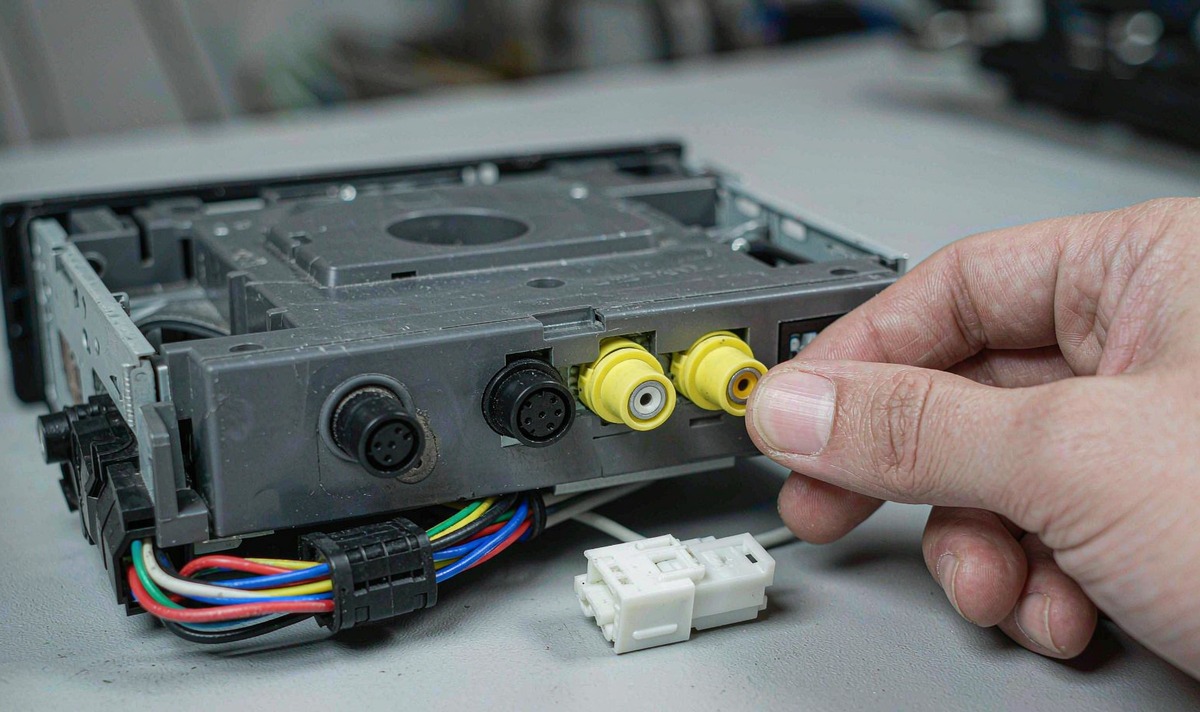
I see this job go wrong at the routing, not at the plugging in. If you'd rather not crawl under the car, hand it to a shop and state the outcome you want: a rear picture that stays up in any gear while reverse still takes priority. Between a cramped camera pane and a second screen, I'd take the second screen for anything you tow. On a small car with a factory-style camera, I'd leave it alone.
Splitting a screen doesn't make the picture bigger and it doesn't widen the lens. Half of your 7-inch panel gives each side about 3.5 inches across, so the same image is spread over less glass and small detail goes soft, which looks rubbish at the moment you need it. Field of view is set by the lens and the mounting angle, and no layout changes either.
Test it before you commit. Park somewhere quiet, put the split up, and read the smallest street name on the map from the driver's seat. Then compare the camera half with the hitch and ask whether you could judge the last 30 cm from it. That five-minute test beats any spec sheet.
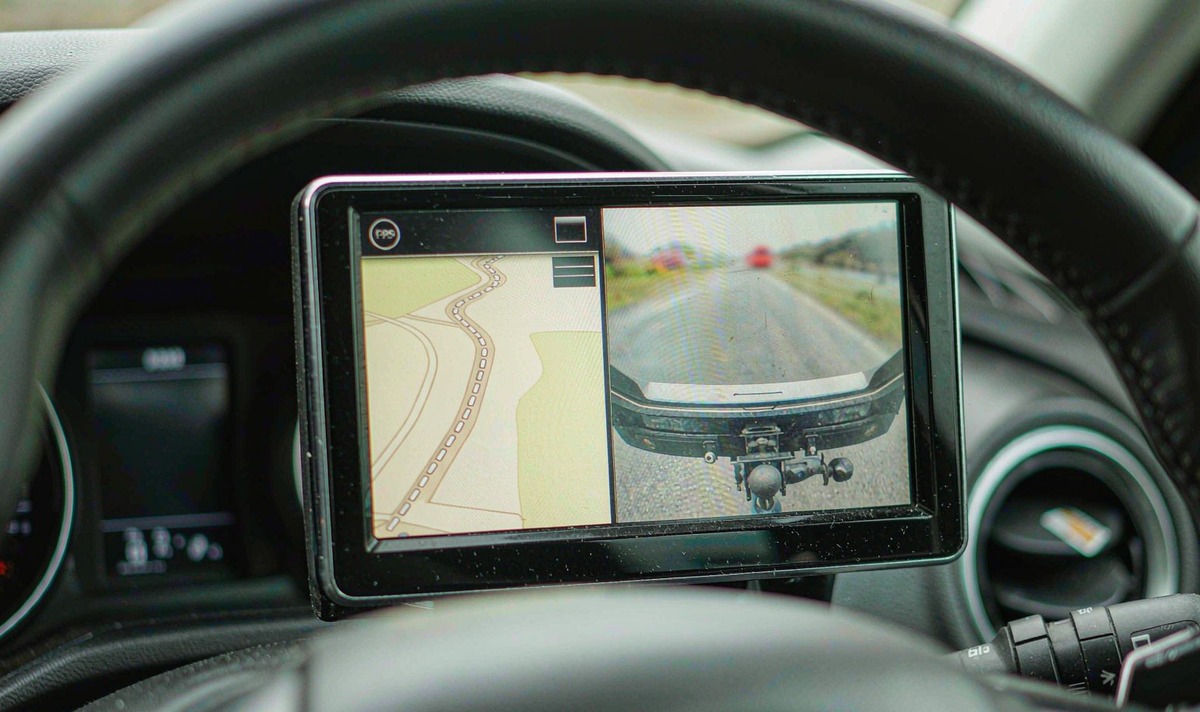
I hear this complaint from people who bought a larger screen expecting the camera to grow with it. It doesn't. The pane gets wider and, on some builds, the navigation view turns into a squeezed column with street names you can't read at a glance. Some units also lock video while the car is moving, aimed at playback rather than a camera feed; test a camera window in motion on a quiet street before you lean on it.
And when it matters most - a tight reverse into a space - I'd rather have the camera take the whole panel and forget the map. The map can wait ten seconds. The bumper can't.
Our own retrofit decks sit in the universal one and two DIN families: universal one and two DIN head units. Whether a build offers a camera window, and how many video inputs it carries, is a model and firmware question, not a screen-size one.
Not sure how many video inputs your deck has, or whether its firmware can float a camera window at all? Send us the model and a photo of the back panel and we'll tell you what it can do.
Ask our support deskHave the head unit model, the Android build number, the camera type, and a photo of the sockets on the back of the unit.
Zhuhai WITSON Industrial Co., Ltd. - Tel: +86-756-8120312, 8120211, 8120212.
Whether anything survives that switch is decided by your unit's reverse handling, not by a split-screen setting. Test it in a minute: hold the brake, have someone shift into reverse, and watch the display. If the picture takes the whole screen, that's your answer.
Because it isn't an Android app. On these decks the camera picture arrives on a video input and the unit switches to it, so it never turns up in a list of apps you can pair.
No. That layout is built on the phone, and its cards are navigation, media and calls. Your camera isn't part of that system.
The pane gets bigger, the picture doesn't. A camera scaled into a smaller rectangle doesn't gain detail, and the lens angle is unchanged. What you gain is a wider navigation half.
Don't cut anything. Move the camera onto the second video input and power it from an ignition feed instead of the reversing lamp, then select it from the source button. Reverse keeps priority either way, so you lose nothing in a car park.