A crash that arrives on a schedule is a gift, though most drivers treat it as bad luck. It isn't random. Something in the car fills up at a steady rate and hits its limit at the same point every trip. So you can measure it instead of guessing.
Why ten minutes and not two? Two things fill up on a timer, and in our experience one of them explains almost every scheduled crash. Heat, because a sealed box behind a screen takes minutes to soak. Memory, because a map app keeps loading tiles until the system wants the room back. Everything else fails at random: a loose connector, a tired cable, a flaky ground, all dying on a bump, not a clock.
Android even publishes the ladder. Since API level 29, PowerManager.getCurrentThermalStatus() returns one of six states, from NONE up to SHUTDOWN. MODERATE tells apps to cut power. SEVERE brings display jank and audio jitter, according to the AOSP thermal documentation. Your nav app needs a steady frame rate, a second-by-second location callback and a live connection, so it falls over first when the box gets hot, which is why the crash looks like a software bug and behaves like a cooling problem. Annoying, but predictable.
Memory is the sillier twin. Android's low memory killer watches free RAM and closes background processes. It doesn't ask whether your nav app was busy. It'll take the biggest one, and a map with 3D buildings, traffic and a downloaded region is usually it. On a 2 GB unit that already runs a music app, a recorder and a launcher, you're close to the line before you drive anywhere.
The clock tells you which pile is filling up. Heat and memory both run out on a timer, and almost nothing else in the car does.
Here's the cheap way to tell them apart. After the next crash, park and switch off. Put your palm on the screen, then on the plastic around it. Warm's normal. If it's uncomfortable to hold for five seconds, that's not. Then compare two trips, one cool morning and one after the car has sat in the sun with the windows up, and if the cool run keeps going while the hot run dies at eight minutes you're chasing heat rather than storage. If both die at ten on the dot, look at RAM and storage instead.
You'd call all four "the navigation crashed", and each one needs a different fix. Watch what the rest of the car does in the two seconds after it happens, because whether your music keeps playing or stops dead tells you which layer let go before you touch a setting. That's the frustrating bit: the symptom you notice is rarely the part that failed.
| What you see | What else happens | Layer to check |
|---|---|---|
| App drops to the home screen | Music keeps playing, icons still respond | App process killed: memory or thermal |
| Whole unit reboots, boot logo appears | All audio stops, USB re-mounts | Supply voltage or thermal shutdown |
| Screen freezes, taps ignored | Audio may loop on one second of sound | CPU or GPU throttling, firmware |
| Map stops following the car | App still open, rerouting still works | Location layer, not the app |
Only the first row is a real app crash. The second isn't an app crash at all; it's a power event dressed up as one, and it needs a meter, not a menu.
How I read it: if your music never stops, your unit never lost power. Stop checking your fuses.
I'd spend fifteen minutes on these before you drive. They cost nothing, and each one removes a branch of the fault tree.
Clear your cache first, not the data. Clearing data throws away your downloaded region, and you'll spend an hour re-downloading it in a car park while the passenger asks whether you know what you're doing. Read the three results as a set: two apps dying at the same minute isn't an app problem, it's the box; one app dying is your app; and everything that survives in the shade but dies in the sun is temperature.

Don't reinstall the app three times and call it a day. The map reloads the same data, fills the same cache and fails at the same minute. You'll have burned an afternoon and learned nothing.
Work down this list in order. The common mistake is buying a fan at level four before you've measured level two, and the maddening bit is that it makes the noise worse without touching the crash.
Level 01 - no tools
Check your free storage, clear the cache, and delete the offline regions you don't drive through. Then look at what else is running: a recorder writing to the same flash, a launcher with live widgets, a second map app. Close them and repeat the run. On a 2 GB unit that alone sometimes buys back your whole trip.
Level 02 - a multimeter
Measure between the constant 12 V pin and ground at the radio connector with the engine idling, the headlights on and the blower at full speed, because a supply that looks fine at rest can sag the moment everything else in the car wakes up. You're after close to battery voltage. Half a volt down means your unit starts every trip on a weak supply, and a hot engine bay makes it worse still. Then check ground to chassis: over about 0.1 ohm and you've got a bad ground, which looks exactly like a thermal fault from the driver's seat. The android head unit CAN bus decoder box sits in the same cavity and feeds off the same harness, so a sagging rail takes your steering controls down with the screen.
Level 03 - parameters
Open Settings, About, and read your real numbers, not the listing. Two gigabytes of RAM is thin for a unit that also runs a recorder and a live launcher; four is comfortable. A 10.25 inch android head unit lights a bigger panel than a 7-inch one, so backlight heat joins the total. An android head unit with 4G SIM card slot keeps a modem awake all trip, which adds watts to a box with no airflow. Then look at the back: cast aluminium with fins sheds heat, stamped steel doesn't, and a fan only helps if the air has somewhere to go.
Level 04 - parts
If your cool-down run proved heat and levels two and three came back clean, you're down to the hardware. Three routes, cheapest first: add a small fan that pulls air from the footwell into the cavity, replace a dried thermal pad between the CPU shield and the back plate, or move to a unit built to shed heat from the start. That last one is a purchase. Tedious, but it beats buying fans that fix nothing.
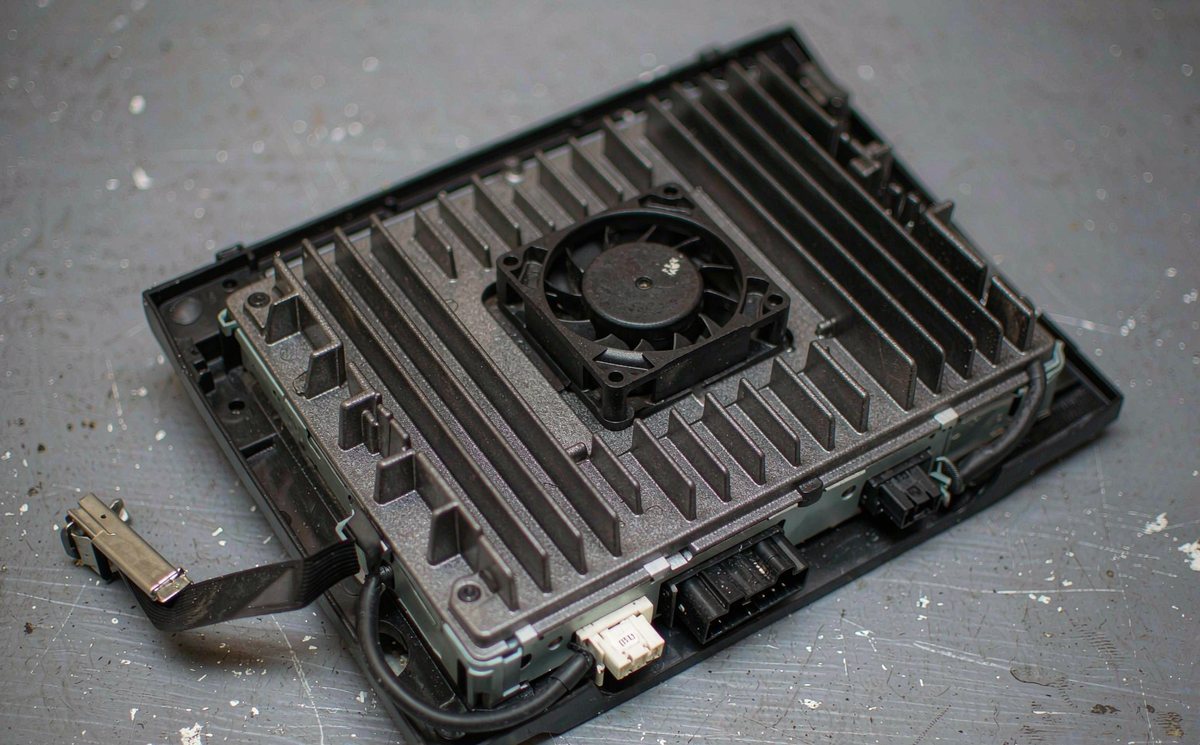
Here's the part everyone skips, and what actually breaks most units. Your box doesn't sit in cabin air. It sits in a cavity behind the fascia, boxed in by ducting, wiring and plastic. Heat leaves through the aluminium back plate into that cavity, and the cavity is warm already because the dash above it has been sitting in the sun since lunchtime, so the unit starts the trip with no headroom at all. In southern Europe a parked car can push that space past 60 C before you start. So why does it survive a winter and die in July? In July it never gets a cold start.
A fan inside a closed cavity mostly stirs warm air. That's the difference between a symptom and a cause. Lowering brightness, closing background apps and pointing a vent at the unit are real measures that help on a mild day, but none of them add surface area to a heat sink that was sized for a cooler cabin than yours.
If you're mid-install, do the cheap version of the right thing now. Leave the cavity open at the bottom, don't wrap the unit in foam, and keep the harness off the heater ducts. Retrofit android head unit for older car jobs usually have tighter bays than the factory radio they replaced, so that's where the airflow gets lost.
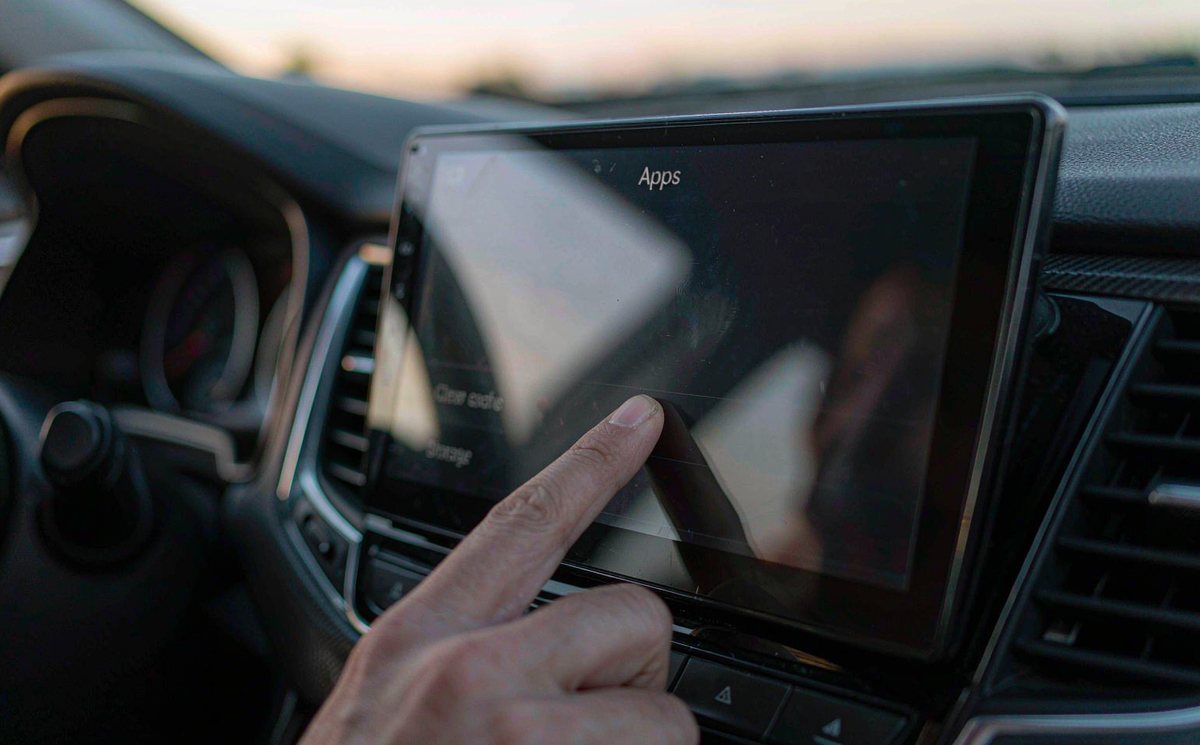
If you've been through all four levels and the map still quits at the same minute, the honest answer is that the box has no thermal margin left for the job you're asking of it, and no setting will give it more. What I see most often is a second unit from the same class meeting the same wall. That isn't a setting you missed. Panel size, RAM and cooling are listed per model on the WITSON product pages; those three numbers say more than any badge.
Send us the model, the year and the symptom timing, and we'll tell you whether your unit has the headroom for a long navigation run.
Because heat and memory both need time to fill. A sealed unit warms over several minutes of screen, GPS and data work, and a map cache grows at a similar pace. Anything that fails in ten seconds is power or a cable.
Sometimes. It's free, so start there. When heat is the cause, the same crash returns at the same minute.
Only if the cool-down test proved heat and the supply voltage came back clean. A fan helps when it moves air out of the cavity. Inside a closed space it just stirs warm air, which is why venting comes first.
Compare a cool morning run with a hot afternoon run, same route, same app. If the cool run lasts and the hot one dies at eight minutes, it's heat, and the screen will feel uncomfortable to hold afterwards. If both stop at about the same minute whatever the weather, a cold box that still kills the app is short of RAM rather than air.