Car infotainment - calendars, reminders and the screen
I hear this every week from drivers who've just had a screen fitted. Calls work. Music works. Then comes the question I get more than any other: where's my calendar? Nothing's usually broken, and the answer is worth ten minutes.
Here's the part that's genuinely annoying. A calendar isn't something a car stereo syncs. It belongs to your phone, or to the Android system inside the unit; the screen is only the display end. So the first job isn't to fix anything, it's to work out which layer carries your appointments across.
Three layers can do that: Apple CarPlay, Android Auto, or the Android system inside the head unit itself. Each has its own rule about what it'll show while the car's moving, and each fails somewhere different.
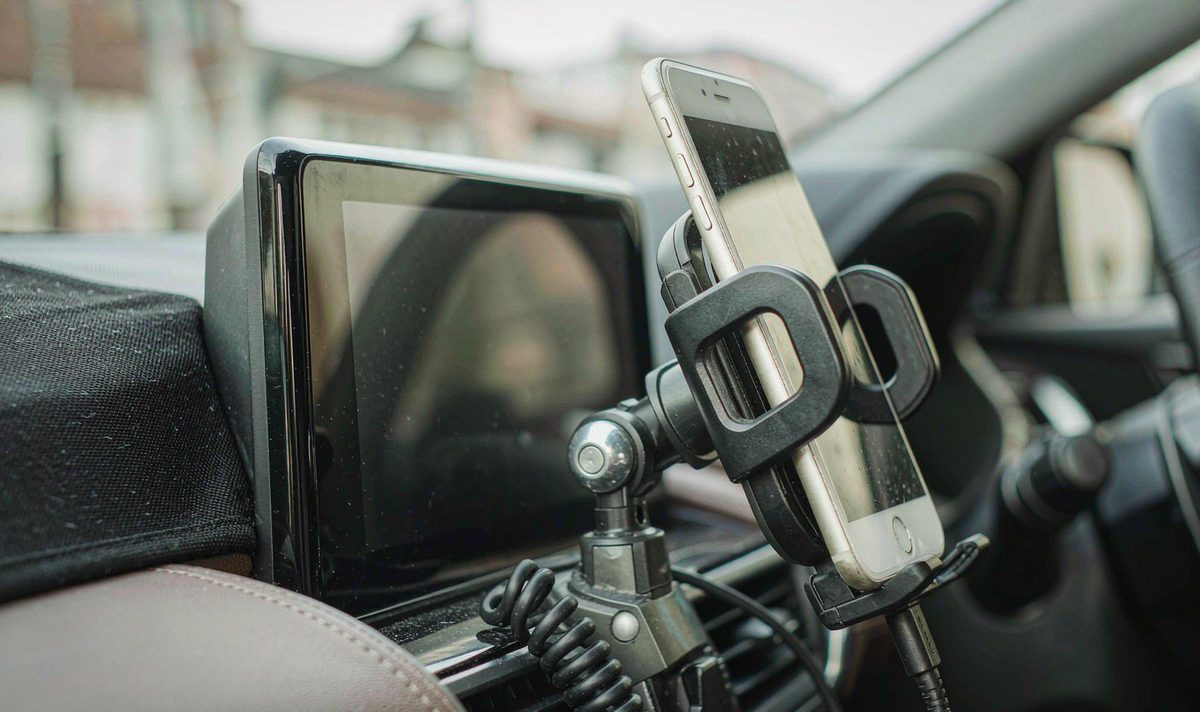
Switch the car on and watch what appears first. Get a phone-style home screen with an app launcher, a map tile and a media tile, and you're on a projection layer where your phone does the work.
On the Apple side, CarPlay carries a Calendar app, and Apple's own guide describes it as a place to view the day, with upcoming appointments on the dashboard and any address handing straight to the map. What you won't find is an edit button, so creating or moving an event stays on the phone.
Android Auto behaves differently: there's no calendar app to scroll through, just an assistant entry, so the test on Android is a voice test and not a menu test. Google Assistant reads your day out loud. That's why so many answers come from android car radio voice control while driving, and why part of what you want is locked out by design: android auto restrictions while driving are enforced by the phone, not by the radio you bought.
The third layer is the head unit itself. Plenty of aftermarket units run Android out of the box, and some can hold a calendar of their own, but only when the unit carries Google services and a signed-in account. I hear this from drivers who assumed the calendar travelled with the hardware. It doesn't. Your appointments live on an account, not in the box.
One more thing catches people who've used the same reminder for years: Google moved Calendar and Assistant reminders into Google Tasks in 2023, so anything you made by voice may now sit there.
Watch outBefore you price a head unit to fix this, answer one question: is anything supposed to reach that screen without your phone? If not, a new radio can't help. Even a unit running its own Android shows only a calendar that an account on that unit has signed in to.
Run these before a single part is ordered. They're free, they take five minutes, and they separate what actually breaks from what only looks broken.
So what do you do when the screen lists your events and the reminder never appears? That's a notification problem, not a sync problem, and it takes two minutes on the phone. When nothing shows at all, you're back at the layer question above.
The one that sends people shoppingAssistant will tell you it can't help with that if Personal results are switched off for the device in the car. It sounds like a dead screen. It's one toggle in Assistant settings, and it's maddening to pay a shop for it.
This is the physical layer, where the wired and wireless stories split. With a cable, the phone talks to the car over a data link, and the trap is the cable you already own: it charges happily, the screen stays empty, and neither side tells you why.
Use a short data cable and the port the unit was built for data: the common trap is a car with only one data port, and a hub turns it into a coin toss.
On a wireless link, Bluetooth makes the introduction and Wi-Fi carries the screen afterwards, so your phone needs 5 GHz Wi-Fi support for that second half, and the bar is Android 11 or newer. CarPlay runs the same two-step, so an iPhone that handles calls and refuses to project is a pairing problem, not a calendar problem.
If two phones are saved to the car, pick the one you carry and make the other forget it, because a system holding two saved phones sometimes connects to the wrong one while your schedule waits at home. Pairing several phones to one Android head unit sets the priority order, and skipping it is awkward.
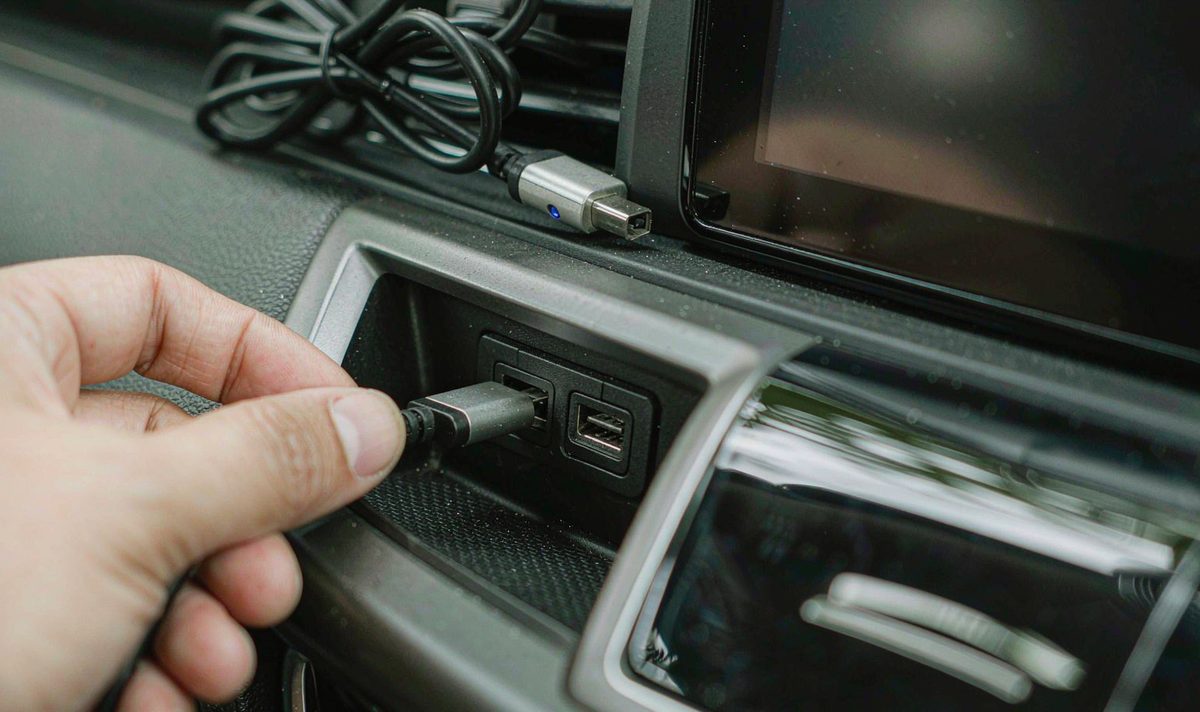
The usual suspect here is the cable, not the radio. I've seen people order a replacement unit over a lead that only ever carried power, and the new one behaved the same. Test the lead first, because it's cheaper than the postage on the wrong part.
Once something's genuinely connected, three things decide what you get: the phone, the account, and whatever the unit is running.
On the phone, the version settles half of it. The CarPlay Calendar app arrived with iOS 13, so an older iPhone has no calendar to open in the car at all. Android Auto updates itself through Google Play, and a stale version can hide an entry you expect to see.
The account is the part people skip, and it decides everything: a calendar syncs only when the account that owns it is signed in on the device, with sync switched on there. A unit running its own Android needs Google services and a signed-in account before a calendar fills itself, so look for the Play Store and a Play Protect line in its settings. If neither is there, plan around the phone.
That's also where a unit with its own connection earns its place. A screen that keeps a signed-in account alive without your phone is the only route to a calendar with nothing plugged in, so an android head unit with 4G SIM card slot buys you that independent connection, not a calendar app.
Write the build number down in the menus. Firmware decides where things live, and a build number turns my calendar stopped after an update into an answerable question.
If you've worked through the layers above and the calendar still won't appear, the list of things worth buying is short.
First, a proper data cable: cheap, the most frequent failure here, and the item people skip because the lead in your car already charges the phone. Second, if you want the calendar without plugging in, a wireless adapter only converts a wired link that already works, so if you're shopping around an android car stereo with wireless CarPlay, check that link first.
Third, and this is the honest one. For a calendar with no phone involved, the layer you're missing is a unit that carries Google services and holds an account. That's a different purchase.
Most calendar complaints end with a setting rather than a parcel, which is a frustrating answer when you've already decided to buy something. The table below is where I'd start.
| What you notice | Which layer it points at | What to try first |
|---|---|---|
| Events appear, reminders never do | Notifications on the phone | Allow Android Auto device and app notification access |
| Nothing appears with a cable connected | Cable or port | Swap in a short data cable and use the unit's data port |
| One phone works, the other does not | The account signed in on that phone | Check which calendars are ticked for that account |
| The wireless link never starts | Phone Wi-Fi band or Android version | Confirm 5 GHz support and a current Android release |
| Only the next event shows, no list | The projection layer's own limits | Nothing to fix, this is how the layer was designed |
I read this by finding my own row first. The middle column names the layer, and the right column breaks the deadlock. Only one row here leads to a purchase, and it isn't the one people expect.
For a look at how these units are put together, the range is listed model by model: universal one and two DIN head units. When you ask about fitment, send four things: model and year, left- or right-hand drive, the factory system you're replacing, and a photo of the console.
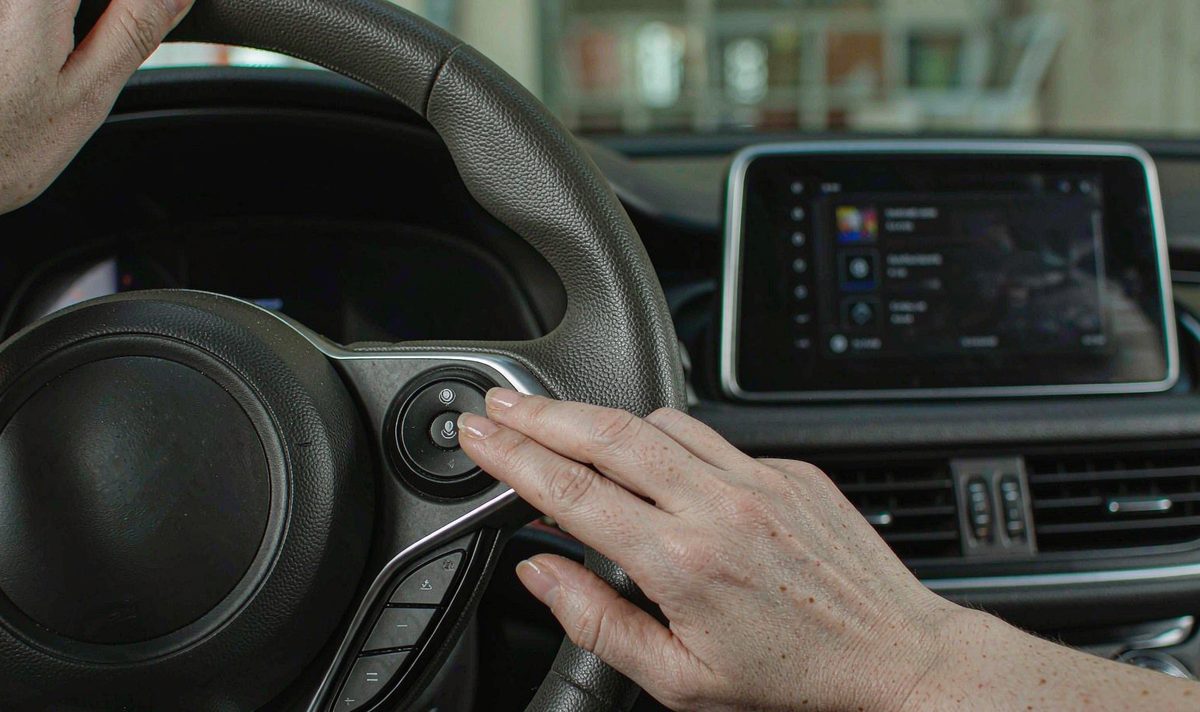
Usually because the car isn't allowed to post them. Android Auto needs device and app notification access before a reminder can surface, under Settings, Apps and Special app access. Personal results matter too: with those off, Assistant won't answer questions about your day.
Not from the calendar view. Apple's CarPlay calendar is there to see what's coming, not to edit, so creating and rescheduling stay on your phone or go through voice.
Only on a unit that runs its own Android system, carries Google services and holds a signed-in account. Without that, there's nothing to sync against.
Not for the usual complaint: a charging-only cable and a notification permission cover a large share of them. We ship to Australia, the Middle East and Europe, so send the model and year and we'll tell you what your unit can do.
More from this series: Why lossless audio still gets squeezed over car Bluetooth.
One last thing from experience: if the checks above all pass and the calendar still won't stay on the screen, that's hardware, not a setting. A unit needs its own account and its own connection to keep one alive.
If the calendar still won't reach the screen, tell us what you're working with and we'll check it against the unit you have: model and year, left- or right-hand drive, the factory system you're replacing, and a photo of the centre console.
Tell us your car, we will check what fitsZhuhai WITSON Industrial Co., Ltd. - Tel: +86-756-8120312, 8120211, 8120212.