Car screens - wireless mirroring
Two screens, one picture, and a gap wide enough to park in. That's the complaint I hear most about casting video to your car screen: the phone is fine, the sound is fine, and the film runs a beat or two behind the lips. Nothing is broken. Something in the chain is holding frames back, and you can usually find it in an afternoon without buying a thing.
Here's the shape of it. A mirroring session is a live encode on your phone, a Wi-Fi hop, a decode inside the head unit and a scale to the panel. Each stage adds delay, and one usually adds most of it. The trick is knowing which. So measure the gap before you touch a setting, because "laggy" means 300 milliseconds to one driver and three seconds to the next.
A mirroring session isn't a file being copied across the cabin. Your phone captures its own framebuffer, encodes it into a compressed stream and pushes it over Wi-Fi in small packets. The head unit catches the packets, decodes them and paints the panel. Capture, encode, transmit, decode, draw. Five stages, and every one can stall.
The delays add up in a way that's genuinely frustrating. What costs you is the queue: your receiver can't paint a frame it hasn't received, so it holds a buffer to ride out Wi-Fi jitter, and that buffer is added delay by definition. A unit tuned for a calm living room waits longer than one tuned for a busy car park.
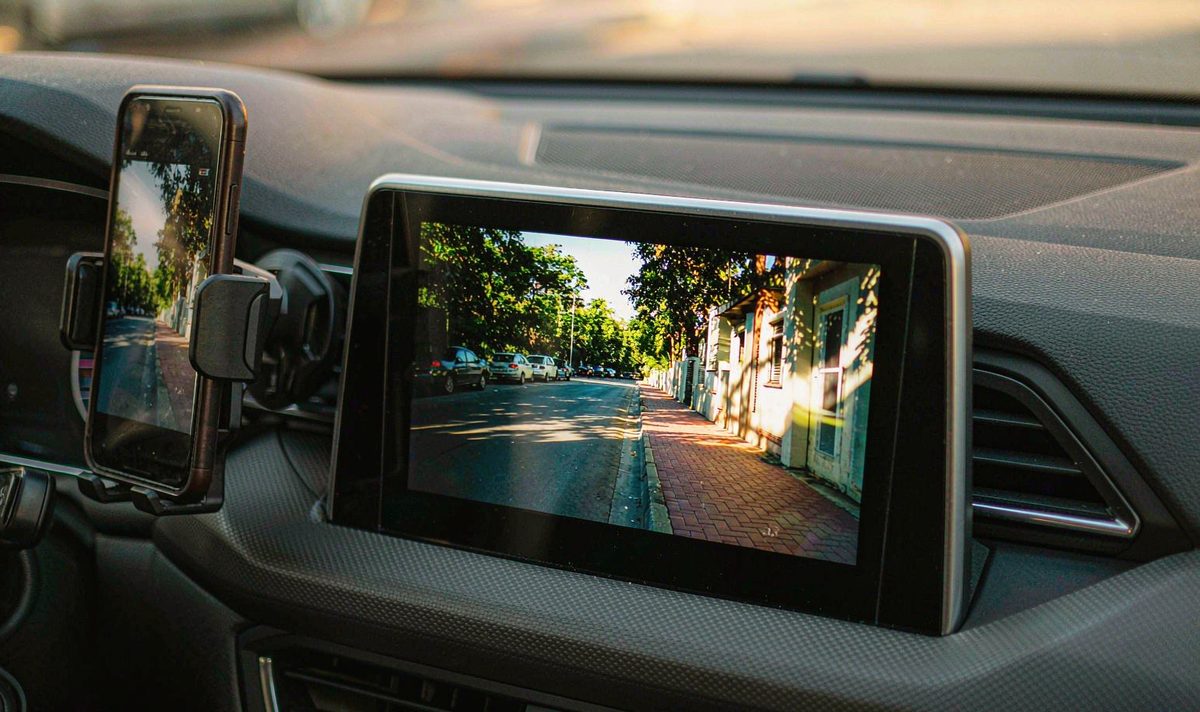
How much is normal? The Wi-Fi Alliance puts a hard number on the similar Miracast standard: a certified sender has to keep end-to-end delay under 250 milliseconds at its top resolution and frame rate, with fewer than 1.5 percent of frames dropped, and lip sync inside a window of 45 milliseconds early to 125 milliseconds late. Apple publishes no AirPlay figure, so that's the number I keep in mind. A picture trailing by a second is nowhere near the floor of what the hardware can do.
A stutter is your receiver spending delay to buy smoothness. Take the delay away and the stutter comes back.
Hold that trade in mind. Most of the settings below are just ways of telling your receiver how much smoothness you're willing to pay for.
Parked, engine off, phone charged. You'll need a second phone.
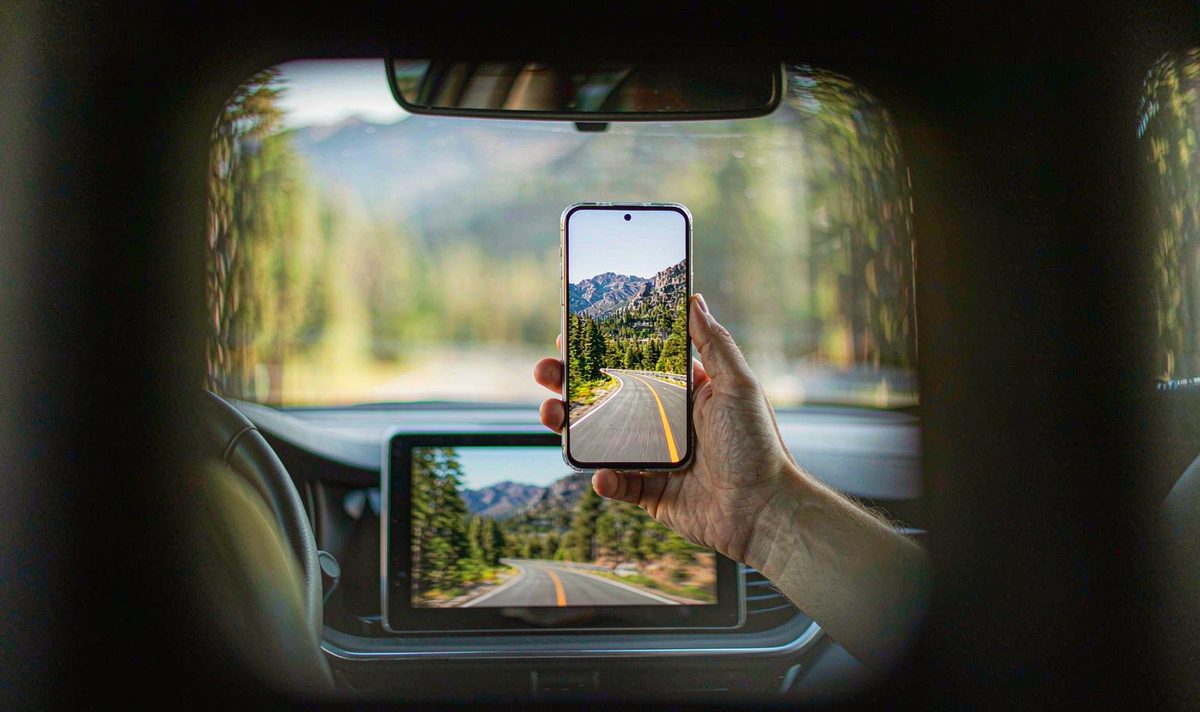
Now you've got a number instead of a feeling. Under half a second is close to what the standard allows, and you'll chase it forever - that's the trade. Around one second is worth a settings pass. Three seconds or more is painful to watch, and something is wrong.
One more free check. Switch your phone's cellular data off and repeat with a local file. If the delay collapses, the car was never the bottleneck.
This is the level most people skip, and it's free. Wi-Fi is radio, and radios care where they sit. The usual suspects are your mount and the antenna lead, and both are annoying to overlook.
Start with your phone. A cradle clamped to a metal bracket, a handset in a leather pouch, a phone under a closed console lid: each puts metal or your body between the two radios. Lift it out and hold it clear of the screen. If the delay drops, a different mount is cheaper than any hardware.
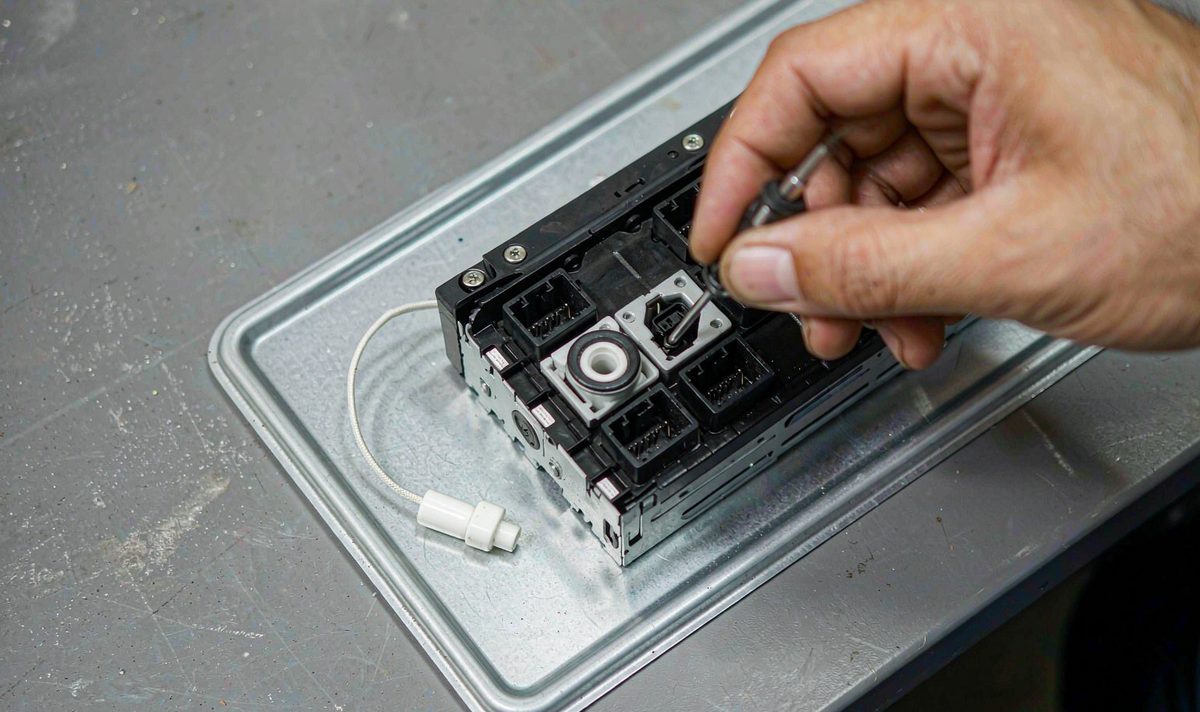
Then your unit. Retrofit head units carry a small antenna on a thin lead with a press-on connector, and after a console job it's often left dangling. If your lag started right after someone had the console apart, that's where I'd start.
Then the network. AirPlay finds receivers through Bonjour, which rides on multicast DNS at UDP 5353, and that multicast doesn't cross network segments. A guest Wi-Fi that isolates clients hides your receiver rather than slowing it, so if it never shows up, look at the network, not the lag. For casting, fewest hops wins: your phone's hotspot or the unit's own, not a shared router.
And the band. The 2.4 GHz band gives you three non-overlapping channels, shared with every Bluetooth headset and microwave in range. The 5 GHz band has far more room, and there's little you can do about the neighbours cluttering 2.4. On an iPhone 12 or newer your hotspot can run on 5 GHz, and the Maximize Compatibility switch forces it back to 2.4 GHz; Apple's own note warns that performance may be reduced. If you turned it on for an old tablet and forgot, turn it off.
Most retrofit units run a bundled receiver app rather than an Apple-licensed one, and that app decides how much work yours does per frame. The common mistake is going straight for the resolution slider, because it's the one with a visible effect - and a softer picture that's still late is maddening.
| Setting | What it changes | What I would try |
|---|---|---|
| Mirroring resolution | How many pixels the unit decodes and scales per frame | Drop one step, retest with the frame count |
| Smooth or buffer mode | How long the receiver waits before it starts painting | Pick the lowest-latency option the app offers |
| Hardware decode | Whether the video decoder chip does the work or the CPU does | Leave it on; it is there for exactly this |
| Wi-Fi band | How much airtime you share with Bluetooth and neighbours | 5 GHz on both ends, if the module supports it |
| Second screen | Whether the unit drives two displays from one decoder | Turn the rear output off while testing |
Read it from the top. If the delay barely moves when you drop the resolution, your receiver isn't short of decode power, and a softer picture buys you nothing. If it moves a lot, you've found the ceiling.
While you're in there, check what else your unit is doing. A background map redrawing, a dash camera writing to the same storage, a second display mirroring: each takes a slice of the same decoder and radio. I've watched a background map eat the margin a mirroring stream needed. Close them and retest.
Not every frozen picture is a delay. Some units stop the picture once the vehicle moves, and drivers describe that as lag because the sound keeps going and the image sits still. That's the android head unit video lock while driving, and it's a deliberate feature, not a fault.
Retrofit units commonly read a parking brake sense wire, and the firmware only allows video when that wire says the car is parked. Installers sometimes ground it permanently to make video work everywhere. Don't. It defeats a safety interlock, it can put you on the wrong side of local rules in Europe or North America, and it turns a diagnostic question into a legal one. Test parked with the brake applied, so the lock stays out of the picture.
The same logic explains the front and rear split. If yours supports an android car stereo passenger screen video mode, the front display may lock while the rear output keeps playing, and that's by design. It's also why the second-screen row in the table changes your result.
So which is it on your car? A freeze at the moment you pull away means the lock. A freeze at random, resuming where it left off, means the buffer. Those two get fixed in completely different places.
Sometimes you've done the lot and the gap is still there. That's what I see on cars that come in with a lag complaint and a clean settings history: the module inside the unit is the answer, not the menu on top of it.
Two numbers tell most of the story. The radio: a single-antenna 2.4 GHz module in a metal cage has a fraction of the headroom of a 5 GHz module with two antennas, and Microsoft's guidance for wireless projection recommends a 5 GHz link and a 2x2 antenna for a clean stream. The decoder: a modest android head unit 1280x720 screen resolution fed a 1080p mirror decodes every frame and then throws it away in a scale.
That's where hardware stops being a setting. If the delay survives a clean 5 GHz link, a seated antenna and a low-latency mode, the decoder or the radio is the ceiling. Then the question stops being which setting and becomes which unit.
WITSON builds retrofit screens for a long list of vehicles, and we'd rather answer that before you buy than after. Tell us your phone, the model year and what you want to watch, and we'll say whether that unit has the radio and decoder for it. The universal one and two DIN range is the place to start if your car takes a standard cage.
Most of the settings in this article sit one level down in the unit's own menus, and the manual is the shortest route to them.
Audio is a far smaller stream than video, so it clears the link and the decoder with room to spare. Your receiver then holds it back to line it up with the picture, which is why a badly buffered session sounds early rather than late. If the gap drifts, frames are being dropped and re-synced, and the buffer setting is the first thing to change.
Many retrofit units interlock video with the parking brake, and the rules on screens visible to the driver vary by country. Check the rule where you are, and never ground the sense wire to defeat the interlock.
A cable removes the radio from the path, so it's more consistent, but only if your unit has a video input to take it. Many retrofit screens have no HDMI input at all, and the ones that do vary; our guide to HDMI video input on an aftermarket car screen covers which sources work.
Not usually. Both ends need to be on the same 5 GHz network with nothing else competing for airtime, and your phone hotspot is enough for one screen. A dedicated router earns its place when several devices need the link.