DHV Series - How-To Guide
The radio plays, but the screen never tells you which station.
Two settings inside the Radio app decide what a DHV unit can hear and whether it can read station text: Radio Area and RDS ON. Neither lives in the factory menu, and both take under a minute.
0:32 - the whole fix in one take: the home screen, the FM page, the gear, the sensitivity rows, RDS switching on and off, and Radio Area set to Europe. Open the clip on YouTube if the embed is blocked.
Note: As our products are continuously upgraded, the interface on your unit may look slightly different. Please select the corresponding function according to your own model.
Quick answer
Open the Radio app, then tap the gear at the bottom right of the FM screen. In the Setting panel, make sure RDS ON shows a green tick - a red cross means it is off. Then tick the Radio Area that matches your country: U.S.A 1, U.S.A 2, Europe, Russia or Australia. Both changes apply at once; nothing needs a reboot.
The complaint arrives in one of two shapes: the scan runs across the band and stops on nothing, or it stops on stations but the screen shows a bare frequency with no name under it. Both sound like a broken tuner. In practice the tuner is usually working and one of two settings is wrong.
The first is Radio Area. Every country broadcasts on its own frequency grid - North America uses 10 kHz steps on AM and 200 kHz on FM, most of Europe, Africa and Asia use 9 kHz and 100 kHz - and a unit told to use the wrong grid steps past the stations instead of onto them. On a short scan it looks like an empty band; on a manual tune it looks like a tuner that cannot lock.
The second is RDS, the data channel that rides along with an FM station and carries its name, its programme type and its traffic flags. With RDS off, the audio is untouched and the station name never arrives, which is exactly the "it plays but it has no name" report. Turning it on costs one tap.
Both settings sit in the Radio app itself, not in the Android settings and not behind the factory code. That is why customers who have already been through every settings page still have the problem.
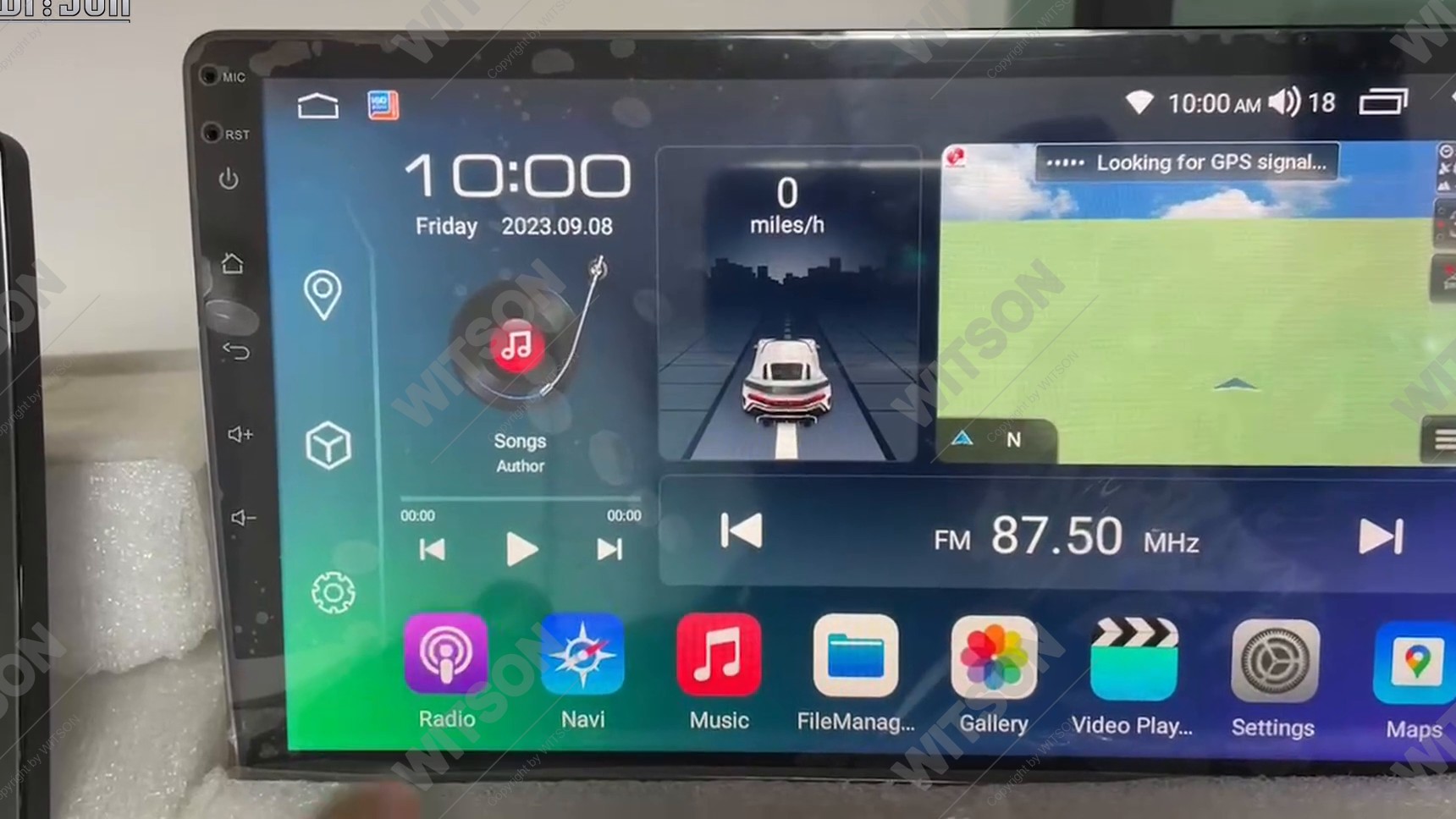
Tap the Radio icon at the left end of the dock. The FM page opens on the last station the unit was tuned to. On our bench that was 87.50, with the frequency scale running from 87.50 to 108.00 across the top and FM 3-3 printed to the left of the big green frequency.
The six boxes under the dial are the presets, P1 to P6. Each one shows two lines: a name on top and a frequency underneath. On our unit all six read WITSON 87.50, and that name is not something we typed in - it is the station's own RDS name, arriving over the broadcast. An empty or numeric-only preset row is the fastest sign that RDS data is not being received.
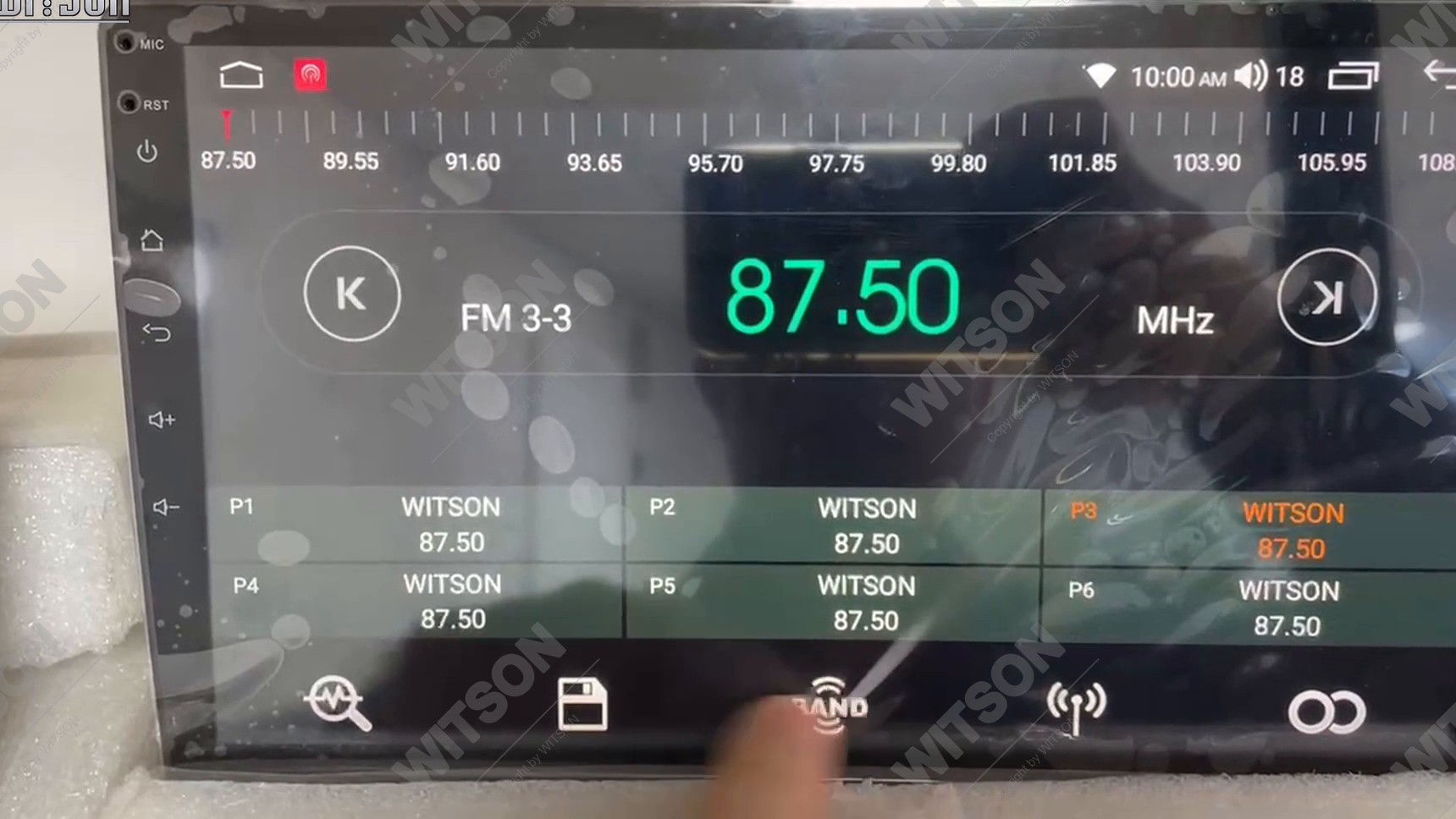
One warning before the next step. The number in the corner, FM 3-3 on our unit, is a band and page marker and it changes with the region you select later. It is not an error code, and it is not the reason a station is missing.
The bottom row of the FM page carries the RDS tools: PTY for programme type, TA for traffic announcements and AF for alternative frequencies. Next to them sit a pencil for editing a preset and a gear for the settings panel this guide is about.
These three buttons only work when RDS data is present. Press PTY with RDS off and the list comes up empty or does not come up at all; press TA and nothing is flagged. That behaviour is not a fault in the buttons, it is the same missing data channel described above, and it is a useful test: if PTY has no categories to offer, go straight to the gear and check the RDS row.
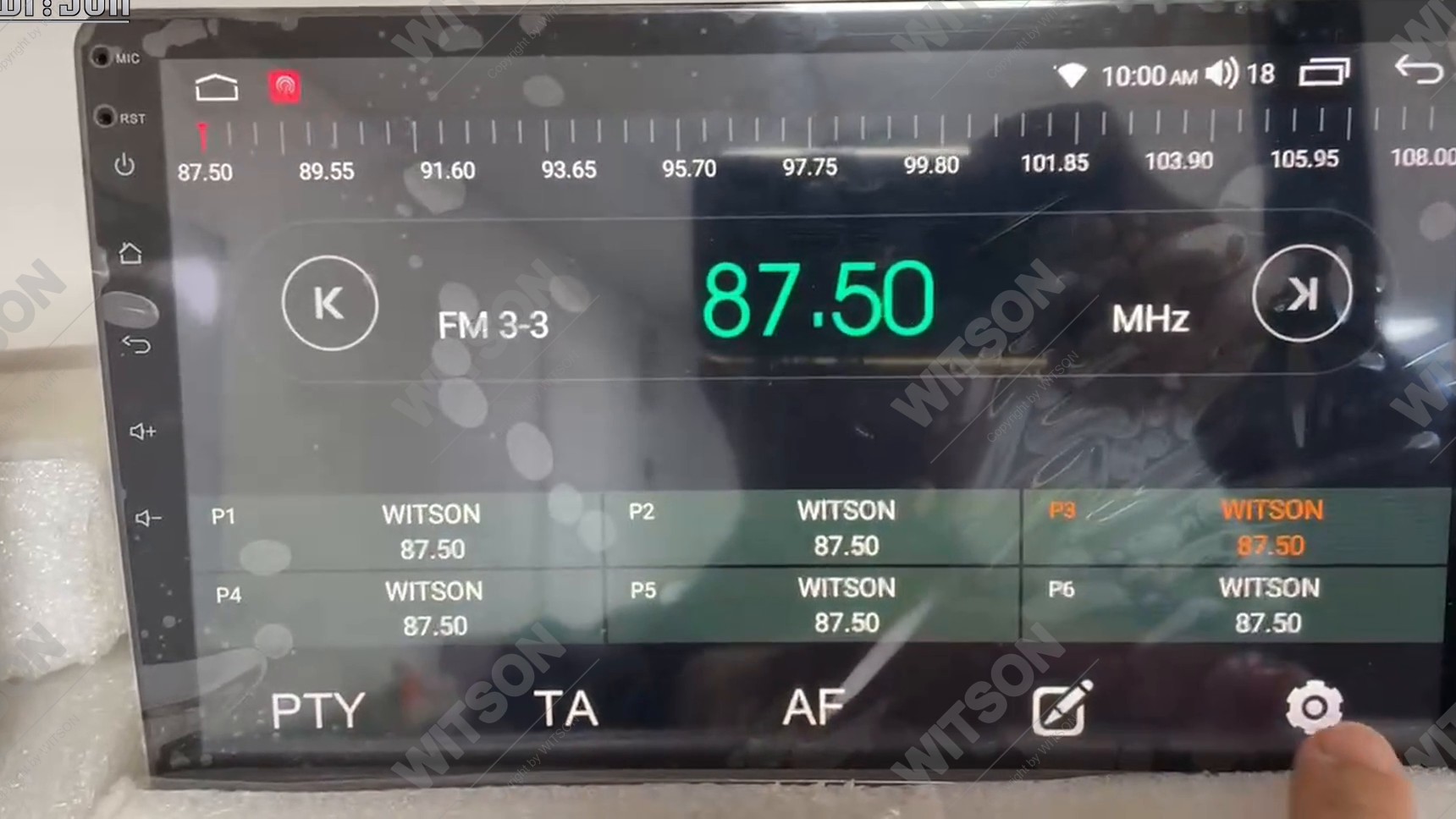
Tap the gear icon. The FM page is replaced by a full-screen panel headed Setting, with a blue Default button in the top right corner and five rows underneath. This panel is the whole subject of the rest of the article.
The first three rows are about how eagerly the tuner stops. AM Sens and FM Sens are seek thresholds with a pair of arrows either side of the value; on our bench unit they read 22 and 18. A low number makes the scan stop on weaker signals, a high number makes it skip past anything short of a strong local station.
Auto Sens is a switch, shown here with a slider and a red cross, which means off. With it off the two values above are used exactly as they are set. If a customer in a rural area says the scan flies past everything, this row is worth one experiment: turn Auto Sens on, or lower FM Sens a few steps, and scan again.
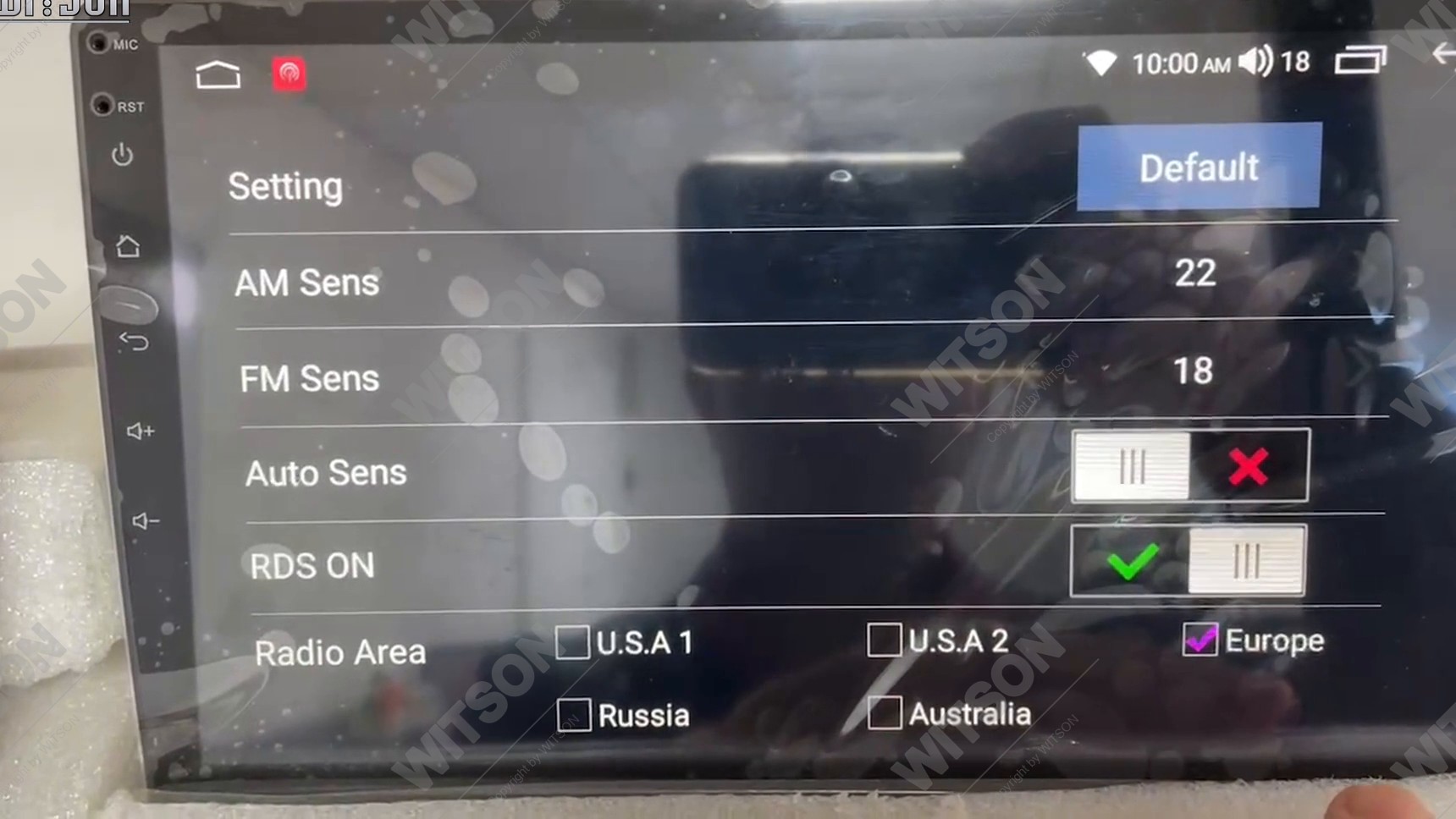
Do not reach for the Default button unless you want every row on this page back at the factory value, including the radio area. It is a full reset of the panel, not an undo for the last tap.
The row labelled RDS ON carries a switch with two states: a green tick for on and a red cross for off, with a small slider beside it. Tap the switch and the label changes to RDS OFF with a red cross. Tap it again and it returns to a green tick. Leave it on the green tick.
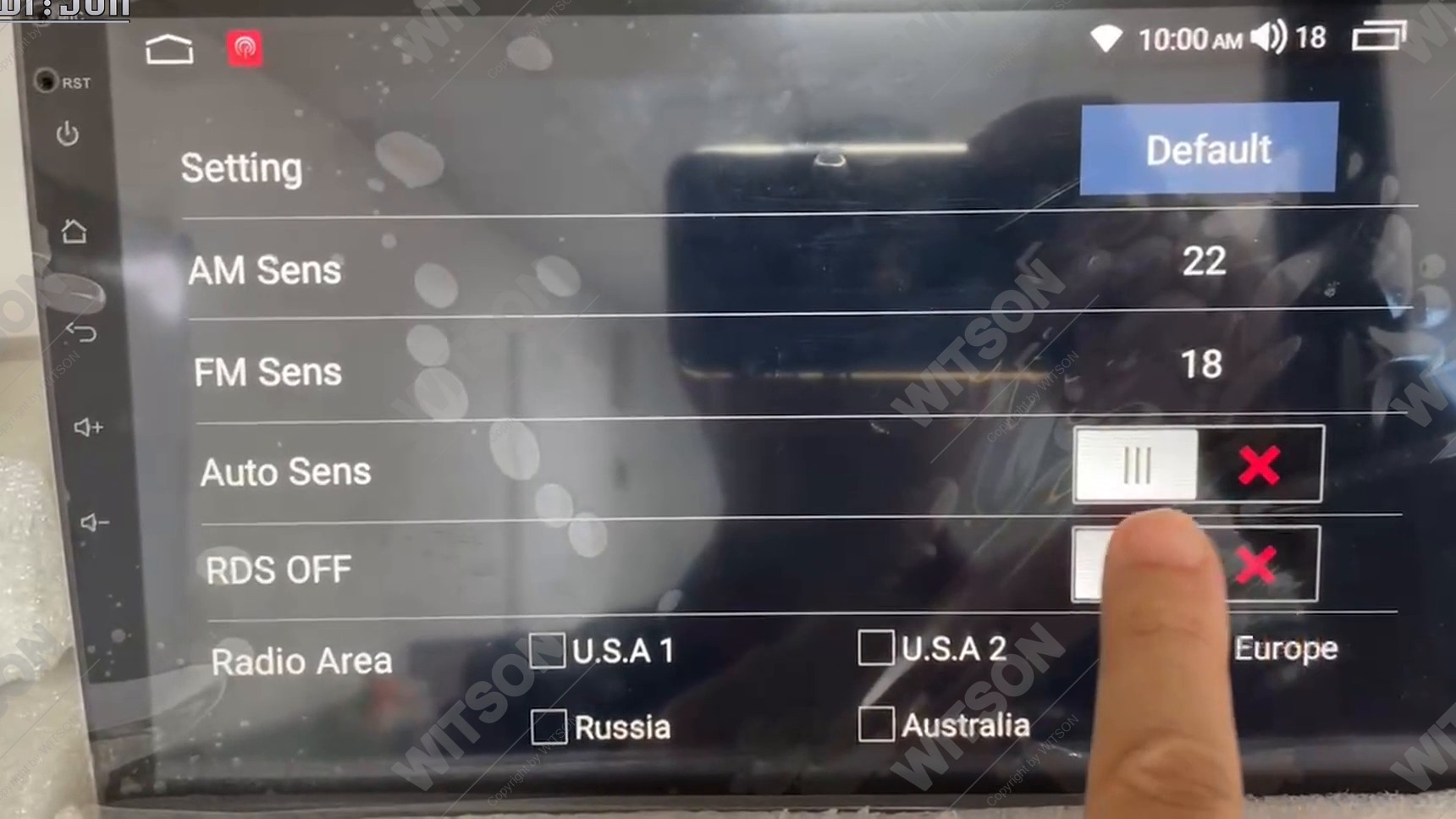
The last row holds five checkboxes: U.S.A 1, U.S.A 2, Europe, Russia and Australia. Tick the one that matches where the car is driven. The tick appears in the box immediately and only one box stays ticked, so tapping a second one moves the setting rather than adding to it.
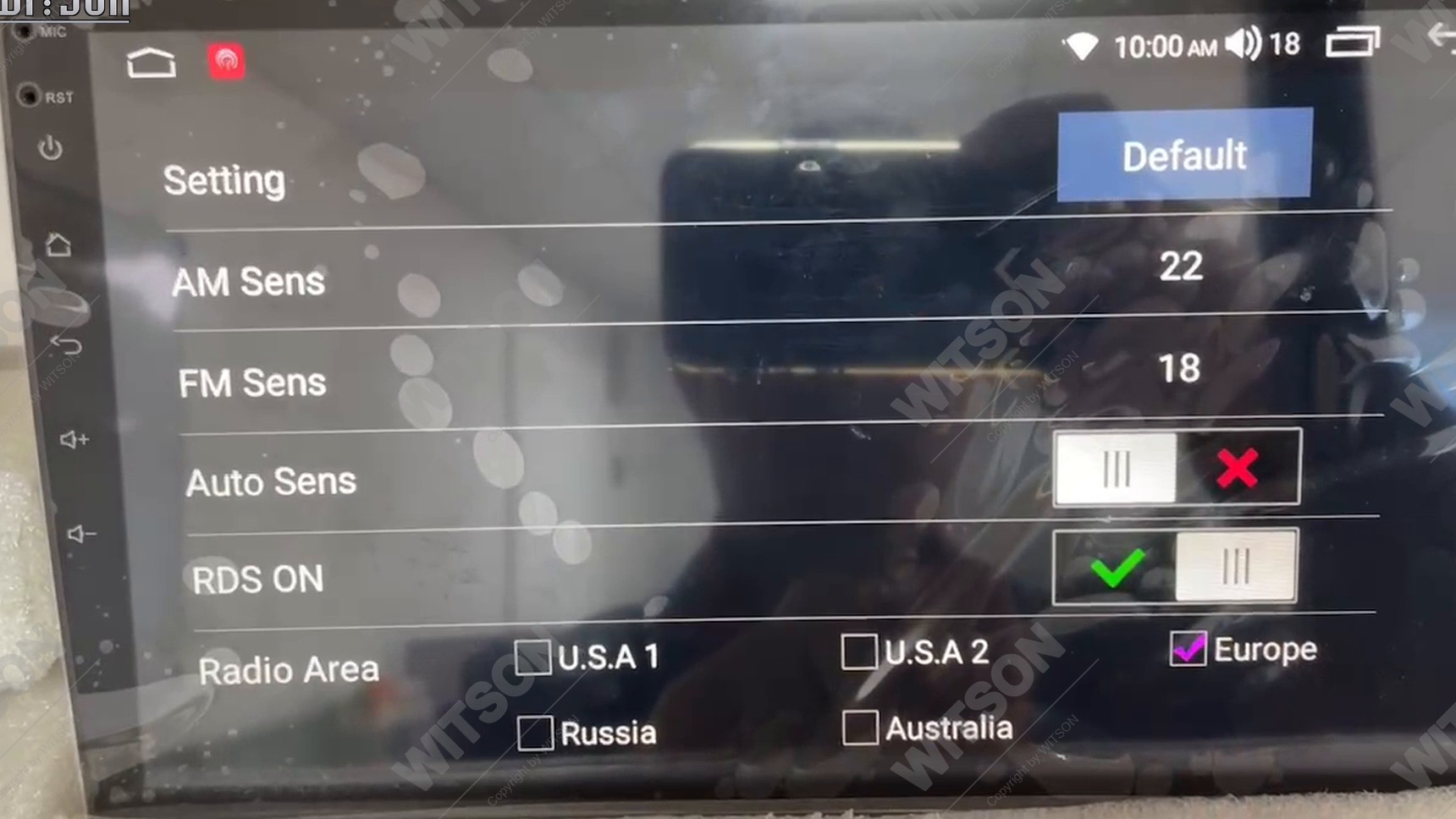
Press the back arrow at the top right of the panel, or the home icon on the left bezel, to return to the FM page. Then run a scan from the magnifier at the bottom left. With the correct area and RDS on, the presets start filling with station names instead of frequencies alone.
The finished state is the one in the previous screenshot: a green tick on RDS ON and a tick in the Europe box. Those two lines are the whole fix for stations that arrive without their names.
Two notes that save a second visit. First, the areas are coarse on purpose - U.S.A 1 and U.S.A 2 cover the two spacing plans used in North America, and everything from Ireland to Japan is served by Europe in this list. Second, the setting survives an ignition cycle but not a factory reset, so a unit that "lost its station names again" after a reset has simply gone back to its default area.
When the area is right and RDS is on and the scan still stops on nothing, the problem has moved from software to the aerial path, and it is worth checking in this order.
Start with the adaptor. Most cars built after the mid-2000s feed an amplified roof aerial, and the adaptor that converts the factory plug to the unit's socket has to power that amplifier. A passive adaptor, or an amplified one wired to the wrong lead, gives a tuner that is connected and deaf. Second, check that the adaptor is actually seated in the unit's ANT socket and not in the DAB or GPS socket next to it; the plugs are similar and the cables are usually the same colour.
Third, try a known-good station by hand rather than by scan. Tune a strong national frequency in your area directly and listen: if audio arrives clearly but no name appears, RDS is still off or the station does not broadcast it. If there is only hiss on a frequency that a phone radio receives clearly, the aerial path is the suspect, not the panel.
What we cannot see from a video is your firmware. If your Radio app has no gear icon, or the Setting panel has different rows from the ones here, send us the model, the firmware version from the System page and a photo of the panel on your unit. We will point at the row for that build instead of guessing.
| What you see | What it means | What to do |
|---|---|---|
| The scan crosses the band and stops on nothing | The unit is stepping on the wrong frequency grid | Open the gear and tick the Radio Area for your country, then scan again. |
| Stations play but no name appears | RDS is off, so no station text is being decoded | Switch the RDS row to the green tick. |
| PTY opens an empty list | No RDS data is arriving to classify | Check the RDS row first, then the aerial adaptor. |
| Only the strongest two or three stations appear | The seek threshold is set high for a weak area | Lower FM Sens a few steps, or switch Auto Sens on. |
| Hiss on a frequency a phone receives clearly | The aerial adaptor is passive or not powered | Fit an amplified adaptor and confirm it sits in the ANT socket. |
| Names worked, then disappeared after a reset | The factory reset cleared the radio area and RDS state | Repeat steps 4 and 5 once; the settings are stored again. |
One last check that costs nothing: compare with a second aerial. If a short patch lead into a known-good aerial brings the stations back, the unit was never the problem and the adaptor is the part to replace.
Often, yes. A unit leaves the factory on one area setting regardless of where it is sold, and the box it ships in does not change that. If the car is driven in Europe and the unit arrived set to a North American area, the scan steps past the local stations. Setting the area is a one-tap change on the panel shown above and does not need the factory code.
Because on the bench unit all six were stored on the same frequency, 87.50, and the name belongs to the station rather than to the preset. Store six different stations and each preset shows its own RDS name. If every preset shows a name but they are all identical, check the frequencies under the names - the presets, not the RDS decoder, are what need changing.
It means RDS is switched off, not that something has failed. The same switch shows a green tick when it is on, and the label above it changes between RDS ON and RDS OFF to match. Tap it once to turn it back on; there is no confirmation dialog and no reboot.
Leave it off if the fixed values work in your area, which is the state our bench unit ships in. Switch it on when the car moves between a strong city signal and a weak rural one and the scan behaves differently in each place. It changes how the unit applies the AM and FM sensitivity rows; it does not change the radio area or the RDS setting.
The RDS switch in this panel applies to the radio as a whole, but the station-name data itself is an FM feature in most markets. Expect names, PTY categories and traffic flags on FM, and expect AM to show frequencies only. If AM reception is the complaint, the same Radio Area row matters because the area sets the AM step as well as the FM step.
Reference
Correct area, RDS on, and the scan still finds nothing? Send us the model, the firmware version from the System page, and a photo of the aerial adaptor behind the unit.
Ask WITSON SupportMore in the WITSON how-to guides, including the no sound after installation guide and the clock and time zone guide.