DHV Series - How-To Guide
The phone pairs, the phonebook loads, and CarPlay still never opens.
Wireless CarPlay on a DHV unit does not start from a CarPlay menu. It starts in the Bluetooth app: link the iPhone, let the unit finish its verification, then allow CarPlay on the phone itself.
0:46 - one pairing, start to finish: the home screen, the scan, the four status messages, the iPhone prompt and the first CarPlay screen. Open the clip on YouTube if the embed is blocked.
Note: As our products are continuously upgraded, the interface on your unit may look slightly different. Please select the corresponding function according to your own model.
Quick answer
Turn Bluetooth on and leave the iPhone Bluetooth settings screen open. On the unit, open the Bluetooth app, tap the magnifier, tap your iPhone in the scan list, then tap the link icon. Watch the button change through Waiting, Saving, Connecting and Verification approved. The iPhone then asks to use CarPlay: tap Use CarPlay and CarPlay opens on the unit.
This is the complaint we get most often about CarPlay, and it is almost never a broken unit. The phone really is paired. That is the confusing part: the call list works, the contacts load, music plays over Bluetooth, and the CarPlay icon never appears.
The reason is that the unit treats these as two separate jobs. The first job is the Bluetooth link: it is what makes calls, loads the phonebook and streams audio. The second job is the CarPlay session, and it only starts after the unit has verified the phone and the phone has agreed to hand its display to the unit. A unit that has finished job one and not job two looks completely healthy and does nothing when you press the CarPlay button.
So the question to ask is not "why did it not connect" but "which of the two halves finished". The screens in this guide answer that, because the unit tells you where it is in words: Waiting for the device to connect, Saving, Connecting, Verification approved. Once you know which word you are stuck on, the fix is one step, not five.
One more thing worth saying early, because it saves a phone call: nothing in this guide is done from the factory menu, and no code is needed. If the pairing screens look different on your unit, that is a firmware difference rather than a wrong menu, and section 06 explains what to send us.
Start with the phone, not the unit. Bluetooth has to be on, and the iPhone has to be sitting on the Bluetooth settings screen with the phone unlocked and within about a metre of the unit.
The middle line on that screen is the one people miss. On our bench iPhone it reads "This iPhone is discoverable as ExfCM5Vs while Bluetooth Settings is open". That sentence is literal: the iPhone advertises itself to nearby accessories while that screen is open. Leave the screen and it stops advertising, which is why a scan started from the unit five minutes later finds nothing and why the whole procedure looks like it failed.
Under My Devices the same screen shows the phone's current Bluetooth connections, and under Other Devices it shows what the phone can see nearby. On our unit the head unit appeared in the phone's own list as well as the phone appearing in the unit's list, and pairing from either side works. This guide pairs from the unit, because that is the direction with the status messages you can read.
If the list on your phone is crowded, the names in it are not all phones. Laptop names, other cars, earbuds and the unit itself all sit in the same list, and the unit shows up under a short code rather than under the word WITSON. Do not go looking for a device called WITSON in either list; look for the code that appears on both screens.
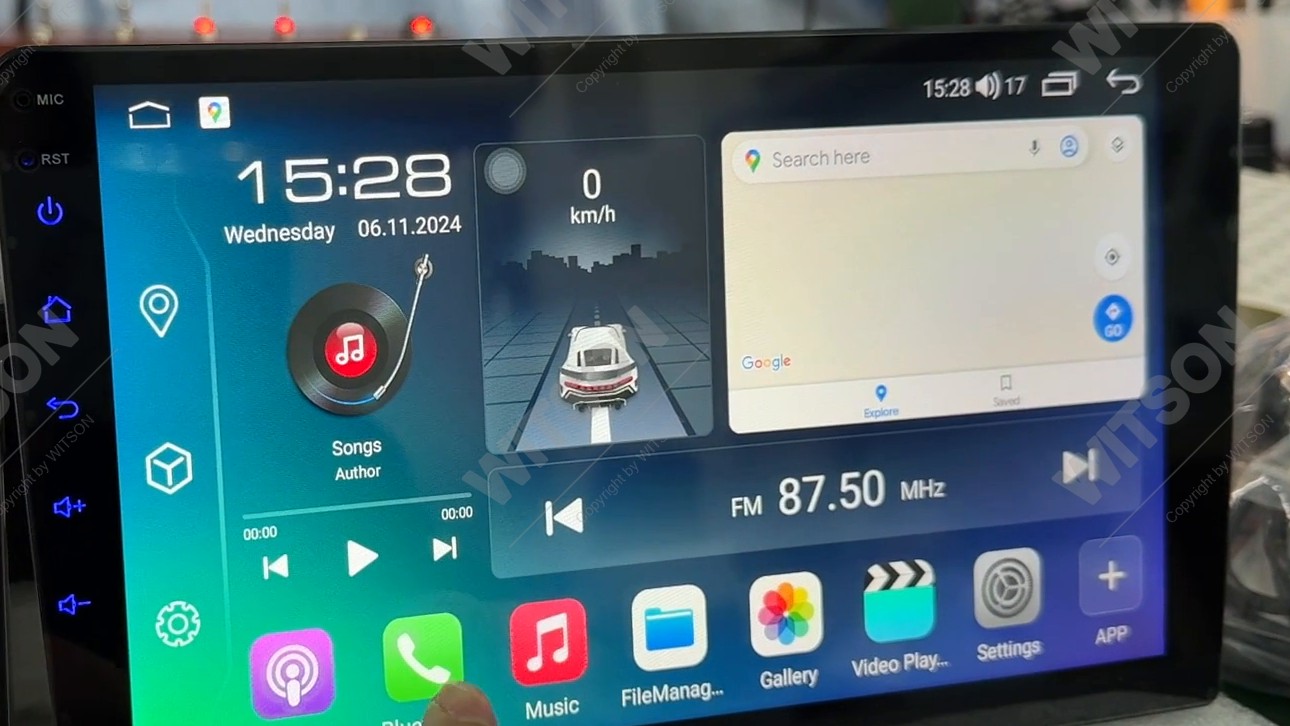
On the home screen, tap the handset icon at the left end of the app dock. The Bluetooth app opens and the Bluetooth tab at the bottom right of the screen is highlighted green, which tells you which of the app's tabs you are on. The rest of the app is the phone side: dialler, messages, music and the settings gear.
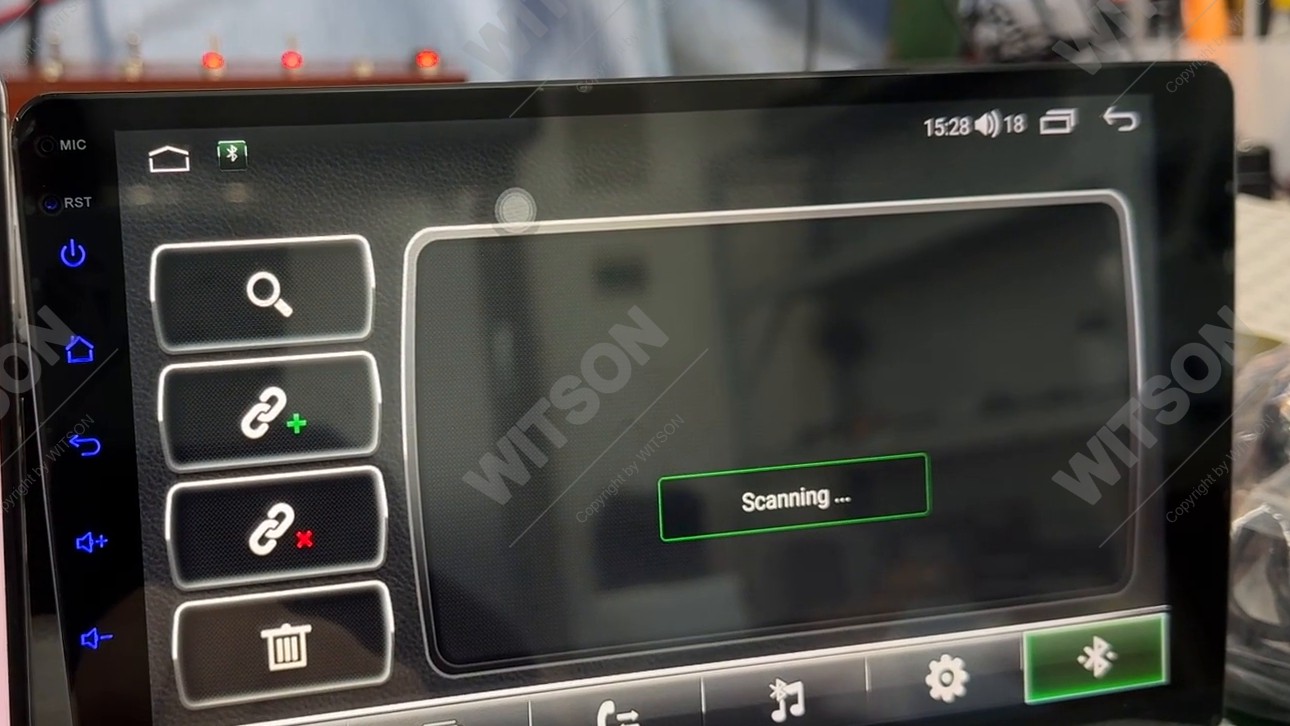
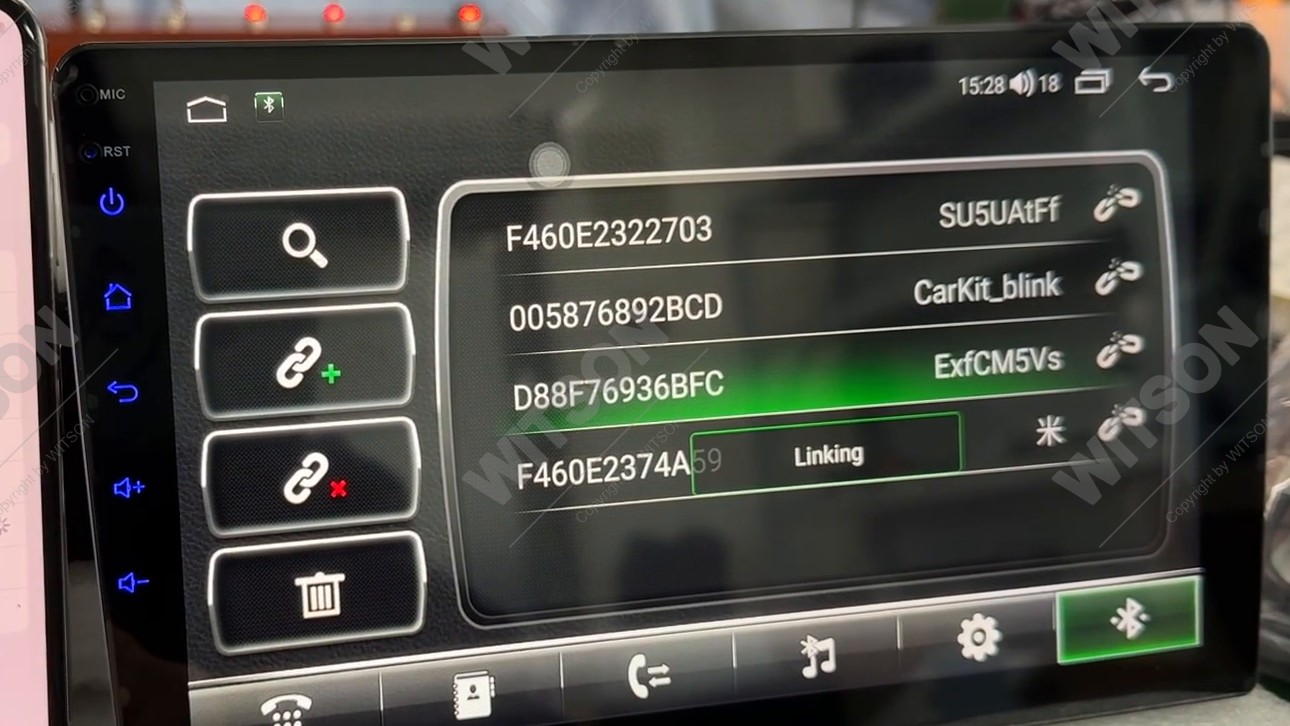
The left column of the app holds four buttons: a magnifier, a link icon with a plus, a link icon with a red cross, and a bin. Tap the magnifier. A green box appears in the middle of the list area with the word Scanning ... in it, and the app starts filling the list with every Bluetooth device it can hear.
Each row is one device, and each row carries three things: a hardware address on the left, a name on the right, and a small link icon at the far right. The address is the reliable part, because the name is whatever the device decided to call itself. On our bench the three rows were a phone, a CarKit device and the unit's own code, and only one of them was the iPhone in the video.
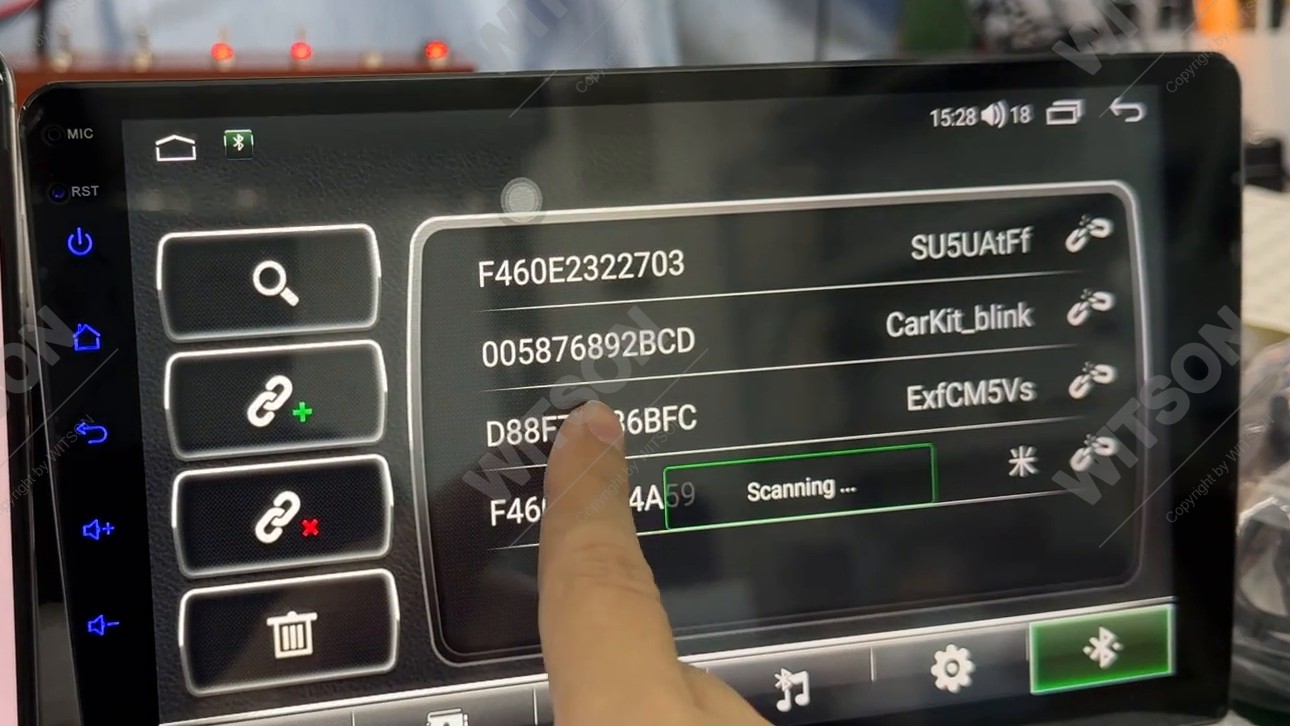
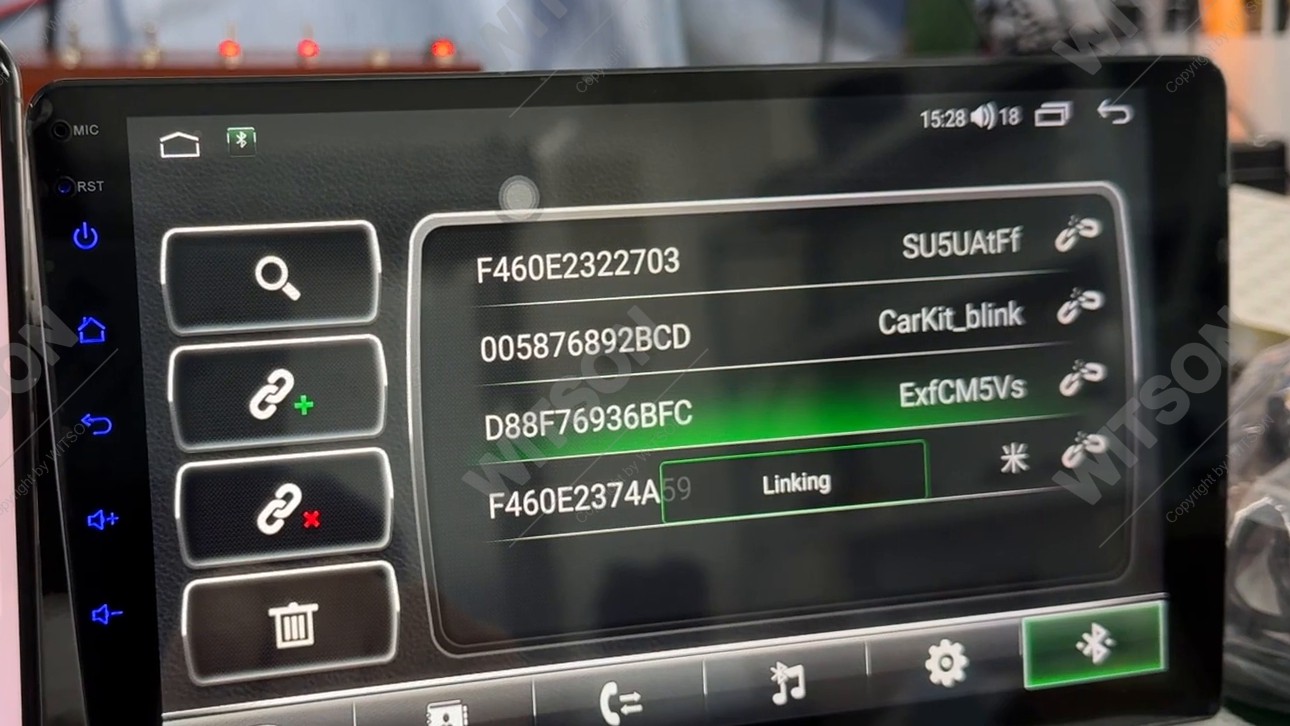
Tap the row of your iPhone once. The row turns green, and that is only a selection: the unit has not connected to anything yet. Now tap the link icon at the right end of that same row, and the row starts reporting what it is doing, beginning with Linking.
When the link is up, the header of the app changes from the app name to Connected followed by the device name, and the app switches itself to the phone pages. On our unit the header read Connected ExfCM5Vs and the screen behind it was the dialler keypad. That header is your proof that the first half of the job is finished; CarPlay is the second half and it happens on the next screen.
A second after the link comes up, the unit leaves the list and shows a single full-screen page: a phone-shaped icon on the left, a car-shaped icon on the right, an arrow between them, and one status button underneath. That button is the part of this procedure worth memorising, because it tells you exactly where a failure is.
Waiting for the device to connect is the first message. The unit has opened the CarPlay channel and is waiting for the phone to answer on it. If it stays here, the Bluetooth link is fine but the phone is not answering the CarPlay request: check that the phone is unlocked, close to the unit and that Bluetooth is still on.
Saving... comes next and lasts a moment. The unit is writing the pairing it has just negotiated. You do not need to press anything here, and pressing the screen does not speed it up.
Connecting is the handover. The phone has accepted the channel and the two devices are building the session that will carry the CarPlay display.
Verification approved is the last message on the unit, and it is the one people stop at. It does not mean CarPlay is running. It means the unit has approved the phone and is now waiting for the phone to approve the unit, which happens on the iPhone, not here.
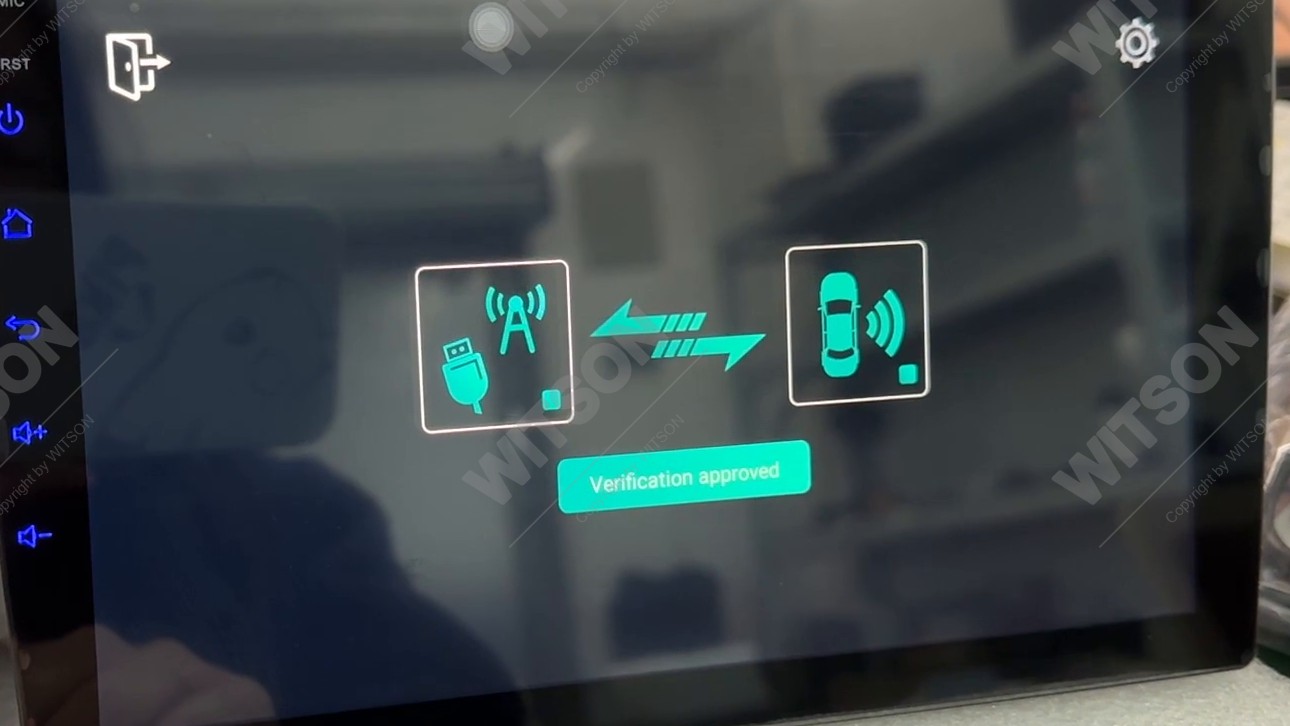
Two habits make this reliable. First, do not leave this page while the button still says Waiting or Saving; the handshake is short but it does need the screen. Second, do not start a second scan from the Bluetooth app while this page is up, because the app takes the screen back and the handshake has to begin again.
With Verification approved on the unit, the iPhone raises its own dialog. It reads Use CarPlay with "carlink30ff-e9b6e4"? and underneath: CarPlay automatically connects your iPhone to your car's built-in display, and can access your phone while it is locked. The two buttons are Not Now and Use CarPlay.
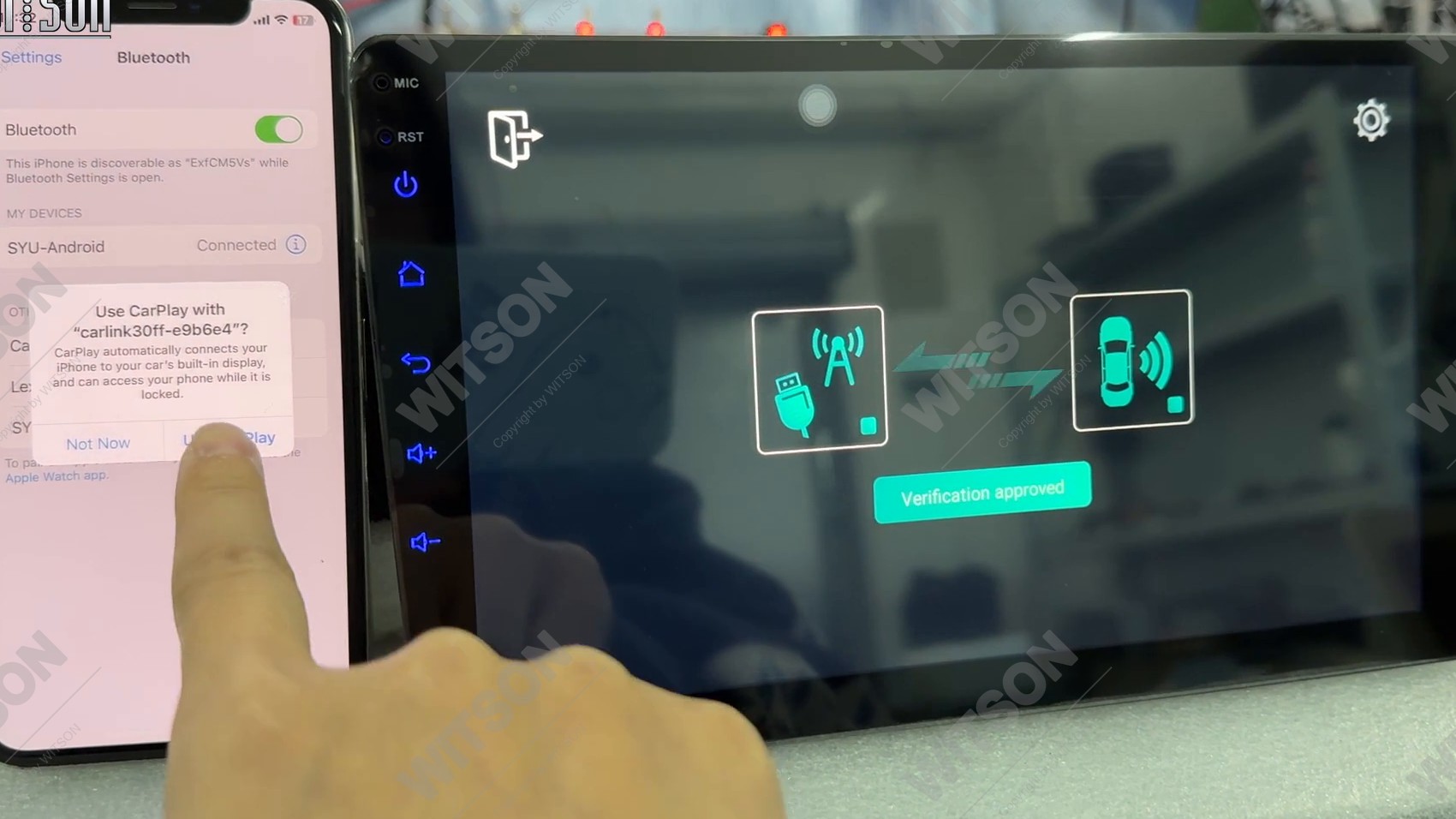
Tap Use CarPlay. The prompt closes and the unit switches to the CarPlay screen within a few seconds. If you tap Not Now, or the prompt times out, nothing is broken: go back to the Bluetooth app, select the phone and tap the link icon again, and the prompt returns.
This is the step that turns a paired phone into a CarPlay phone, and it happens once per phone. After that the unit and the iPhone find each other on their own when both are in range. If a customer says CarPlay worked for a week and then stopped, the pairing is usually still there and the phone has simply stopped answering; the fix is to repeat step 6, not to reinstall anything.
If the dialog never appears at all, the phone has not been asked. That is a sign the unit never reached Verification approved, so go back to section 04 rather than tapping around on the phone.
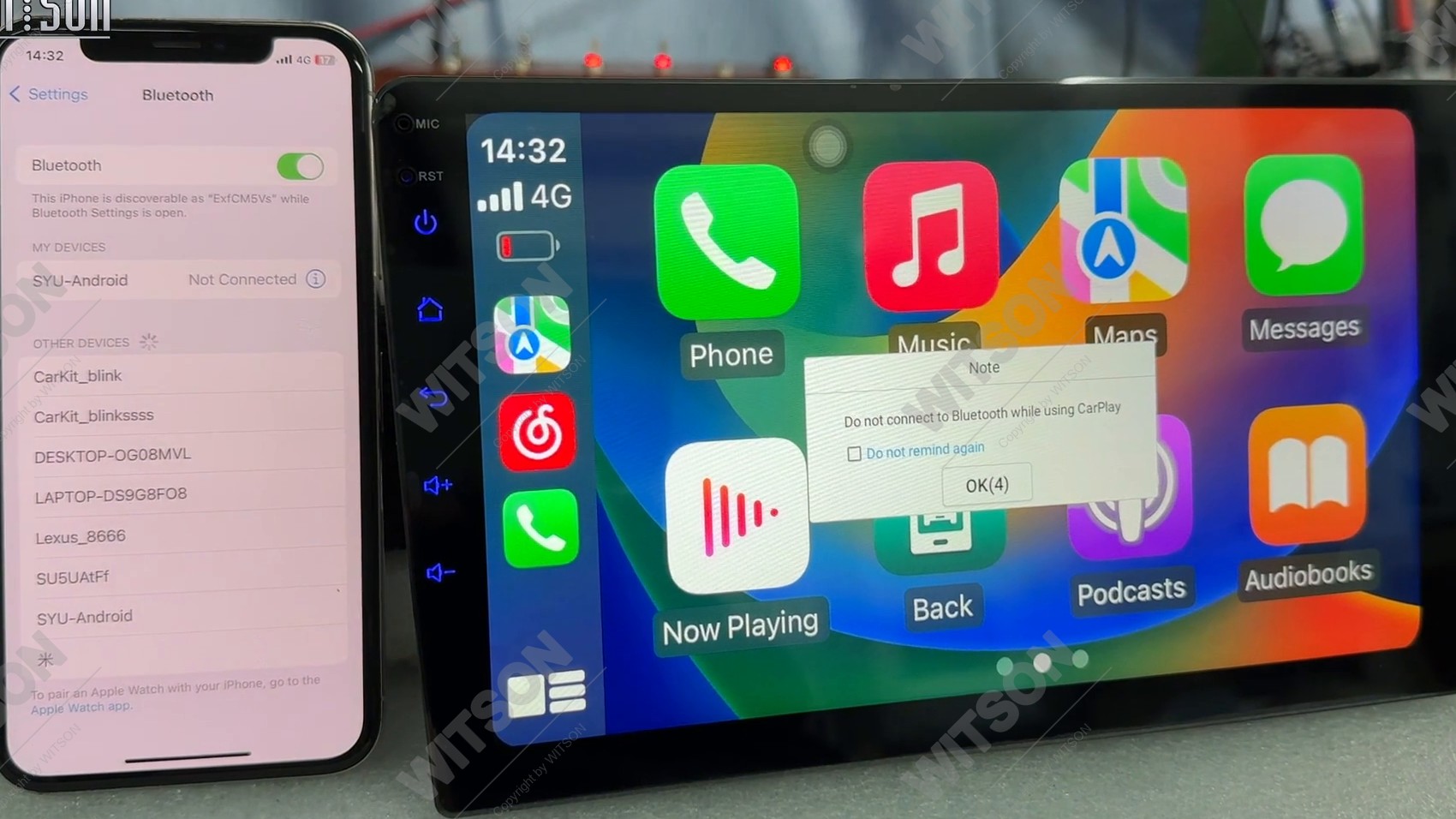
Once CarPlay is running, the unit shows one dialog of its own, and it is worth reading rather than dismissing: Do not connect to Bluetooth while using CarPlay, with a Do not remind again checkbox and an OK button. The wording is clumsy but the meaning is simple. CarPlay is running over a different link, and if you go back into the Bluetooth app and start connecting things while it runs, you drop the session.
Tap OK and leave the Bluetooth app alone while CarPlay is on screen. If you need to pair a second phone, do it with CarPlay closed. Customers who report "CarPlay keeps dropping every few minutes" are almost always opening the Bluetooth app mid-drive, or pairing a second device from it.
Beyond that, the causes sort themselves by which screen you were stuck on, and the table below is the short version of this whole article.
| What you see | What it means | What to do |
|---|---|---|
| The scan finds no phone at all | The iPhone is not advertising | Open Settings, then Bluetooth, on the iPhone and leave that screen open while you scan. |
| The phone is in the list but Linking never finishes | The phone refused or lost the link | Forget the unit on the phone, then scan and link again. |
| Verification approved, then nothing | The iPhone was never asked, or the prompt was missed | Unlock the phone, watch for the Use CarPlay dialog, and tap Use CarPlay. |
| Stuck on Waiting for the device to connect | The unit cannot reach the phone on the CarPlay channel | Bring the phone closer, unlock it, confirm Bluetooth is still on, then repeat the link. |
| CarPlay opens, then drops every few minutes | The Bluetooth app is being used while CarPlay runs | Close the Bluetooth app, tap OK on the note, and do not pair a second phone mid-drive. |
| Worked for weeks, now nothing | The phone stopped answering; the pairing is still stored | Repeat steps 4 to 6 once. If it still fails, forget the device on both sides and pair again. |
Two checks before you conclude the unit is at fault. First, try a second iPhone: if that one works, the problem is on the first phone, and removing the old pairing on the phone side is usually enough. Second, check the iPhone's own settings for CarPlay, where the car appears as a saved vehicle and can be deleted; a deleted car has to go through section 05 again. The Apple support pages in the reference list below cover that screen.
What we cannot see from a video is your firmware. If your unit's Bluetooth app has no magnifier, or the pairing screen never shows a status button, send us the model, the firmware version from the System page, and a photo of the screen your unit stops on. We will point at the row for that build instead of guessing. The same applies if CarPlay is greyed out on the home screen: that combination means the feature is not enabled on that board, and a photo settles it faster than any experiment.
Not for the unit in this guide. The whole pairing here is wireless: Bluetooth first, then the CarPlay session, with no cable attached at any point. Wired CarPlay exists on other builds and needs a data cable into the unit's USB port, but plugging a cable in will not fix a wireless pairing that stopped at Verification approved.
Because the two names belong to two different services on the same unit. The Bluetooth list shows the Bluetooth name, which is what you selected; the CarPlay prompt shows the name the unit advertises for CarPlay itself. Both refer to the unit you are sitting in, and the code in the prompt matches nothing on the phone because it is generated by the unit rather than by the phone.
One phone holds the CarPlay session at a time. The Bluetooth app will list several remembered devices and can keep more than one paired for calls, but only one of them is driving the CarPlay screen. Switching phones means closing CarPlay, linking the other phone in the Bluetooth app, and answering its prompt.
No. The pairing and the CarPlay permission are both stored, so the phone reconnects on its own when it comes into range with Bluetooth on. You only repeat these steps after removing the pairing, after a factory reset, or when the phone stops answering and the unit sits on Waiting for the device to connect.
No. This guide is CarPlay only. An Android phone uses the mirroring app that ships with the unit, which has its own pairing flow and its own permission prompt, and the screens look different from the ones here. Use this article for an iPhone and the unit's own app guide for an Android phone.
Reference
Paired, verified, and the iPhone still never asks about CarPlay? Send us the model, the firmware version from the System page, and a photo of the last screen the unit shows.
Ask WITSON SupportMore in the WITSON how-to guides, including the no sound after installation guide and the clock and time zone guide.